Press Play on a title’s page, or Play or Resume in a card’s ⋯ menu. The player fills the window and starts where you last stopped.
As you watch, the player keeps the server up to date with how far you have got. Continue Watching and your other devices pick up from the same place.
How the title gets to your browser
When your browser can play a file as it is, photon-server sends it unchanged. When it can’t, the server converts it as it plays (this is called transcoding), using a graphics card if the server has one. Playback info in the player’s settings shows which happened, and why. To learn more, see transcoding.
If a title cannot play, the player says Can’t play this here and the reason, with Try again and Back.
The controls
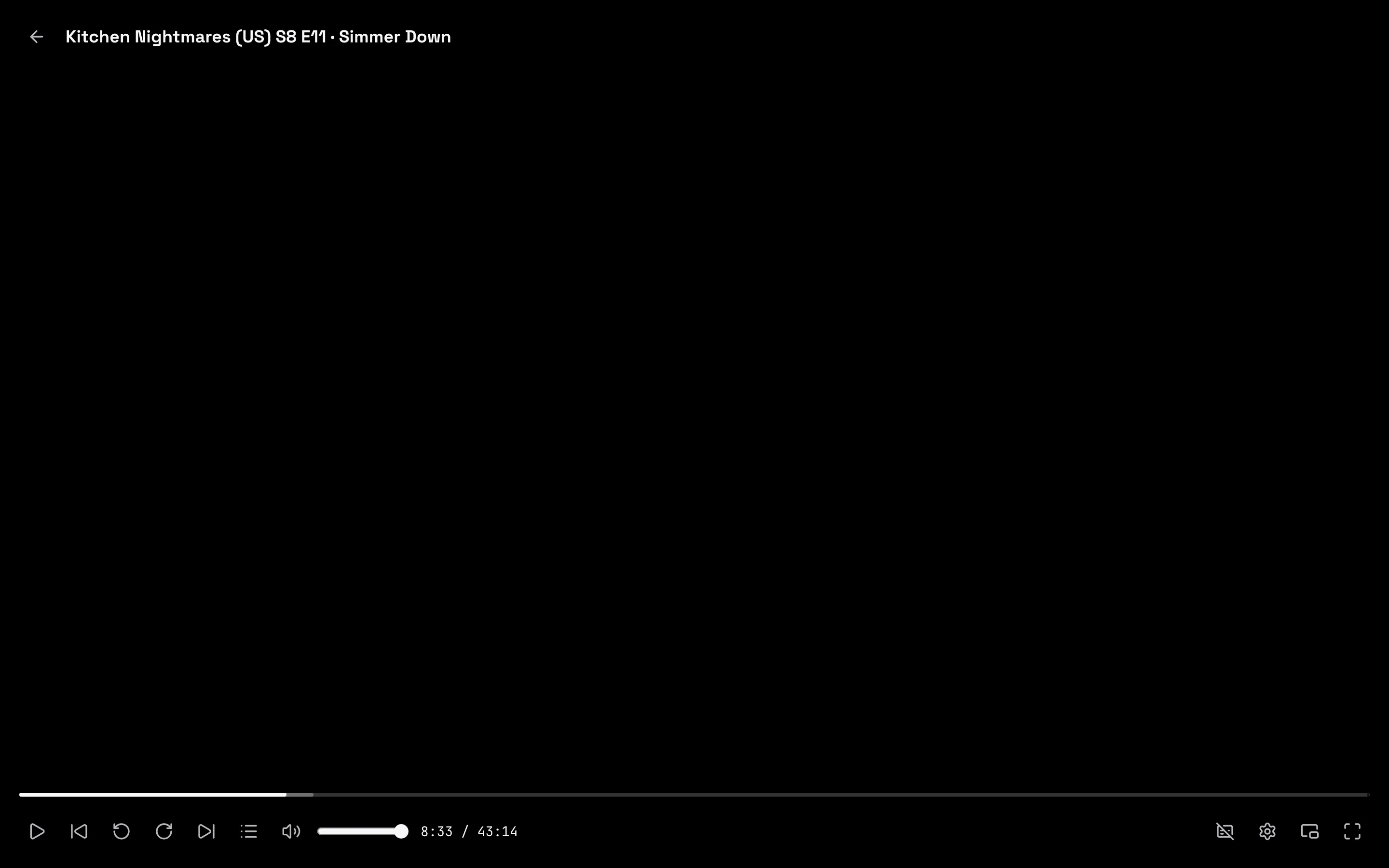
Move the pointer or press a key to show the controls. They hide after three seconds while playing, and stay while paused or while a menu is open.
| Control | What it does |
|---|---|
| Back arrow | Goes back to the title’s page. |
| Play, Pause | Starts or pauses. Clicking the picture does the same. Double-click it for full screen. |
| Previous | Plays the title before, in a playlist or a show. |
| Back 10 seconds, Forward 10 seconds | Jumps back or forward. |
| Next | Plays the next title, in a playlist or a show. |
| Episodes | Lists the show’s episodes. See choosing an episode. |
| Mute and Volume | Your browser remembers the volume. |
| Subtitles | Turns subtitles on or off. Shown if the title has any. |
| Settings | Opens the settings menu. |
| Cast | Shown if a Chromecast is found. See cast to a Chromecast. |
| Play on another screen | AirPlay in Safari, or casting in Chrome on Android. |
| Picture in picture | Plays in a small window over your other windows, if your browser can. |
| Full screen | Fills the screen. |
On a phone, Previous, Next and the volume slider are left out to save room.
The bar along the bottom shows how far you are. Point at it to see a small picture of that moment. Chapters show as small marks on the bar.
Your keyboard’s media keys, and controls such as headphone buttons or a lock screen, also work.
Keys
| Key | What it does |
|---|---|
| Space or K | Play or pause |
| Left, Right | Back or forward 5 seconds |
| J, L | Back or forward 10 seconds |
| Up, Down | Volume up or down |
| M | Mute |
| F | Full screen |
| C | Subtitles on or off |
| Shift+N, Shift+P | Next or previous title |
| 0 to 9 | Jump through the title: 0 is the start, 5 is halfway |
The settings menu
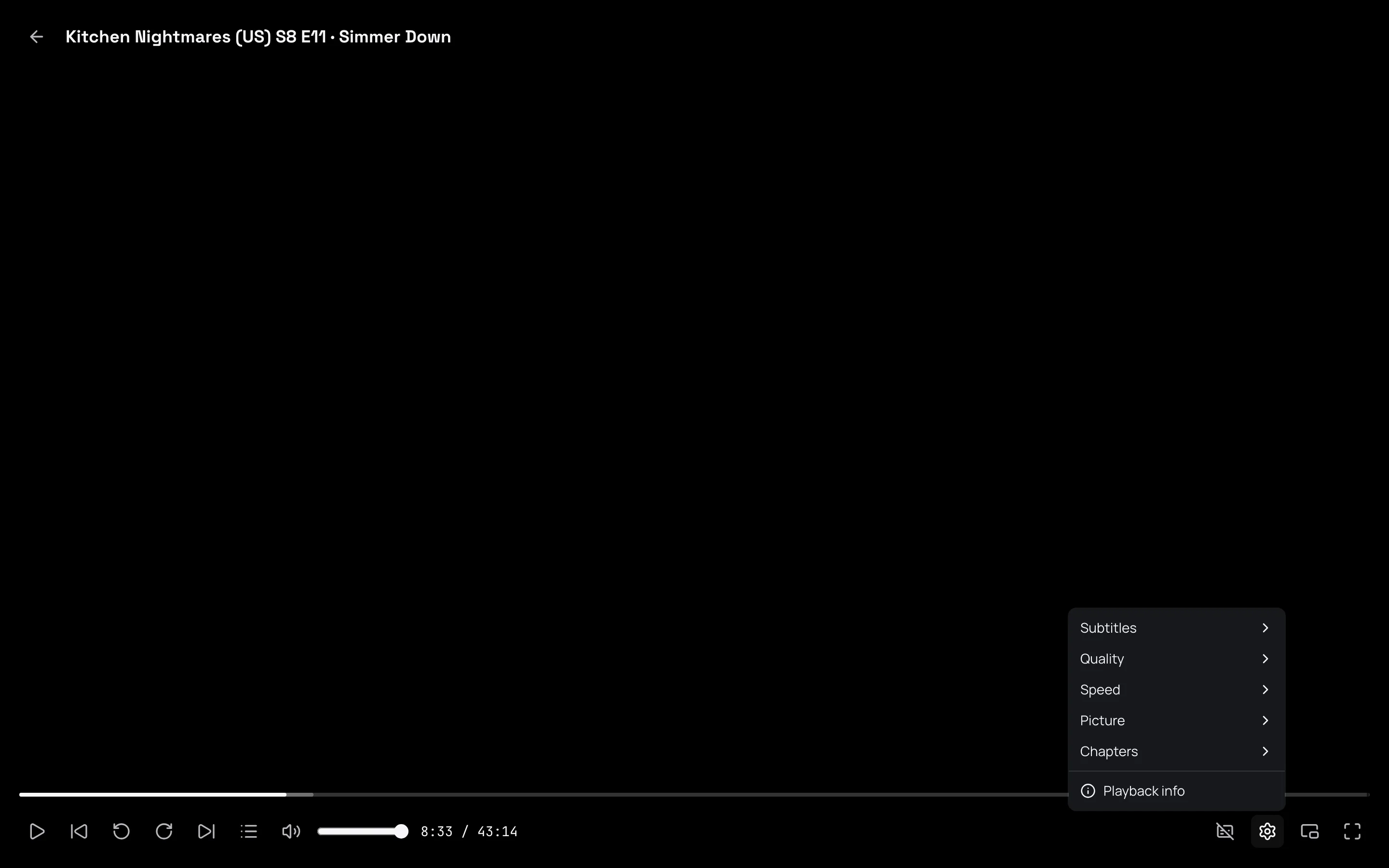
Choose Settings in the player to open this menu.
| Item | What it does |
|---|---|
| Audio | Picks a soundtrack, such as another language or a commentary. Shown if there is more than one. |
| Subtitles | Off, or one of the title’s subtitles. |
| Subtitle timing | Moves subtitles earlier or later, if they are out of step with the picture. On time puts them back. This is forgotten when you leave. |
| Quality | Original, or a limit from 40 Mbps down to 420 kbps. Lower it on a slow connection. Your choice is kept for all your devices. |
| Speed | From 0.5× to 2×. Normal is the usual speed. |
| Picture | Fit (the default), Crop to fill or Stretch, for a screen of a different shape. |
| Chapters | Jumps to a chapter, if the title has them. |
| Playback info | How the title is reaching you, and details about the file. |
Choosing an episode
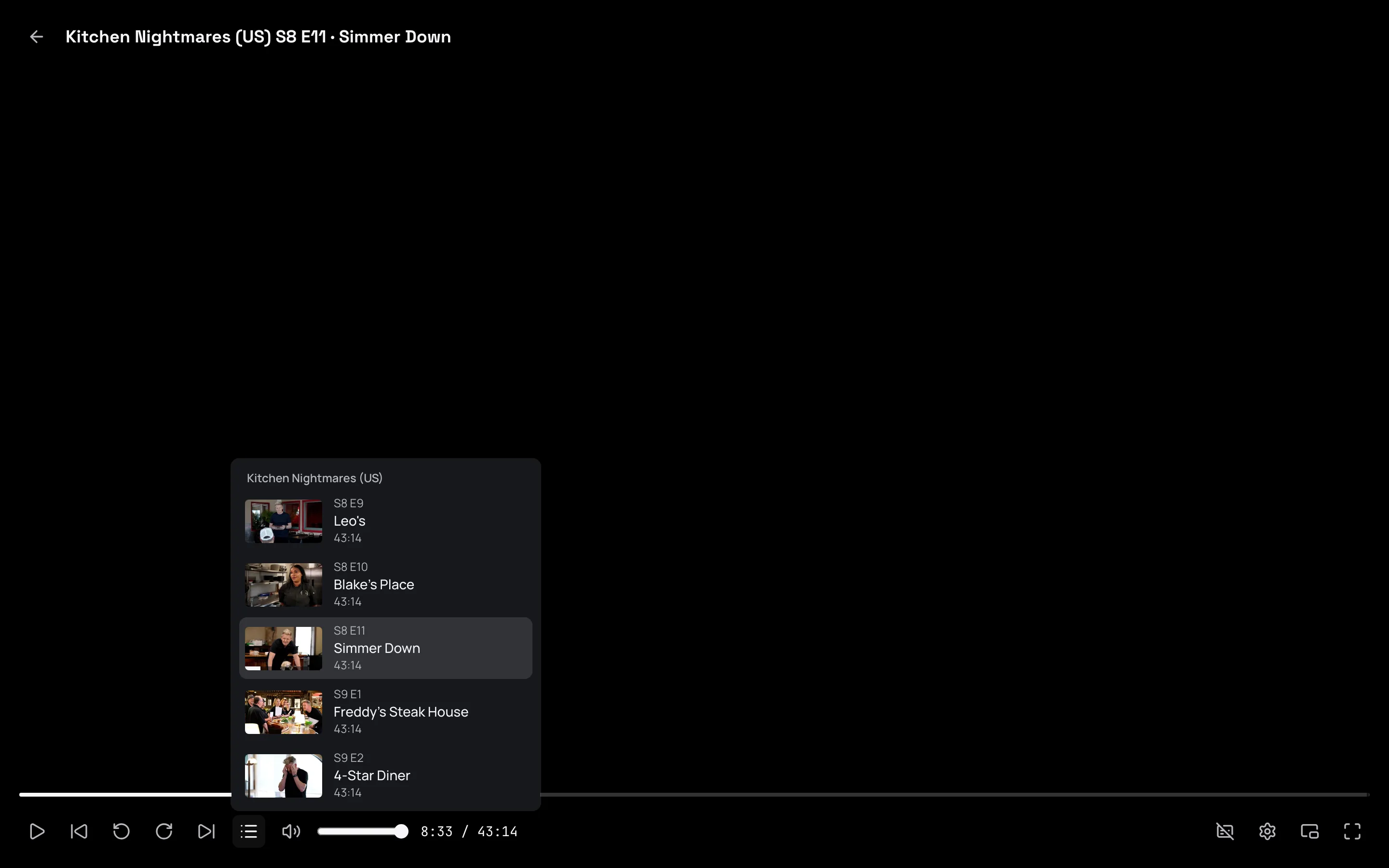
When you are watching an episode, Episodes lists the show’s episodes in order. Each one shows how far you got, with a tick on those you have watched. Choose one to play it.
Subtitles
All kinds of subtitles work in the browser, including styled ones and the picture subtitles from Blu-rays and DVDs.
You can change how plain subtitles look in this browser: their size, colour and background. Go to Settings › Playback › Subtitles on this device. See subtitles on this device. Styled and picture subtitles keep their own look.
Find subtitles
If a title has no subtitles in your language, an admin may have set up a way to find them.
- On a film’s or episode’s page or card, choose ⋯, then Find subtitles….
- Pick another Language if you need to. A result marked with a star was made for this exact file.
- Choose Add. The subtitle is kept for everyone in the household.
Setting this up is covered in subtitles.
Skipping intros and credits
If the server knows where they are, the player shows Skip Intro, Skip Recap, Skip Credits or Skip Preview over the picture. In your playback settings you can choose to see the button, skip automatically, or never be offered.
Skipping credits at the very end of an episode goes straight to the next one.
Up next
Near the end of an episode, Up next shows the next one, or the next title in a playlist. Play now plays it. Hide puts it away.
If Play the next episode is on in your playback settings, it plays by itself after counting down ten seconds. If it is off, it waits for you.
Are you still watching?
If Inactivity Check is on in your playback settings, the player checks that somebody is still there. After three episodes in a row with nothing pressed, counting the one you started, it pauses a couple of minutes into the third and asks Are you still watching? Continue Watching plays on; Back to Browse, or Esc, leaves the player.
Pressing anything in the player, a key, a click or your keyboard’s media keys, starts the count again, as does choosing an episode yourself.
Cast to a Chromecast
In Chrome, and browsers based on it, Cast appears when a Chromecast is on your network.
- Choose Cast and pick the device.
- The title carries on there from where it was. Your screen says Playing on the device’s name, and the player’s controls control it.
- End the cast and the title comes back to your browser where it got to.
Important: Casting only works if you opened the web app at an
httpsaddress the Chromecast can reach. It does not work atlocalhost. See remote access.
While casting, the volume is your TV’s, and Speed, Picture, Subtitle timing and picture in picture are not available.
Download a copy
You can save a film or episode to watch offline.
- On its page or card, choose ⋯, then Download….
- Choose a quality. Original is the file as it is. The others (1080p, 20 Mbps down to 480p, 1.5 Mbps) are smaller files the server makes for you.
- Open Downloads in the sidebar. Each download shows Waiting, Converting with its progress, Ready, or Failed with the reason.
- When it is Ready, choose Save to save the file.
If the title has more than one version, pick it with Version on the page first. The cross removes a download.
Note: A download is kept on the server for a week after it is ready, then removed. Save it before then.
More about how downloads are made is in downloads.