This page covers what you see before you press Play: Home, a library, a title’s page and a person’s page.
Home
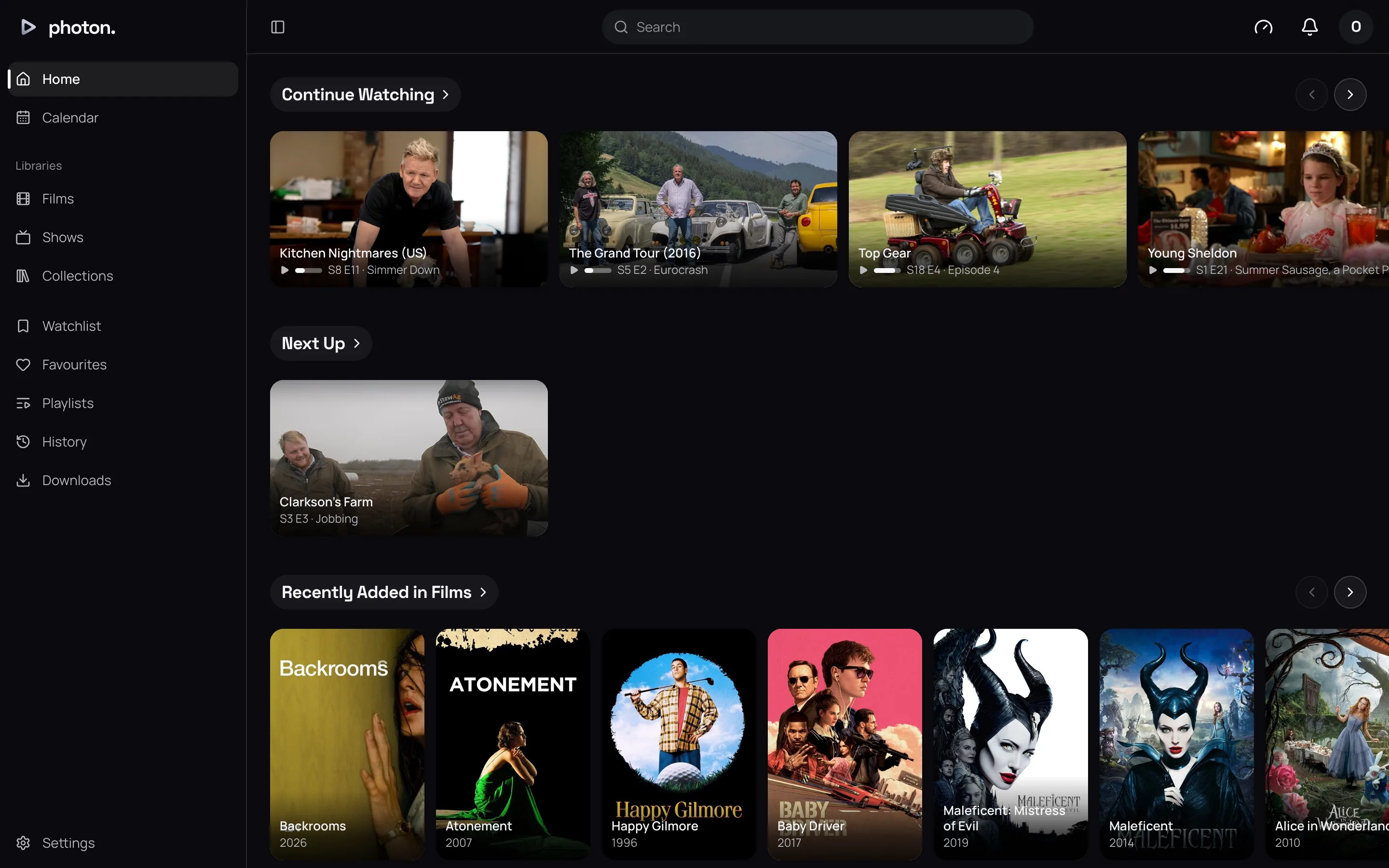
Home is a set of rows. Choose a row’s name to see everything in it. The arrows at the end of a row scroll it a screen at a time. With the keyboard, Left and Right move from card to card.
| Row | What it shows |
|---|---|
| Continue Watching | Films and episodes you stopped part way through, most recent first. |
| Next Up | The next episode of each show you are watching. |
| Watchlist | Titles you have saved to watch, newest first. |
| Favourites | Titles you have marked as favourites, newest first. |
| Recently Added | One row for each film or show library, newest first. |
| Recently Released | Films and shows out in the last year, in each library. |
| Top Rated | Films and shows you have not started, best rated first, in each library. |
You can hide rows and change their order in Home rows. A row with nothing in it is not shown. A new server says Nothing to watch yet until a library has been scanned.
A card and its menu
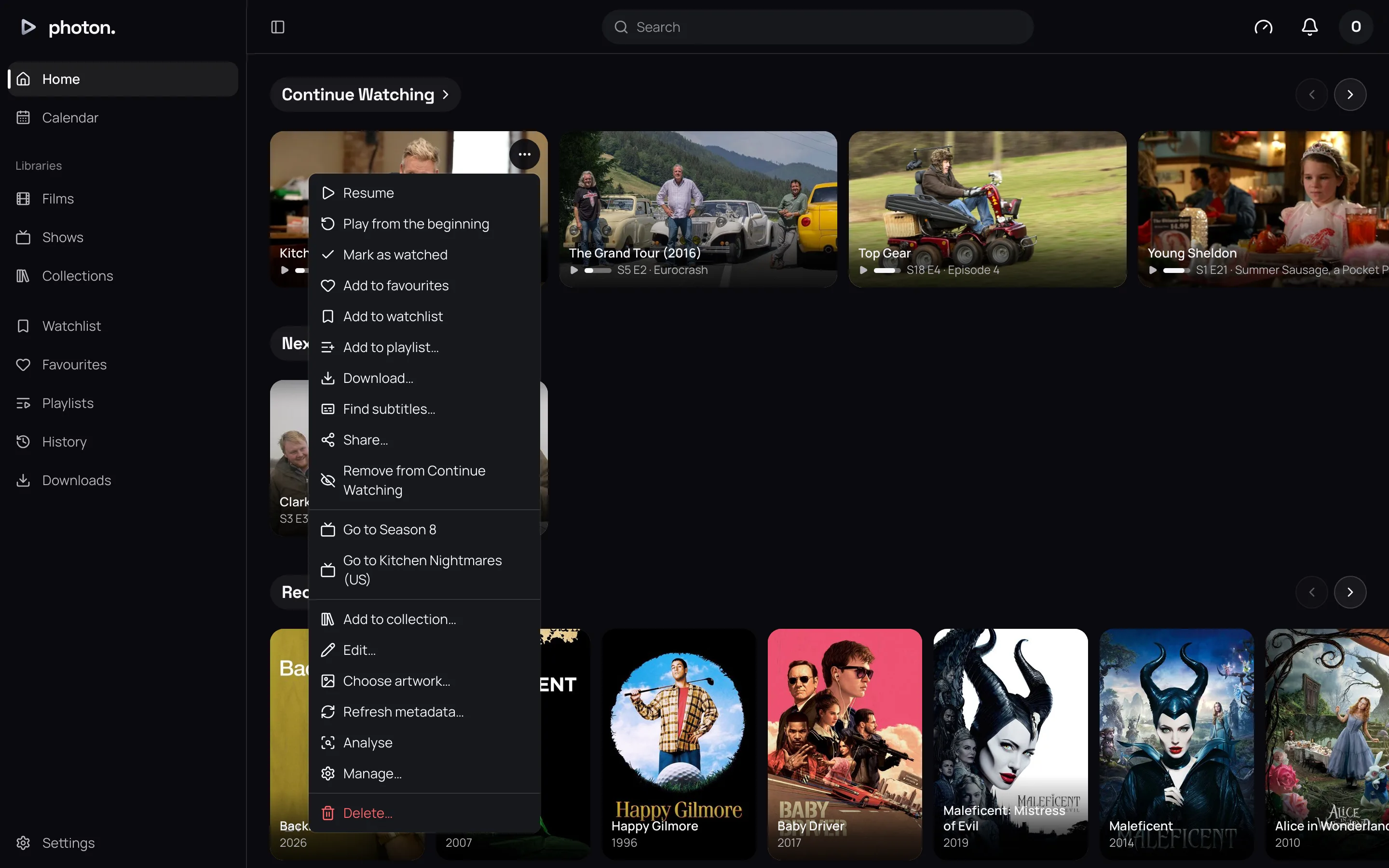
Every title is a card: a poster, or a still picture for an episode. A card shows:
- a tick once you have watched it
- how many episodes are left on a show you have started
- a heart if it is a favourite
- a bar showing how far you got
The ⋯ button on a card shows what you can do without opening the title. It appears when you point at the card, and is always there on a touch screen.
- Play or Resume, Play from the beginning, and Play version… if there is more than one version of the file.
- Mark as watched or Mark as unwatched.
- Add to favourites, Add to watchlist and Add to playlist….
- Download… and Find subtitles….
- Share…, which copies a link to the title. Whoever opens it logs in first.
- Remove from Continue Watching, which forgets where you stopped but keeps whether you watched it.
- Go to an episode’s season or show.
An admin sees more items for fixing a title’s details. See fixing a match.
A library
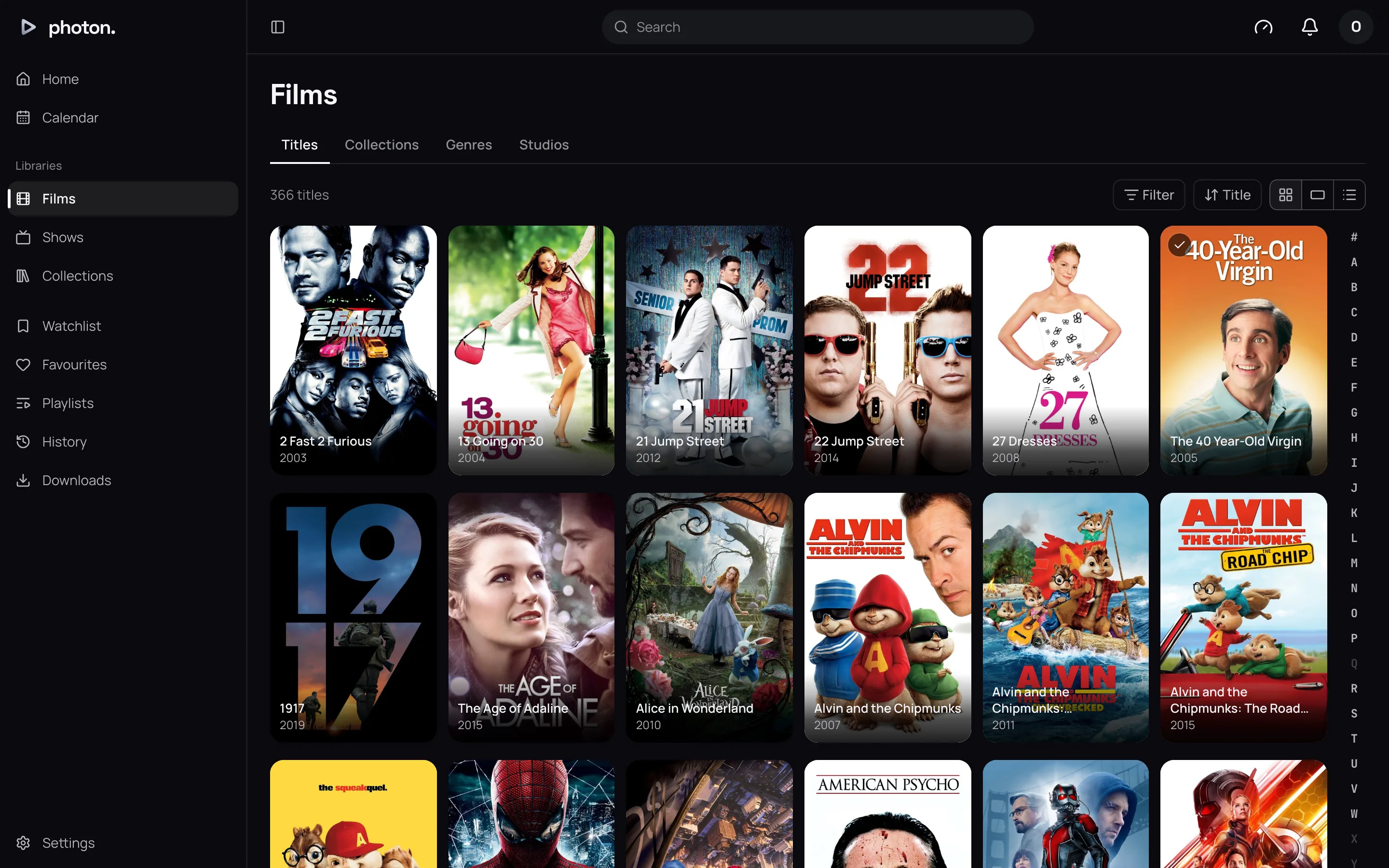
A library opens on its Titles. Tabs beside it show its Collections, Genres and Studios (or Networks for shows), if it has any.
The bar above the titles holds:
- Show, on a library with shows: choose Shows or Episodes (and Films or All in a mixed library).
- How many titles there are.
- Filter and the sort menu.
- Show as: Posters, Stills or List. Your browser remembers this for each library.
When sorted by title, a strip of letters beside the titles jumps to that letter. # is anything before A.
Filter
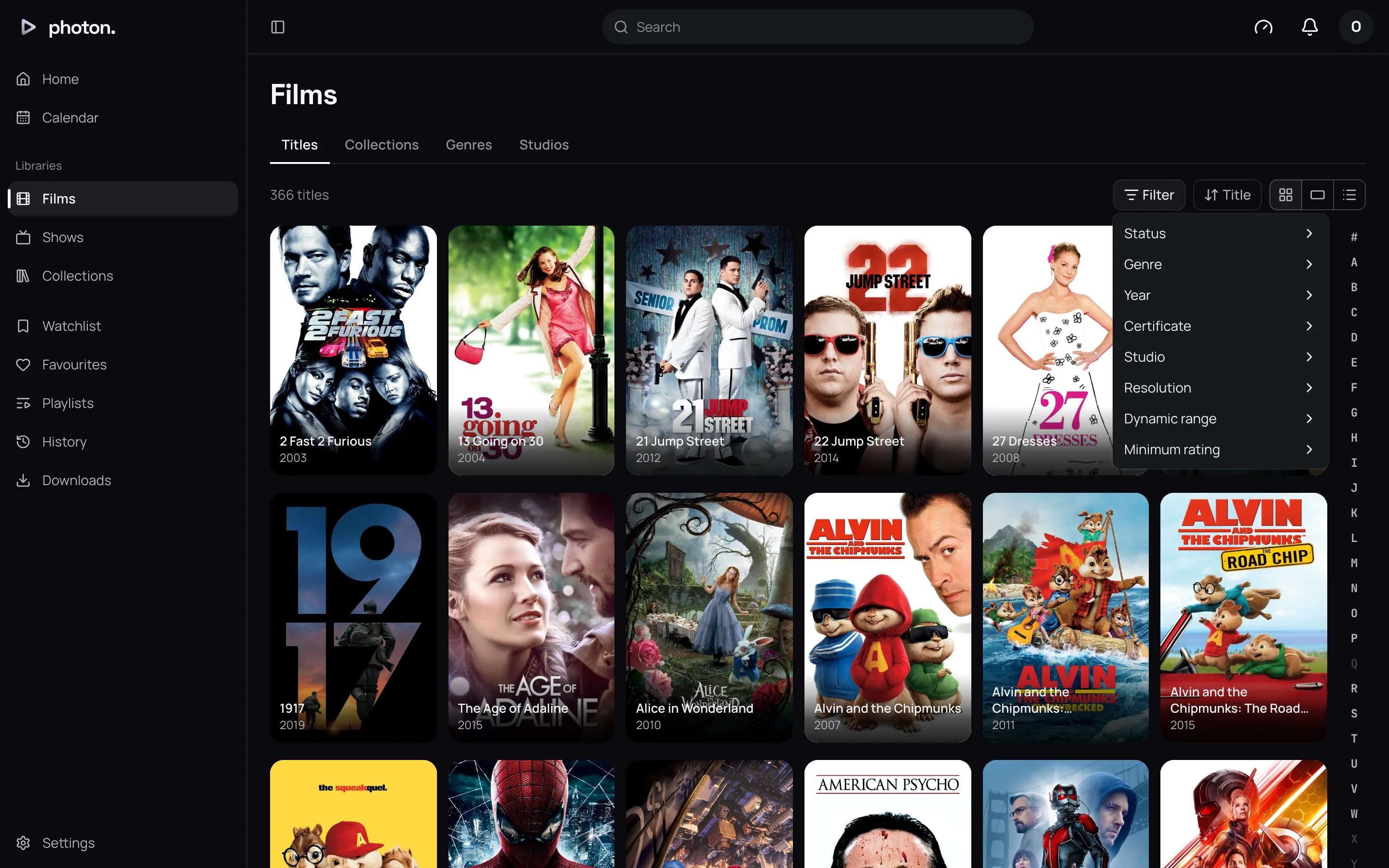
Filter only offers what the library has.
| Filter | What it narrows to |
|---|---|
| Status | Watched, Unwatched, In progress, Favourites or Watchlist. |
| Genre | The library’s genres. |
| Year | Release years. |
| Certificate | Age ratings. |
| Studio | Studios and networks. |
| Resolution | SD, 720p, 1080p or 4K. |
| Dynamic range | SDR, or a kind of HDR (high dynamic range: brighter, richer picture). |
| Minimum rating | A score out of 100, from a rating site you pick under Rated by. |
Ticking two genres shows titles in either. Using two filters shows titles that match both. Clear filters removes them all.
The filters are part of the page’s address, so you can bookmark a filtered library or send it to someone.
Sort
| Sort | Ways |
|---|---|
| Title | A to Z, Z to A |
| Date added | Oldest first, Newest first |
| Release date | Oldest first, Newest first |
| Rating | Lowest first, Highest first |
| Runtime | Shortest first, Longest first |
| Last played | Longest ago, Most recent |
Titles are A to Z at first. Titles with nothing to sort by come last.
Genres, studios and collections
Choose a genre or studio to see the library’s titles filtered to it. Collections in a library shows its box sets. Collections in the sidebar shows every collection on the server.
To change the order of your libraries in the sidebar:
- Choose ⋯ beside a library’s name, then Reorder.
- Drag each library by its grip, or use the up and down arrow keys.
- Choose Done. The new order is used on all your devices.
A title’s page
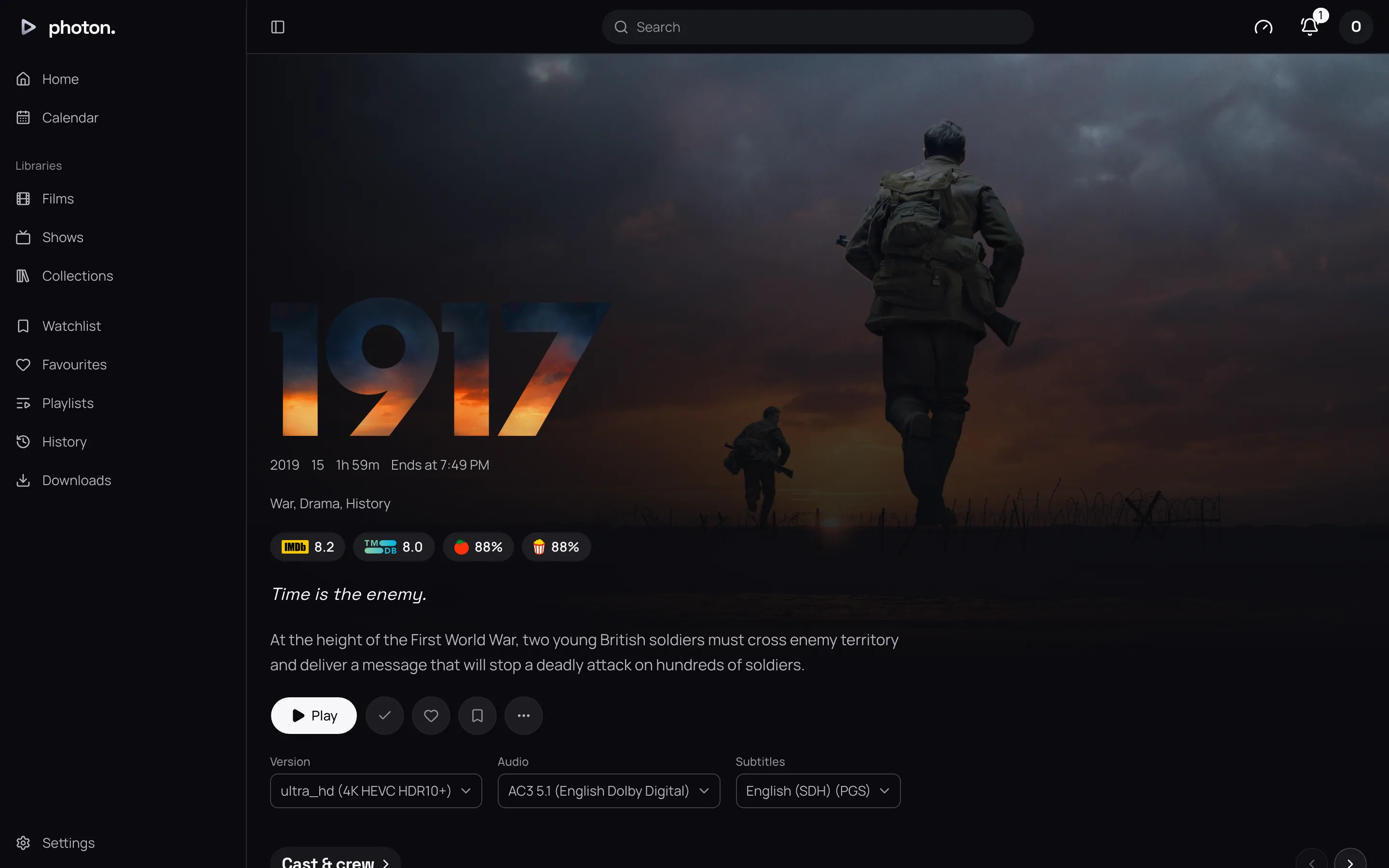
A film’s page shows its picture and title, then its year, age rating, running time, and Ends at: the time it would finish if you started now. Below that are its genres, its scores from rating sites, and a description.
The buttons under them:
- Play, or Resume from where you stopped, and From the beginning.
- Shuffle, on a show or a collection.
- Trailer, if the title has one.
- The tick, heart and bookmark: watched, favourite and watchlist.
- ⋯: Add to playlist…, Download…, Find subtitles… and Media info, which lists the file and every track in it.
If there is a choice, Version, Audio and Subtitles pick what Play plays. If you leave them alone, your playback settings decide.
Further down, where the title has them: Cast & crew, Extras, the Collections it is in, More like this, and Details, with links to sites such as IMDb under Elsewhere.
Shows and episodes
A show’s page plays the episode you are up to: Play S1, E3, or Resume S1, E3 once you have started it. The Seasons row shows how many episodes of each season you have watched. Choosing a season opens the episode you are up to in it.
An episode’s page lists the rest of its season. Choose the season’s name to switch to another.
A collection’s page lists the titles in it. Shuffle plays them in a random order.
Note: A title in a library that fetches from elsewhere, such as a Stremio addon, may say Being fetched. It plays once it has arrived.
A person’s page
Choose someone under Cast & crew to open their page: their photograph, when and where they were born, and their biography. Browse opens a library filtered to them. Their work follows in rows: Acting, Directing, Creating, Writing, Producing and Music.