photon-server finds subtitles in two places when it scans a library: inside your video files, and in subtitle files saved next to them. When a title has none in a language you want, it can find one online, either when you ask or automatically for a whole library.
Subtitles inside and beside your files
Subtitles inside a video file are found without you doing anything, along with their language and whether they are forced (only shown for foreign-language lines) or for the hearing impaired (SDH).
A subtitle file beside a video is named after the video, with tags before the extension:
Heat (1995).mkv
Heat (1995).en.srt
Heat (1995).en.sdh.srt
Heat (1995).en.forced.srt
Heat (1995).Director's Commentary.fr.default.ass- Language: a short code (
en,fre) or the English name (English). - Forced: add
forcedorforeign. - For the hearing impaired: add
sdh,ccorhibeside a language. On its own,himeans Hindi. - Default: add
defaultto make it the one chosen first. - Anything else becomes the subtitle’s name, such as “Director’s Commentary”.
You can also put subtitle files in a Subs or Subtitles folder next to the video. If the title
has only one version, any subtitle file in that folder belongs to it, such as Subs/English.srt.
If a title has more than one version, a subtitle named after one version, such as Heat (1995) - 2160p.en.srt, belongs to that version only. One named after the title belongs to
all of them.
The usual subtitle file types are read, including .srt, .ass, .ssa, .vtt, .sup, .idx with its .sub, and .smi. See prepare folders and name files for naming
the videos themselves.
Which subtitles come on when you press play is each profile’s choice, at Settings › Playback (see your settings).
Set up OpenSubtitles
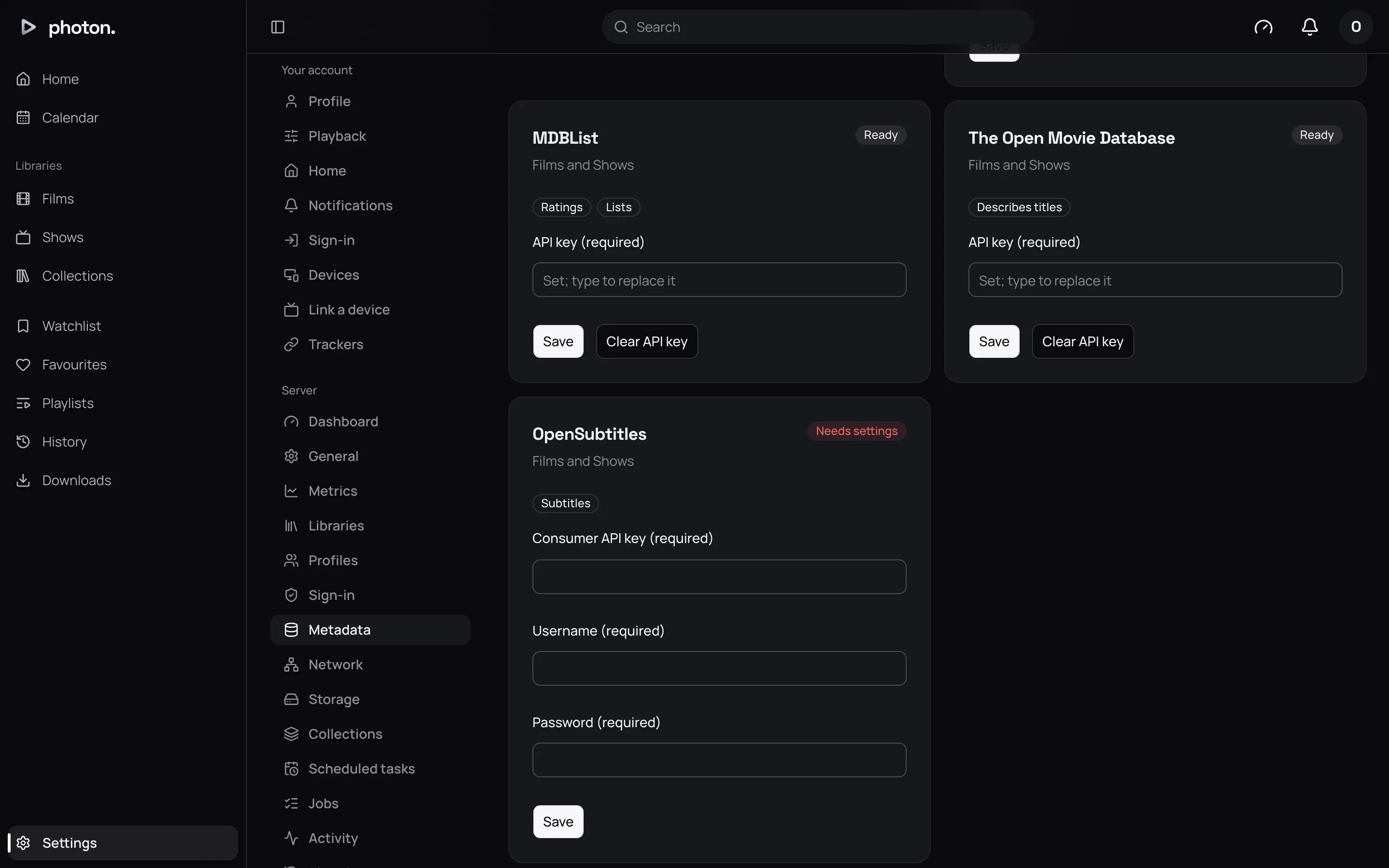
To find subtitles online, photon-server uses OpenSubtitles.com, and any plugin that offers subtitles (see plugins). OpenSubtitles needs an account and an API key of your own.
- Sign in at opensubtitles.com, and create a consumer on its API consumers page. You will be given a key.
- In photon-server, open Settings › Server › Metadata and find OpenSubtitles.
- Fill in Consumer API key, Username and Password. All three are needed.
- Choose Save. The card now says Ready.
Note: Each download counts towards your OpenSubtitles account’s daily limit. Once it is used up, photon-server stops downloading until the next day.
Find a subtitle for one title
- Open a film or an episode.
- Open its ⋯ menu and choose Find subtitles…. A search starts in your subtitle language, or your browser’s.
- To search in another language, choose it.
- Choose Add beside the subtitle you want.
Results made for your exact file come first, marked with a star. These are timed to match it. Then come the most downloaded. Each result says whether it is for the hearing impaired (SDH) or forced.
Anyone can do this for the titles they can see. A subtitle added this way is there for every profile.
Tip: The title must be recognised first, because the search uses its IMDb or TMDB entry. If nothing is found, check the match (see fix a title’s match).
Fetch missing subtitles automatically
A library can download a subtitle for every title that has none in the languages you choose.
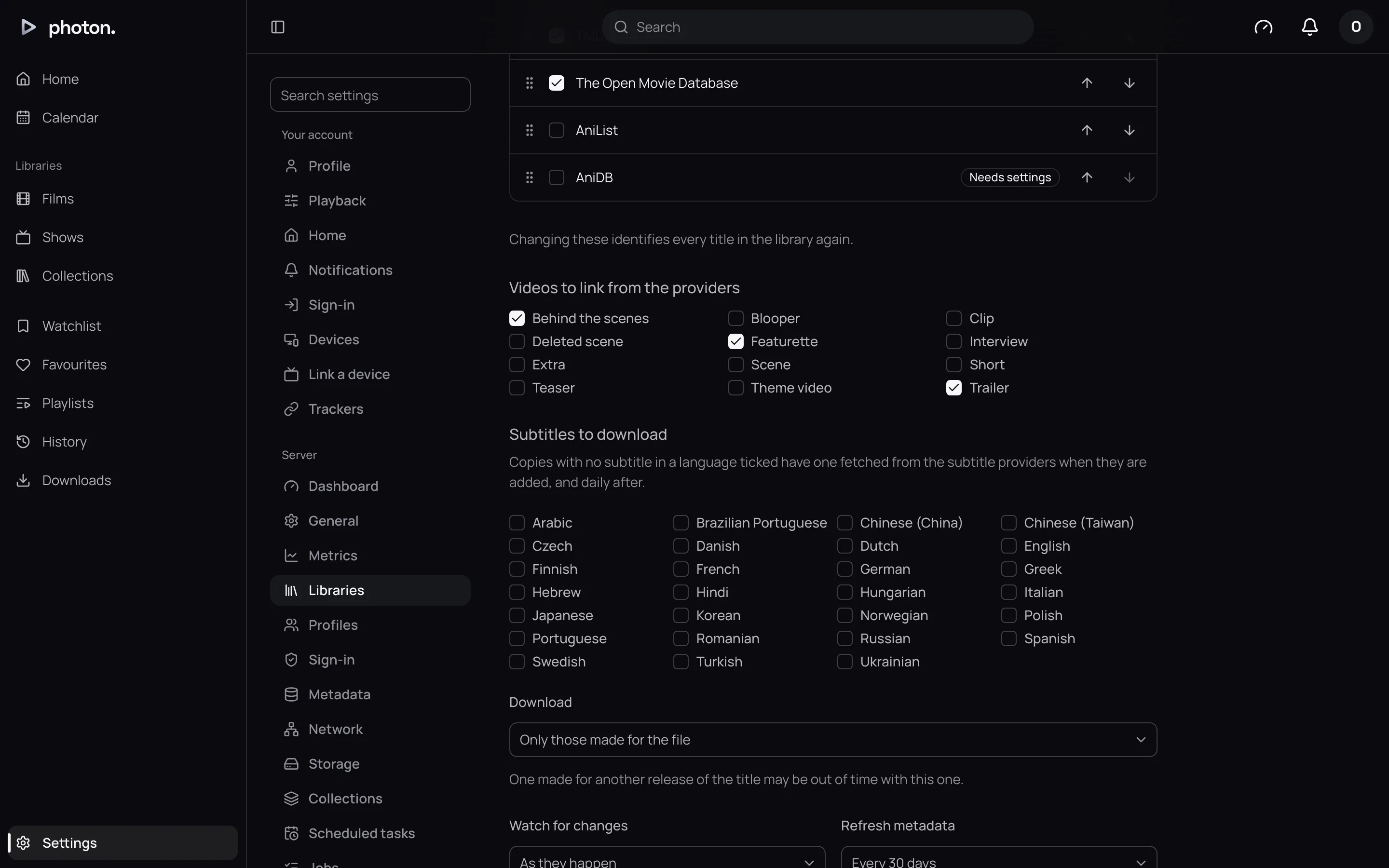
- Open Settings › Server › Libraries and choose the library.
- Open More settings and find Subtitles to download.
- Tick each language you want.
- Choose what to Download, then save.
| Setting | What it does |
|---|---|
| Languages | The languages to fetch. None are ticked at first, so nothing is fetched. |
| Download | Only those made for the file (the default) takes only a subtitle timed for your exact file. The best found takes the best match of any kind, which may be slightly out of time. |
The Download missing subtitles task runs once a day, and after a scan adds titles, so new titles get their subtitles the same day. It does the newest titles first. To run it straight away, choose Run now on the task at Settings › Server › Scheduled tasks.
Good to know
- A title only counts as having a language when it has a full subtitle in it. A forced subtitle on its own does not count, and forced subtitles are never fetched on their own.
- If nothing can be found for a title in a language, it is not searched for again for 7 days. Most subtitles are written in the first weeks after a release.
- When the daily download limit runs out, the task stops and carries on at its next run.
- Subtitle files in your library are yours. To remove one, delete or rename the file and scan the library again.
- Brazilian and European Portuguese, and Simplified and Traditional Chinese, are kept apart.