A collection is a box set of titles, such as every Bond film or your Christmas favourites. A collection can hold titles from any of your libraries. You find collections under Collections in the sidebar, and in each library that holds some of their titles.
A library’s wall lists each title on its own. Set its Box sets to One tile for the set (see libraries), and where it holds two or more titles of a collection, its wall shows one tile for the collection in their place, such as one Harry Potter Collection for all eight films. The tile is dated by the collection’s first film, so it sorts by release date among the rest. Filter the library to see each title again.
One collection can go its own way: on its page at Settings › Server › Collections, set On a library’s wall to One tile for the collection, The collection and each title or Each title on its own, whatever its libraries do. As the library shows box sets is the default.
Everyone sees only the titles of a collection they are allowed to see. A profile limited to some libraries or age ratings finds only those titles in it.
A collection with no poster of its own uses its titles’ posters: one poster, or a grid of the first four.
The four kinds
| Kind | Who makes it | What it holds |
|---|---|---|
| From TMDB | photon-server, as it recognises your films | The films TMDB lists as part of the set, oldest first |
| Made here | You, by hand | Any films, shows, seasons or episodes, in the order you choose |
| Smart | You, from a library’s filters | Whatever those filters find, updated as your library changes |
| From a list | You, from a list on TMDB, MDBList or a plugin | The titles on the list that you have, in the list’s order |
All your collections are listed at Settings › Server › Collections, each with a badge saying which kind it is. Choose one to open it.
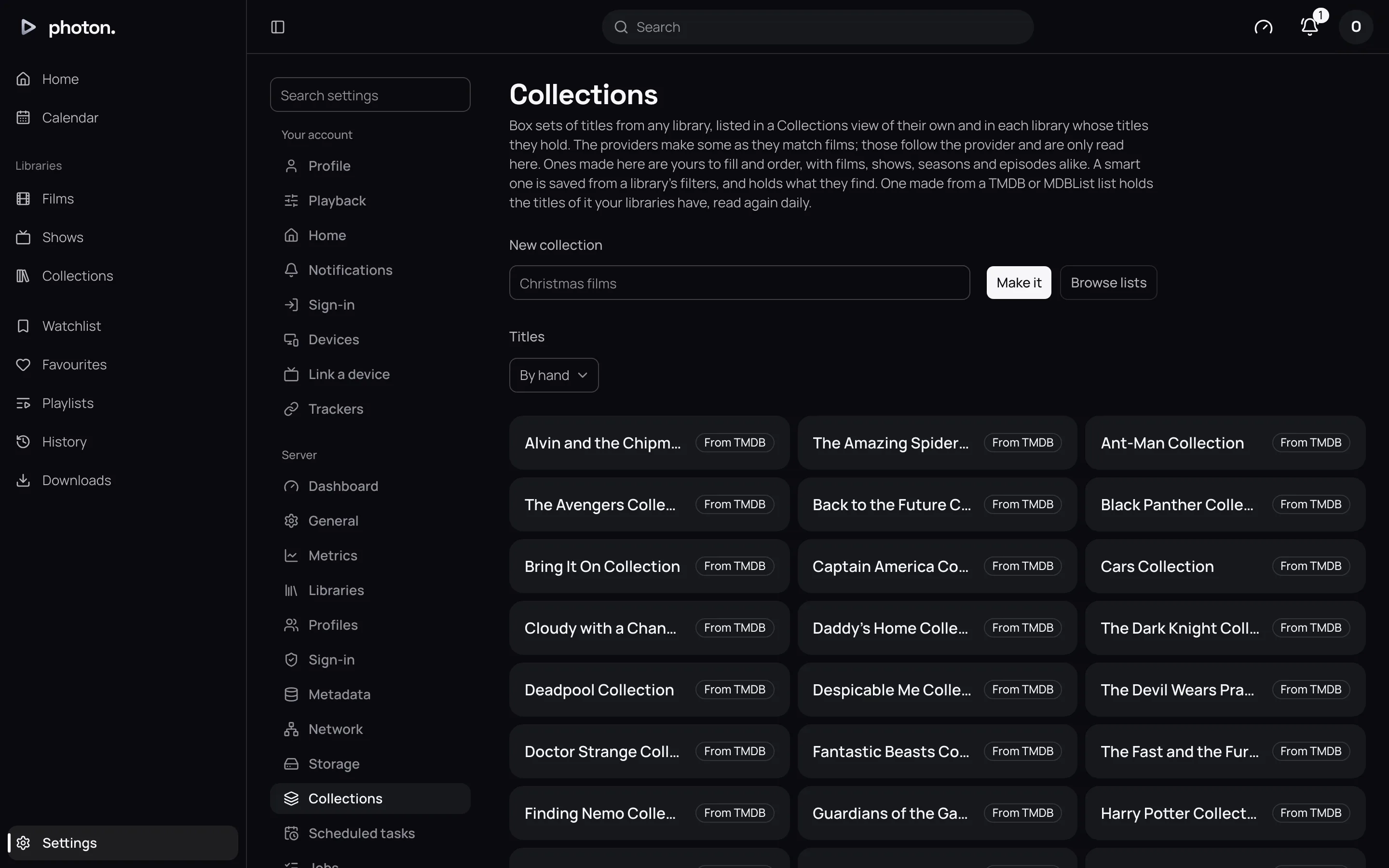
Collections from TMDB
TMDB is the online film database photon-server uses to recognise your films. When it says a film belongs to a set, photon-server adds the film to that collection, and makes the collection if it is new. A collection from TMDB only shows once it holds two of your films.
You cannot change which titles are in it, because it follows TMDB. You can rename it or change its artwork, as for any title (see fix a title’s match and edit its details).
Make a collection by hand
- Open Settings › Server › Collections.
- Type a name under New collection.
- Leave Titles at By hand, and choose Make it. The collection’s page opens.
- Use Add titles to search for a film, show or episode, and choose Add beside each one.
- Put them in order with the arrows. Remove one with its cross.
- Choose Save the order. Nothing you added is kept until you do.
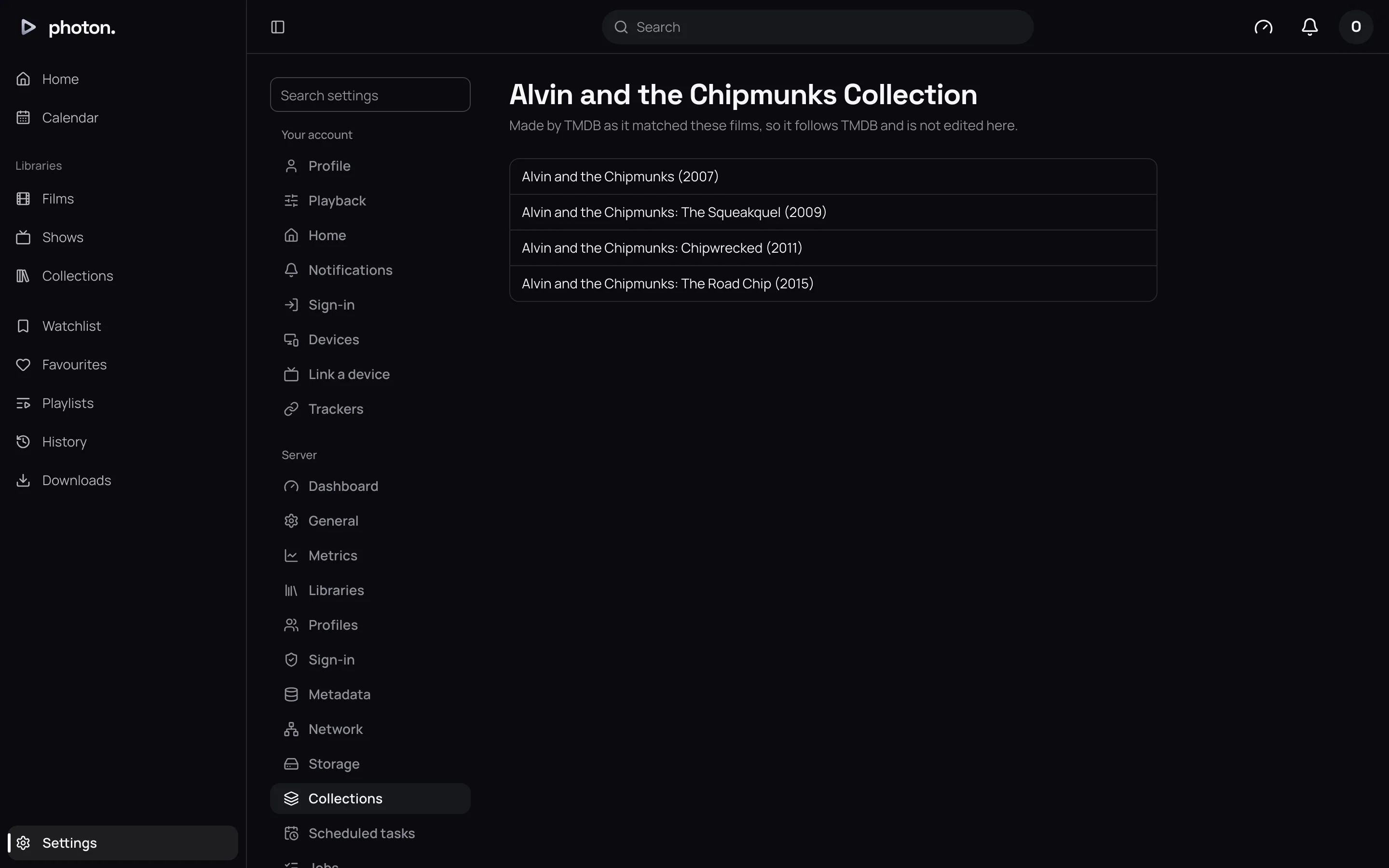
You can also add a title from its own page. Open the title’s ⋯ menu and choose Add to collection… under Admin. This is how you add a season. From here you can pick an existing collection or make a new one.
Save a library’s filters as a smart collection
A smart collection remembers a set of filters, such as “comedies from the last two years, newest first”. It fills itself with whatever matches.
- Open a library from the sidebar.
- Narrow it with its filters, its sort, or both.
- Choose Save as a smart collection.
- Give it a name and choose Save.
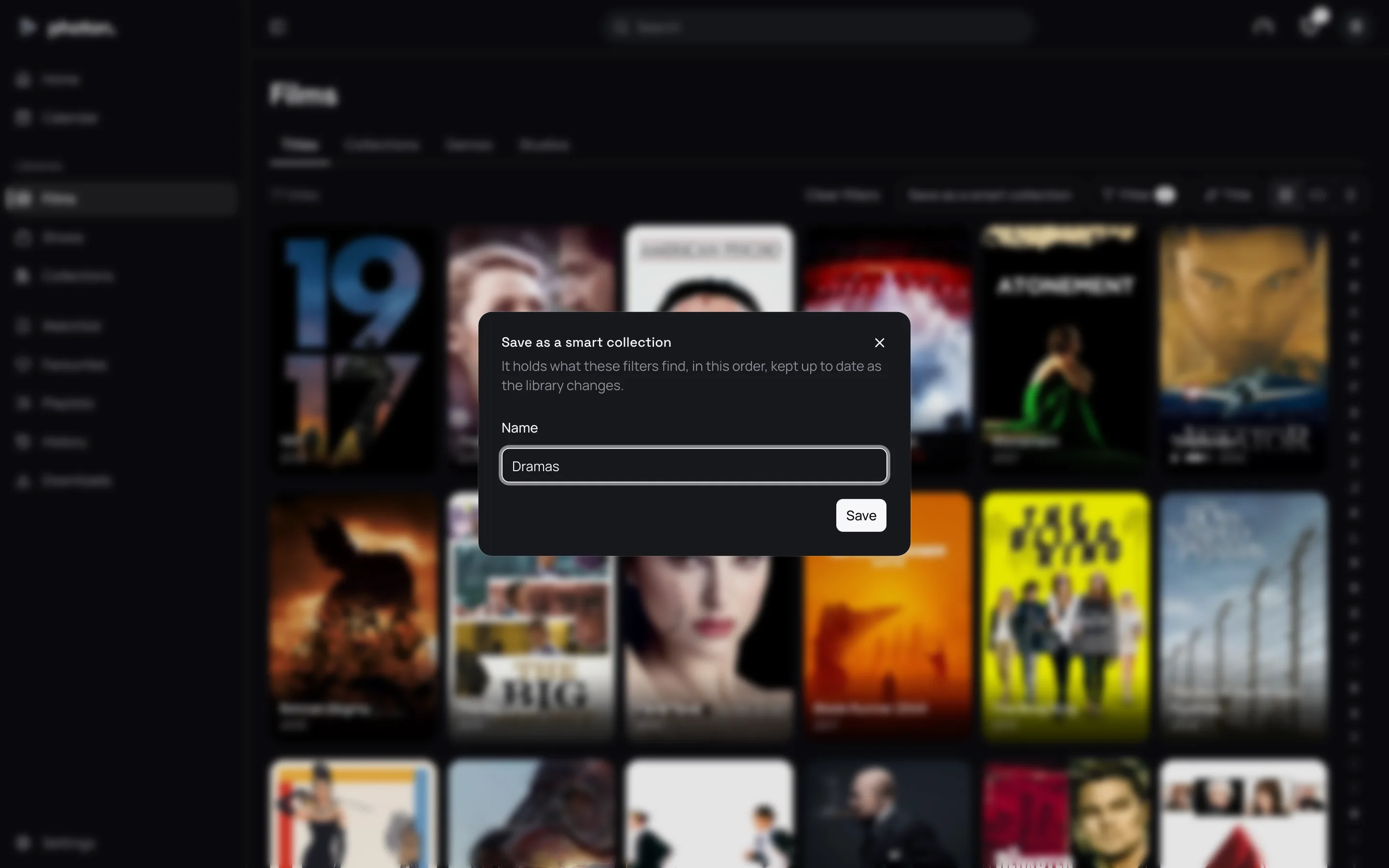
photon-server checks the filters again after each scan of the library and every 15 minutes, so new and changed titles are picked up.
To change the filters later:
- Open the collection at Settings › Server › Collections.
- Choose Change its filters. The library opens with those filters set.
- Adjust them and choose Save to the collection.
Note: A smart collection is the same for everyone, so it cannot use filters that differ from one profile to the next, such as watched or unwatched. When the filters you have chosen cannot be saved, the button does not appear.
Follow a list
A list collection holds the titles from a list kept somewhere else, such as TMDB’s top-rated films, that you have in your libraries. photon-server reads the list again every day.
- Open Settings › Server › Collections.
- Type a name under New collection.
- Set Titles to A TMDB list, An MDBList list, or a plugin’s catalog.
- Type the list under List (see below).
- Under Found in, choose Every library or one library.
- Choose Make it.
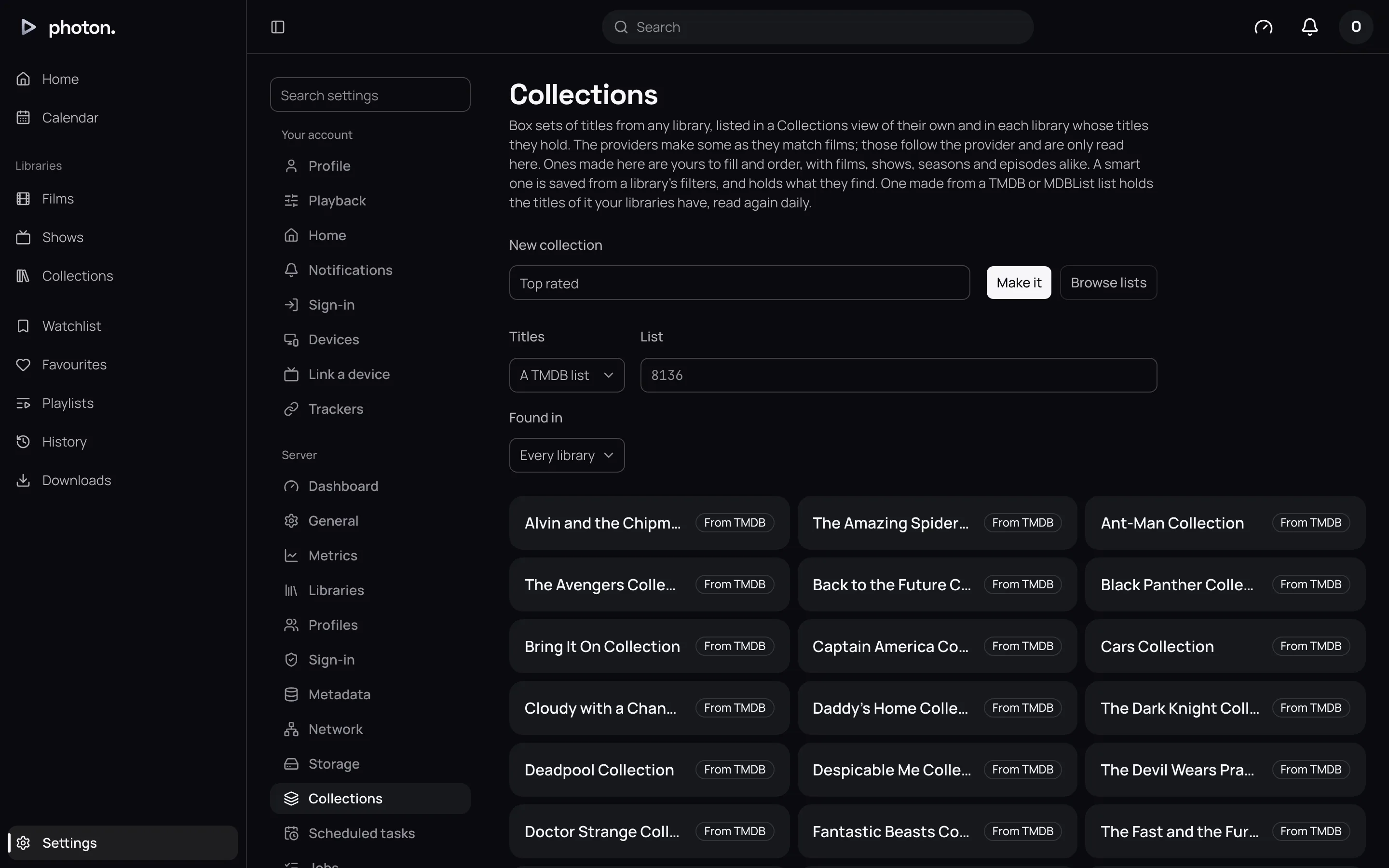
What to type under List:
- TMDB: the list’s number, such as
8136, or one of TMDB’s charts, such asmovie/top_ratedortrending/tv/week. For a chart, the first 100 titles are used. - MDBList:
user/list, or the list’s id. MDBList also copies lists from Trakt and IMDb. It needs your MDBList API key at Settings › Server › Metadata. - A plugin’s catalog: the name the plugin gives it, such as a Stremio addon’s catalog (see Stremio addons).
If you would rather pick than type, choose Browse lists. It shows TMDB’s charts and popular MDBList lists, and you can search for others. A list picked there is looked for in every library.
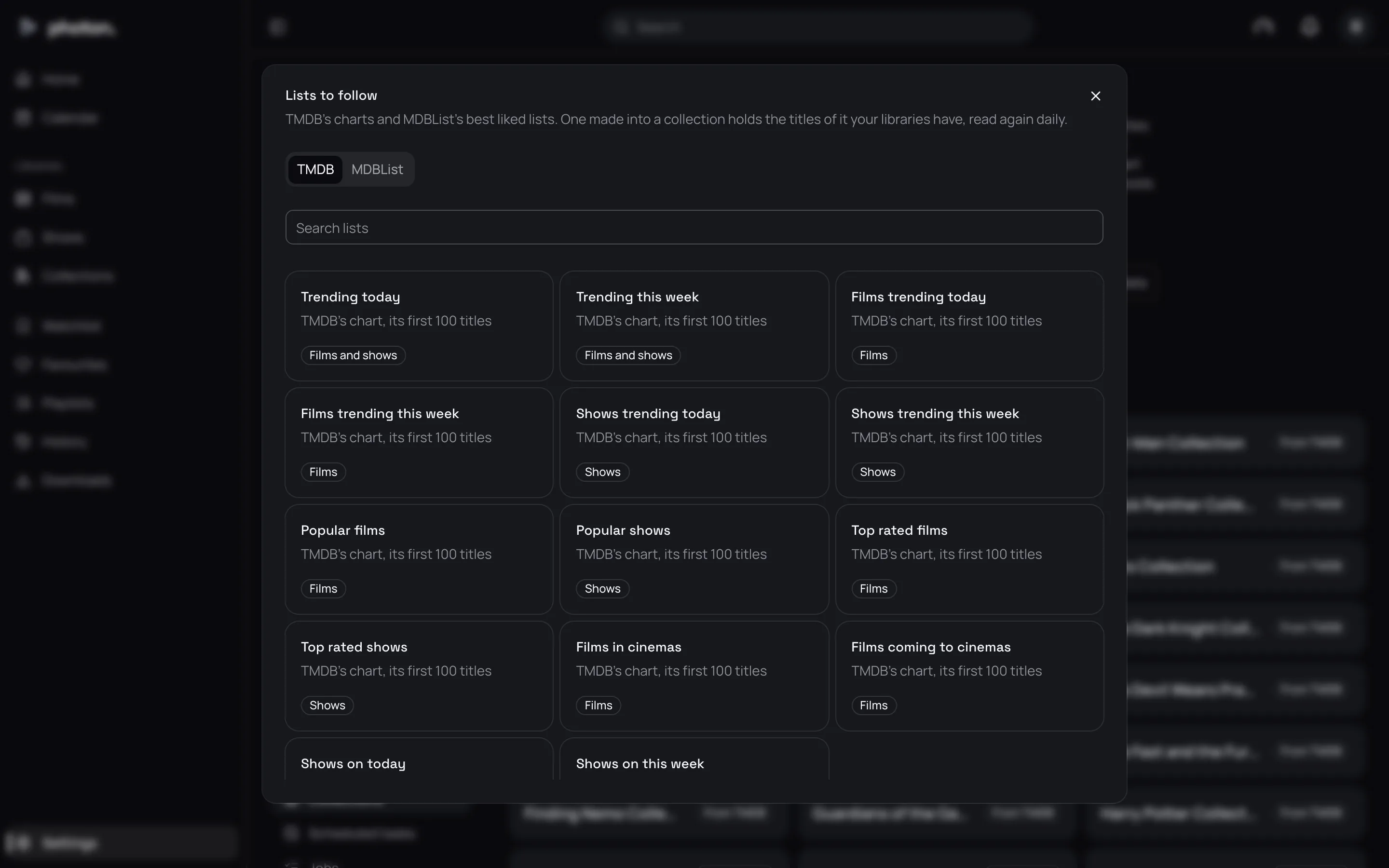
The collection’s page says how many titles on the list you do not have. Those are counted but not shown. To read the list again straight away, choose Sync now on the collection’s page.
Tip: If TMDB or MDBList cannot be reached, the collection stays as it was. It is never emptied because a website is down.
Remove a collection
On the collection’s page, choose Remove this collection. The titles in it stay in your libraries. You can remove collections you made, smart collections and list collections. A collection from TMDB cannot be removed, because it follows TMDB.
Good to know
Two scheduled tasks keep collections up to date. You can run either straight away from Settings › Server › Scheduled tasks (see scheduled tasks and jobs).
| Task | When it runs | What it does |
|---|---|---|
| Refresh smart collections | Every 15 minutes, and after each library scan | Finds each smart collection’s titles again |
| Sync list collections | Every day | Reads each list collection’s list again |
A collection cannot hold an extra (such as a trailer) or another collection.