A profile is one person watching. It keeps their own progress, favourites, playlists and settings, and it says which libraries and age ratings they may see.
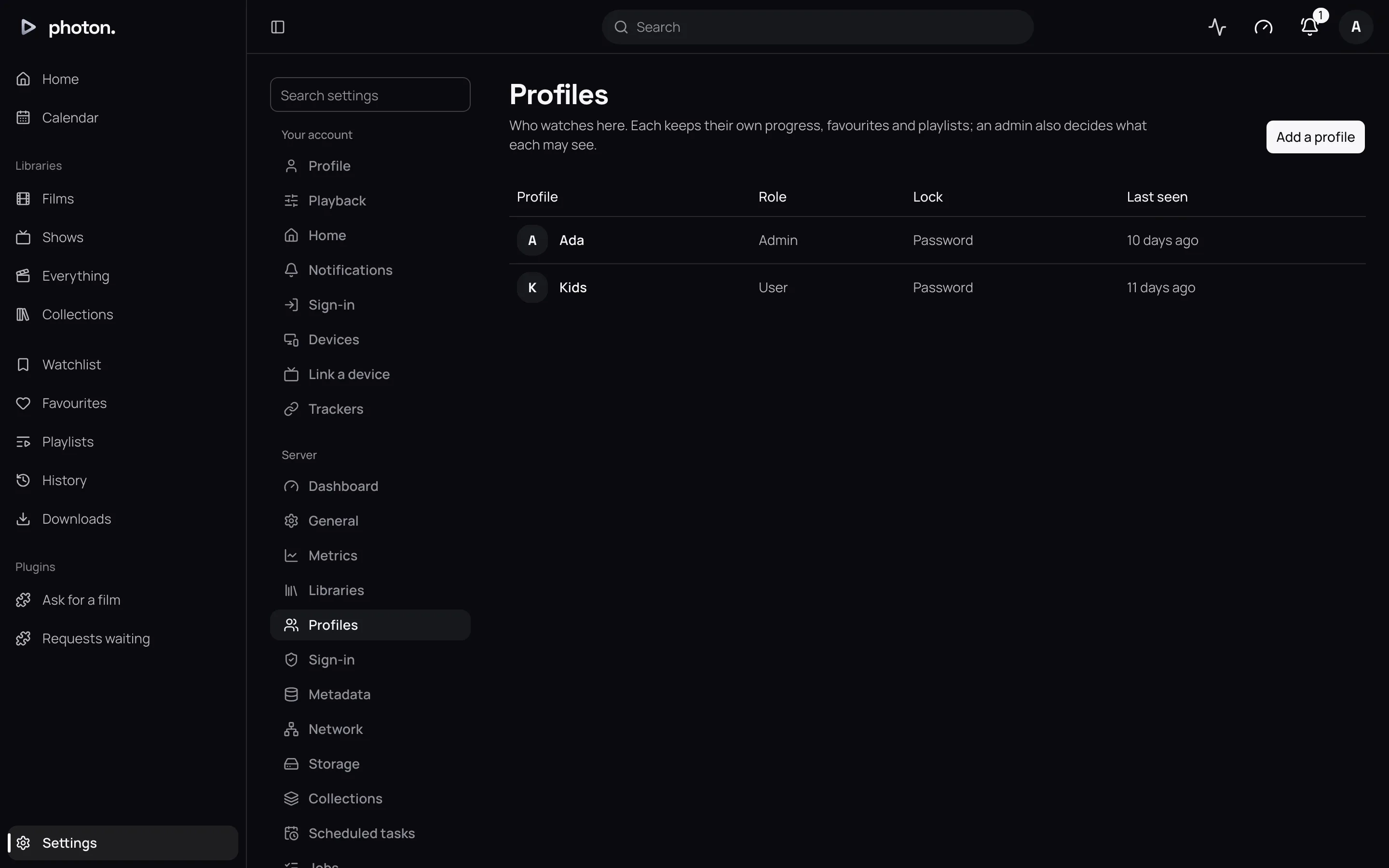
The first profile is made when you set up the server, and it is an admin. You add everyone else under Settings › Profiles.
Roles
Every profile has one of three roles.
| Role | What it can do |
|---|---|
| Admin | Everything: the server’s settings, every profile, every signed-in device, the dashboard, the activity log and API keys. |
| Manager | Adds users and looks after the ones it added: renames them, sets their passwords and pictures, chooses what they see, removes them and signs out their devices. Nothing else on the server. |
| User | Watches what it is allowed to, and changes only its own name, password, PIN, picture and settings. |
A manager can’t give more than it has. A user it adds starts out seeing exactly what the manager sees, and can only be narrowed from there.
The server always keeps at least one admin. You can’t remove the last admin or change its role.
Add a profile
- Open Settings › Profiles and choose Add a profile.
- Type a Name. Two profiles can’t share a name, even in different capitals.
- Choose a Role. A manager doesn’t see this choice: it can only add users.
- Under Password, choose Invite them to choose it, or Set it now and type one of at least 8 characters.
- Choose Add profile. The new profile appears in the list.
Invite someone to choose their password
An invite lets the person a profile is for choose their own password, so you never know it. When you add a profile with Invite them to choose it, Photon shows a link. Choose Copy and send it to them however you like. Opening it asks them for a password, then logs them in.
- A link works once, for 7 days, and is shown only when it is made.
- It is made at the server’s public address, set under Settings › Server › Network, so it works from outside your home. With no public address set, it uses the address you are using.
- If a link lapses or gets lost, open the profile and choose Make an invite link for a new one. The card is there only while the profile has no password; any earlier links stop working once one is used.
- A manager can invite the users it adds.
The list shows each profile’s role and its Lock: whether switching to it asks for a PIN or a password. An admin also sees when each profile was last seen on a device. A manager sees only the users it looks after.
Choose what a profile sees
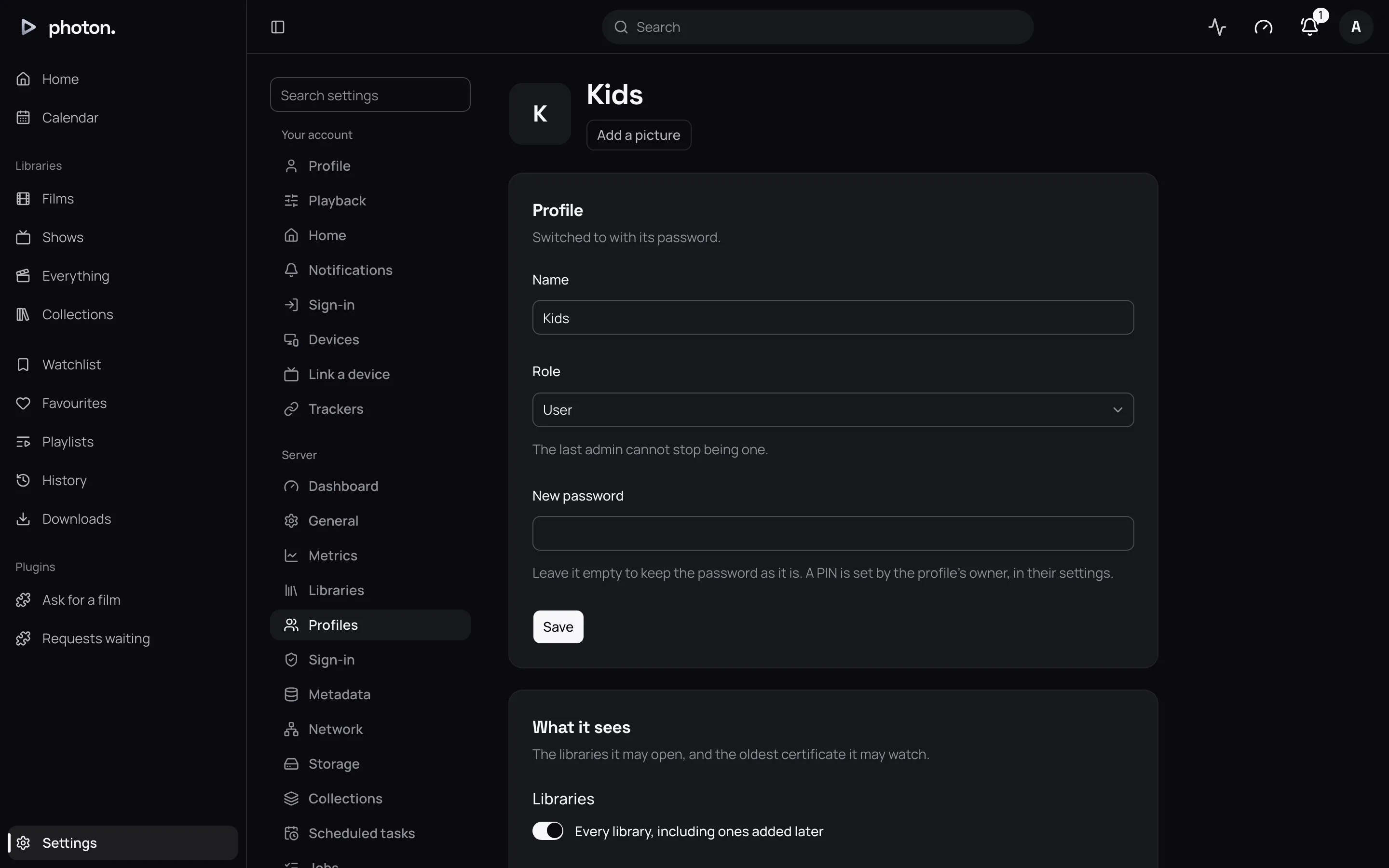
Open the profile from Settings › Profiles. What it sees has three settings. Choose Save access when you are done.
| Setting | What it does |
|---|---|
| Every library, including ones added later | On by default. Turn it off to tick only the libraries this profile may see. |
| Certificates | The highest age rating it may watch. Any by default, Suitable for all, or Up to 6, 7, 9, 12, 13, 15, 16, 17 or 18. |
| Titles with no certificate | Shown by default, or Hidden. Only matters when you set a certificate limit. |
Age ratings are read for the country set as Certification country under Settings › Server › General.
Change or remove a profile
On the profile’s page, the Profile card renames it, changes its role, and sets a new password. Leave the password empty to keep the old one.
Note: Setting a password here leaves the profile’s devices signed in. If you changed it because someone else knows it, also sign those devices out under Devices.
Remove this profile signs out its devices, cancels any API keys it made, and forgets everything it has watched. This can’t be undone.
Passwords
Each person changes their own password under Settings › Profile. They type their Current password, then the new one twice. This signs out every other device on that profile, in case someone else knew the old password. Its API keys keep working.
A profile made by a sign-in service has no password at first. Its owner can add one on the same page, leaving Current password empty.
After ten wrong passwords, the server makes whoever is trying wait before they can try again.
A forgotten password
You can reset a password from a device on your home network.
- On the login page, choose Forgot your password?.
- Type the profile’s name and choose Get a code.
- The code is written to the server’s log, not shown on screen, so only whoever runs the server
can read it. With Docker, run
docker compose logs serverto see it. - Type the code and a new password within 30 minutes.
Every device on that profile is signed out.
PINs and switching profile
On a shared device, anyone can change who is watching. Choose Switch profile in the profile menu to open Who’s watching?, then pick a profile.
- A user with a PIN asks for its PIN (4 to 6 digits). Each person sets their own PIN under Settings › Profile. A user with no PIN asks for its password.
- An admin or manager always asks for its password. That way nobody can take over the household’s settings by guessing a few digits.
Good to know
- Only the profile’s owner can set its PIN. An admin can’t.
- If an admin changes a manager’s user into a manager or admin, that profile is then the admin’s to look after. If a manager is removed, its users pass to the admin.
- After five wrong PINs or passwords on Who’s watching?, a device must wait three minutes between tries.