photon-server reads your files to make two things that make watching nicer.
- Intro and credits markers. A marker records where an intro, a recap, the credits or a preview of the next episode starts and ends. Markers are what make the Skip Intro and Skip Credits buttons appear while you watch.
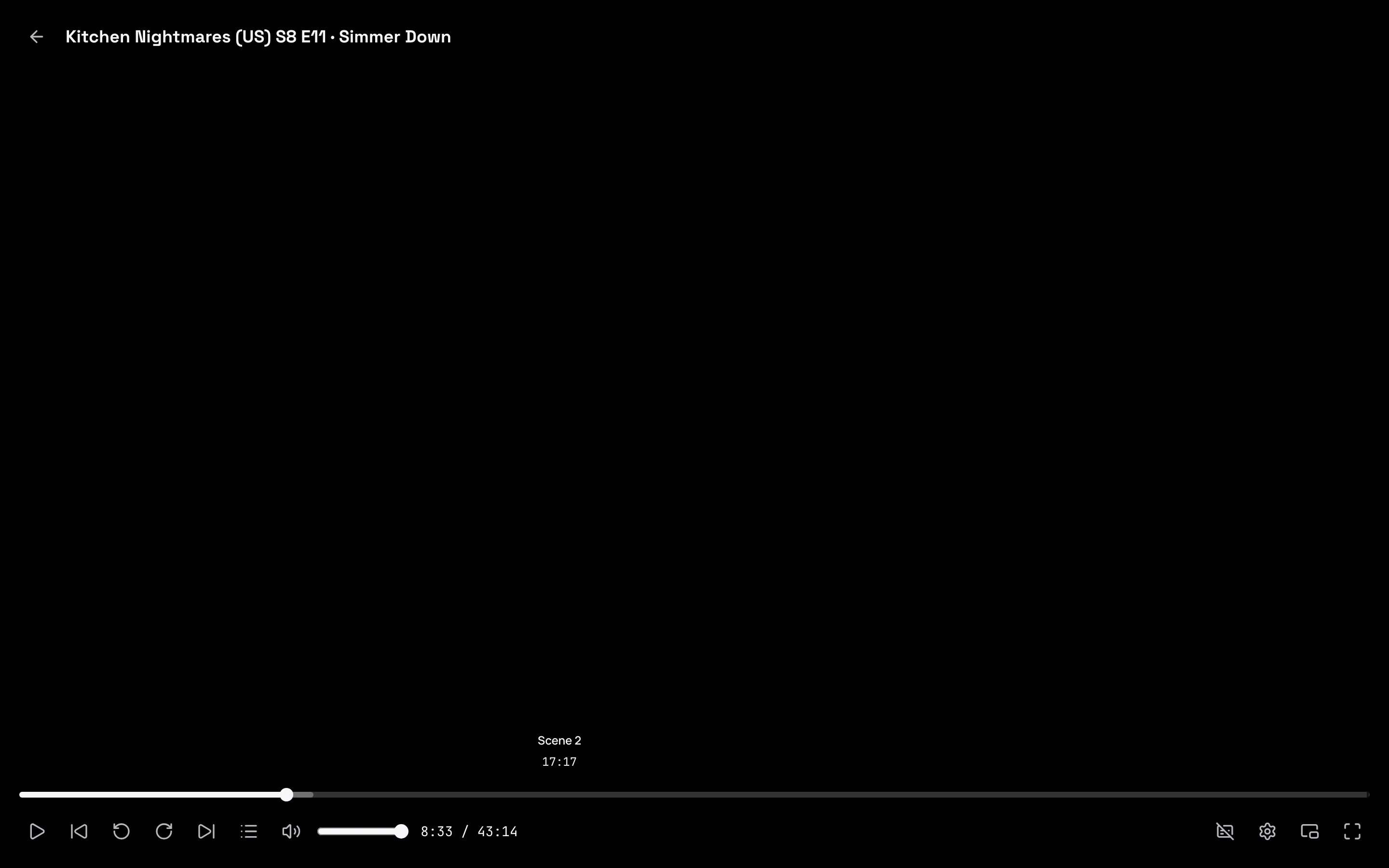
- Timeline previews. These are the little pictures you see as you drag along the timeline, so you can find the scene you want. photon-server also makes a picture for each chapter.
Both are on by default for libraries of files on your server. Each library can turn them down, and the work is done overnight.
Choose what a library looks for
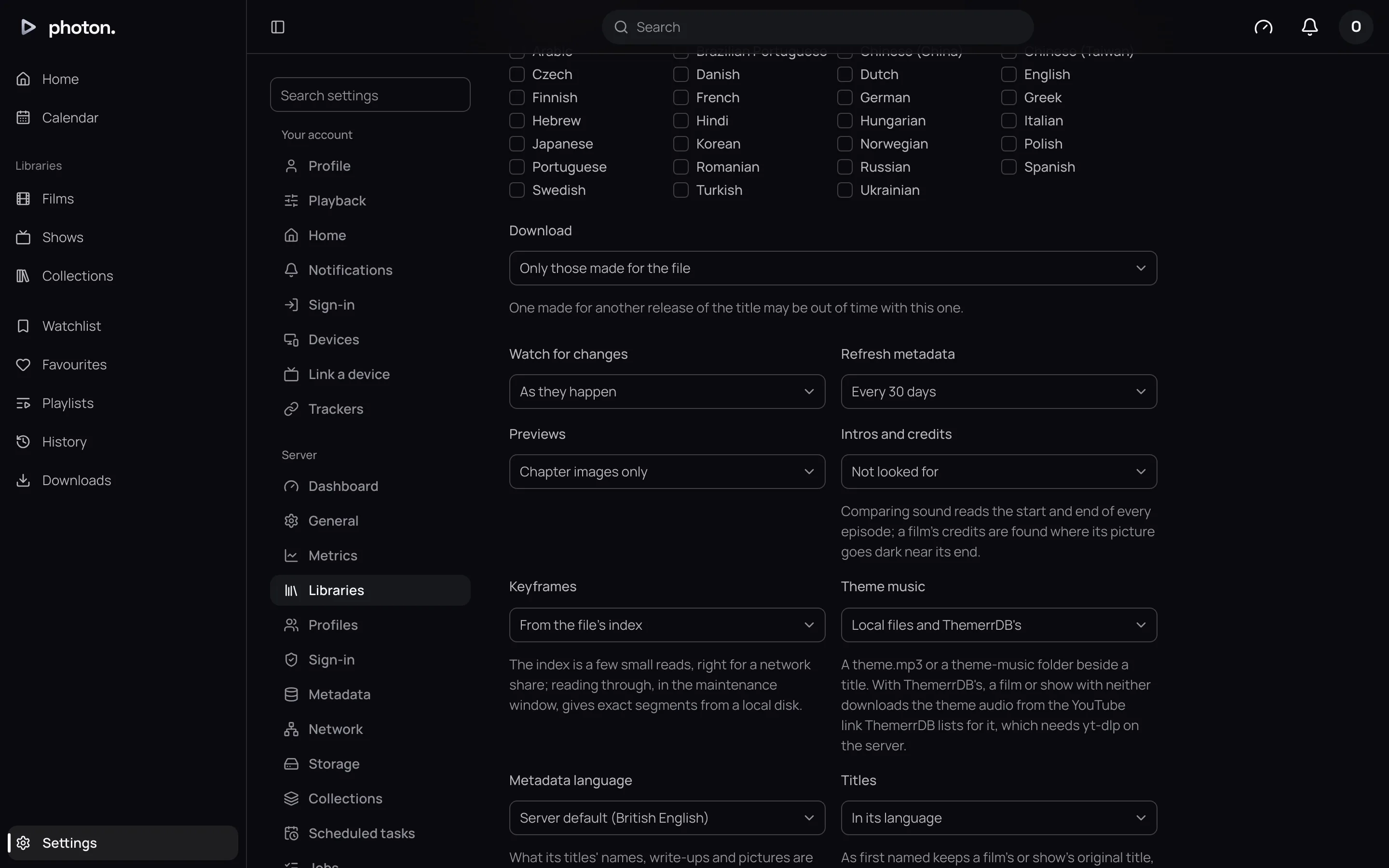
- Open Settings › Server › Libraries and choose the library.
- Open More settings.
- Set Previews and Intros and credits, then save.
| Setting | What it does |
|---|---|
| Previews | Chapters and seeking (the default) makes timeline previews and a picture for each chapter. Chapter images only makes the chapter pictures alone. None makes neither, and deletes any already made. |
| Intros and credits | From chapters, sound and picture (the default) uses every method below. From chapters only uses chapter names and plugins. Not looked for uses only markers an admin set by hand. |
A library of titles streamed from an online service, rather than files, starts with both turned off, because there are no files to read.
How intros and credits are found
photon-server uses several methods. Where more than one finds a marker, it trusts them in this order:
- Set by hand. A marker an admin set always wins (see below).
- Chapter names. Many files have chapters named “Intro”, “Opening”, “Credits”, “Recap”, “Previously” or “Next time”. These are exact.
- Plugins. A plugin can supply intro and credits times from an online database (see plugins).
- Comparing sound. For a show, photon-server compares the sound of each episode with the rest of its season. Sound the episodes share, near the start or the end, is the intro or the credits.
- Reading the picture. A film has no other episodes to compare with, so photon-server looks near its end for dark scenes with writing on screen: the credits.
Recaps and next-episode previews only come from chapter names, plugins and markers set by hand.
Note: Comparing sound needs a version of FFmpeg (the tool photon-server uses to read video) that includes Chromaprint. The Docker image has it. Settings › Server › Dashboard shows Chromaprint and whether your server has it. Without it, shows wait until it is available.
A season is compared 10 minutes after its last episode arrives, so a season added folder by folder is compared once. When an episode is added later, the whole season is compared again.
Correct a marker
If Skip Intro appears at the wrong moment, you can fix it.
- Open the title, then its ⋯ menu, and choose Edit markers under Admin.
- You will see each marker: what it is, where it Starts and Ends, and where it came from.
- Change the times, remove a marker with its cross, or choose Add a stretch to add one.
- If the title has no intro or no credits at all, tick that kind under Has none.
- Choose Save markers.
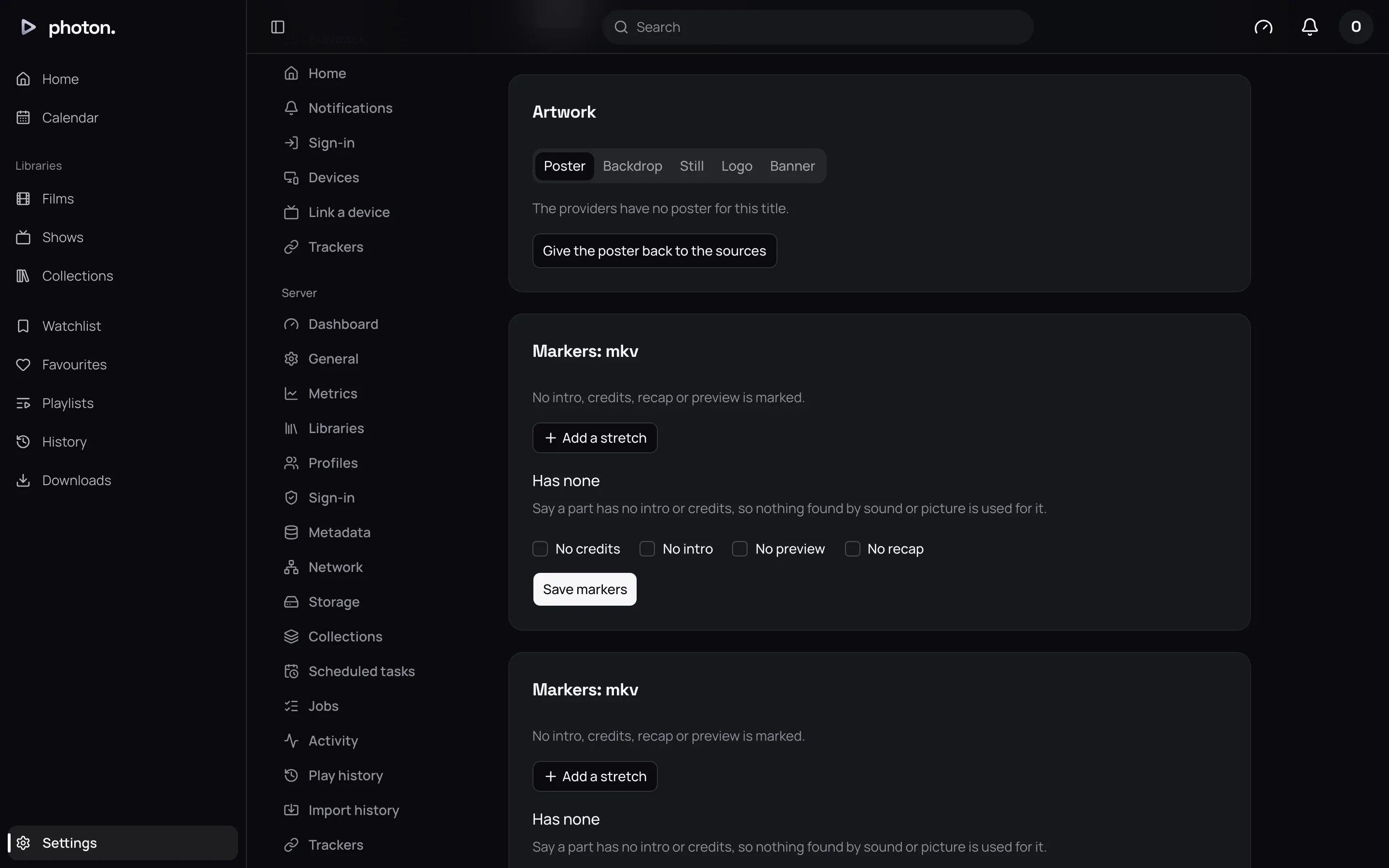
What you set wins over every other method. To go back to what photon-server found, remove every marker, leave Has none unticked, and save.
Important: The page does not show what you ticked under Has none last time, and saving replaces it. Tick those again each time you save.
A title with more than one version has a markers card for each.
Skip by itself, or show a button
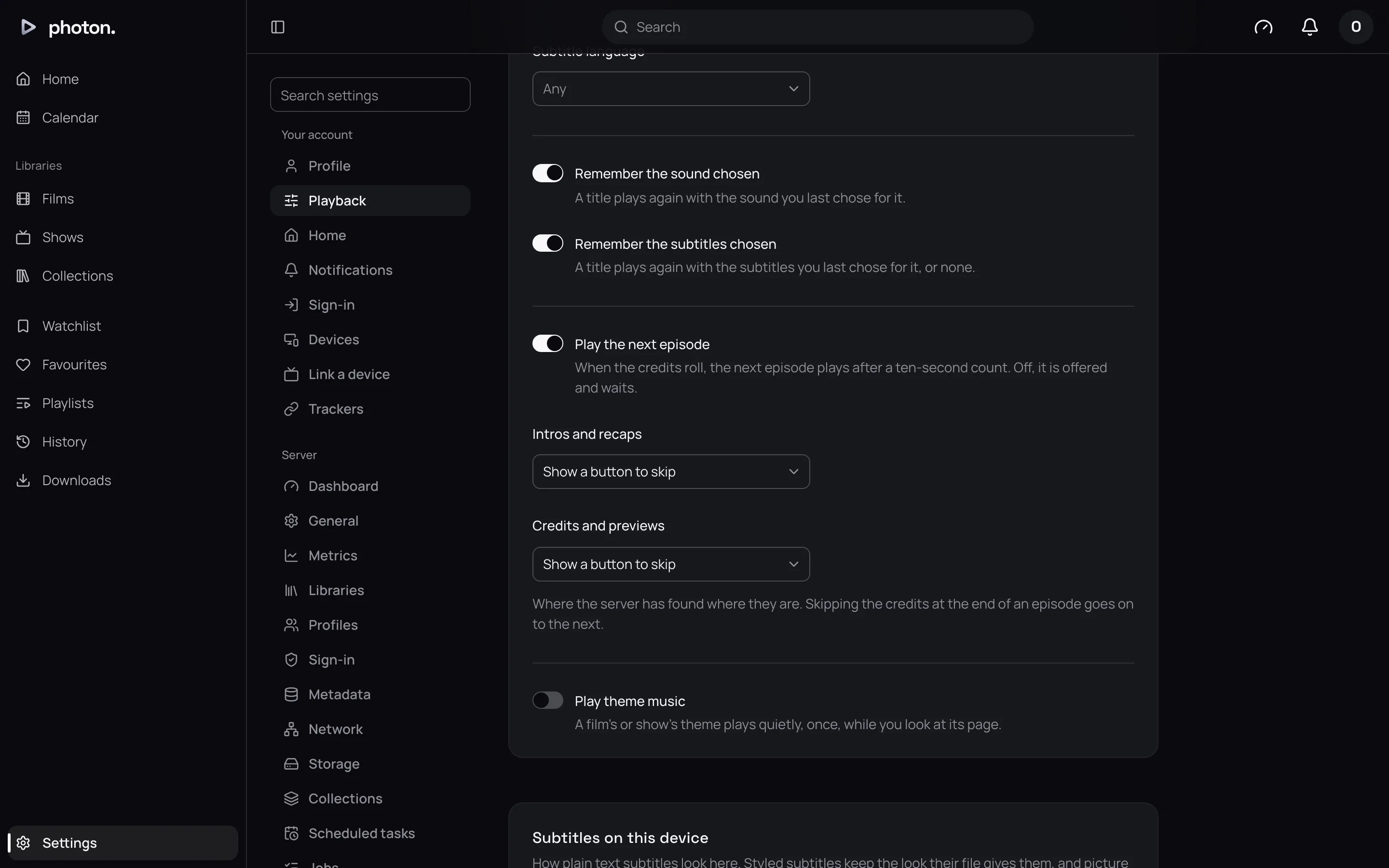
Whether a player skips is each profile’s choice, at Settings › Playback. Intros and recaps and Credits and previews each offer Show a button to skip (the default), Skip by itself, or Don’t offer to skip.
Jellyfin apps connected to photon-server show the skip buttons too (see Jellyfin apps).
When the work is done
Reading every file takes time, so photon-server does it in the maintenance window: 02:00 to 05:00 UTC unless you change it. Nothing of this kind starts while someone is watching. Set the window at Settings › Server › Scheduled tasks (see scheduled tasks and jobs).
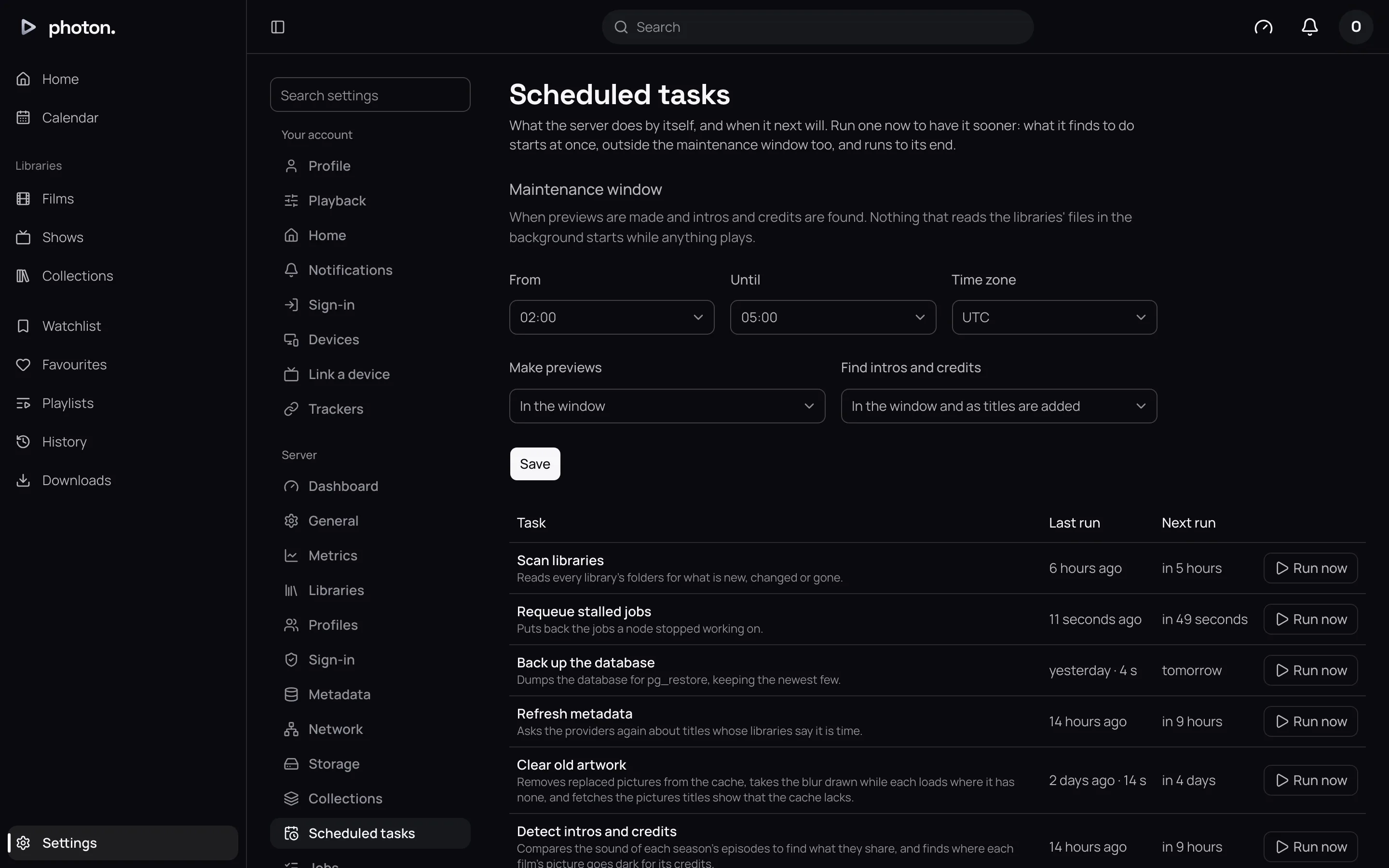
On the same page you choose whether new titles are done straight away as well:
| Setting | What it does |
|---|---|
| Make previews | In the window (the default), or In the window and as titles are added |
| Find intros and credits | In the window, or In the window and as titles are added (the default) |
A change to a library’s Previews or Intros and credits setting reaches its files in the next window. To start sooner, choose Run now on the Make previews or Detect intros and credits task. It runs straight away and carries on to the end.
Good to know
- Turning a library’s intro and credits setting down keeps what was found. Turn it back up and the markers come back without reading the files again.
- Previews of a video in HDR (a format with a wider range of brightness and colour) are adjusted so they look right on any screen.
- If a file goes missing, its previews are kept for 30 days, so a network drive that is down for a while does not mean making them all again.
- You can follow the work at Settings › Server › Jobs, as Find intros and credits, Ask plugins for intros and credits and Make previews.