A Stremio addon is a web service made for the Stremio app. It offers lists of films and shows, such as “Popular” or “Top rated”, and things to stream for them. photon-server can use both:
- its lists, to fill a collection or a library;
- its streams, to play titles you don’t have as files.
By the end of this page you have an addon added and a library that plays what it streams.
An addon doesn’t describe titles. The titles it lists are named, described and given artwork by your library’s usual sources, such as TMDB, like any other title.
Add an addon
- Copy the addon’s install address, the one you would paste into Stremio. It ends in
manifest.json. If the addon has its own settings page (for example to connect a debrid service, a paid service that fetches files for you), set it up there first: your settings become part of the address. - Open Settings › Server › Metadata and scroll to Register a plugin under Plugins.
- Change Photon plugin to Stremio addon.
- Paste the address and choose Register.
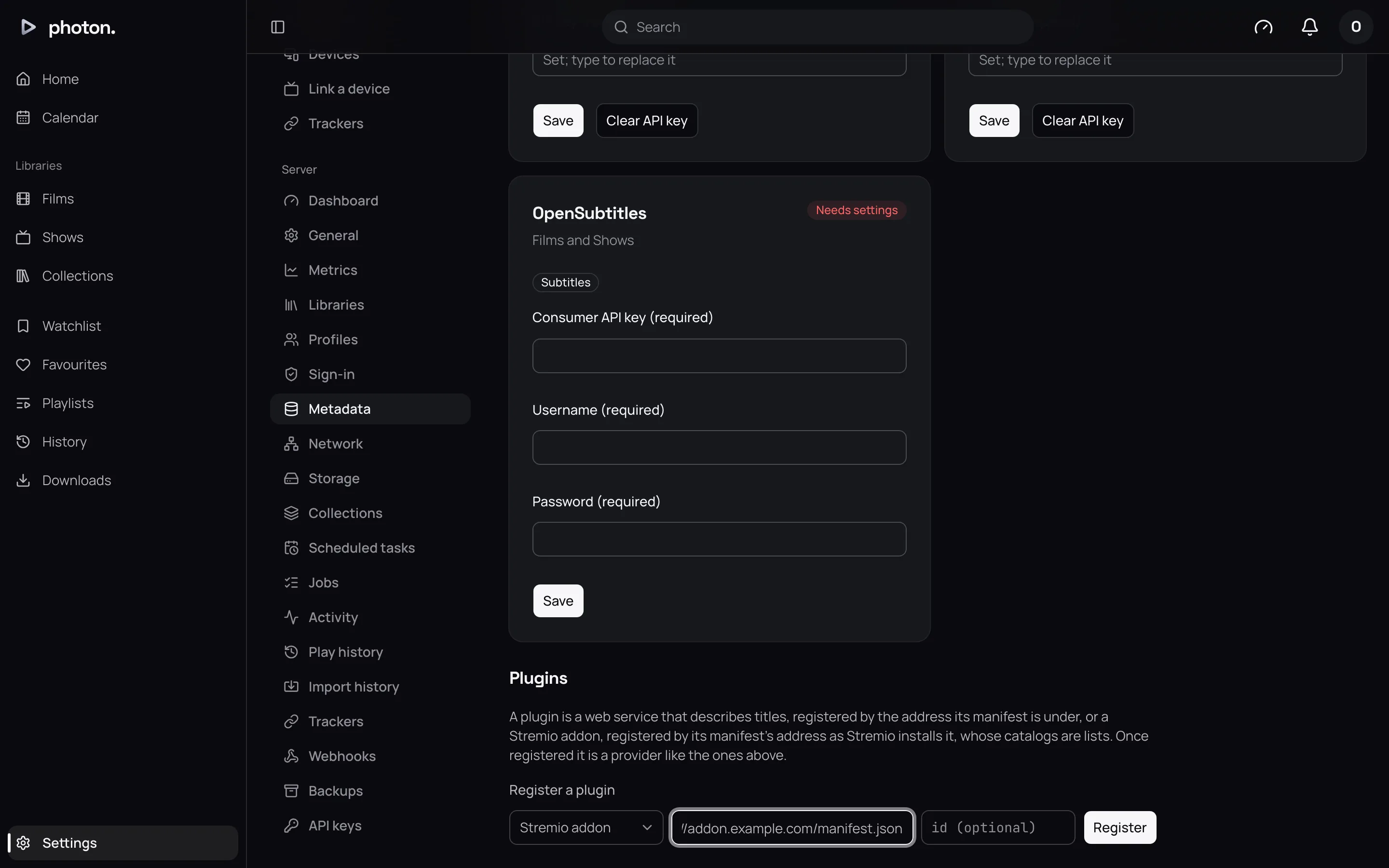
The addon appears in the list as a Stremio addon, with Lists if it has lists of films or shows, and Streams if it offers streams.
Important: An addon’s address can hold your settings for it, including keys for paid services. The server keeps it as a secret: the list shows only the start of it, and it never appears in a log or an error.
To change an addon’s settings later, remove it and add it again at its new address.
Make a collection from one of its lists
- Open Settings › Server › Collections.
- Under New collection, give it a name.
- Set Titles to A … catalog, with the addon’s name in it.
- In List, type the list’s name as the addon gives it, such as
movie/top. Lists of films startmovie/, and lists of shows startseries/. - Under Found in, choose whether to take the list’s titles from every library or from one.
- Choose Make it.
The collection holds the titles from the list that your libraries have. It is read again every day. See Collections and the lists they follow.
Play what it streams
A streamed library has no folder of files. Its titles come from a list, or from what people search for, and they play from what the addon streams. Your household can then watch them like your own files.
- Open Settings › Server › Libraries and choose Add a library.
- Name it and choose what it Holds.
- Set Its media to Streamed by a provider. You only see this once an addon that streams is added.
- Under Titles from, choose the addon and type a list in List, such as
movie/top. Or choose No list. - Under Search finds titles from, choose a source that can search, such as TMDB, or Nothing. With a source chosen, searching the server also shows titles this library doesn’t hold yet. Opening one adds it to the library.
- Under Streamed by, choose the addon.
- Choose Add and scan.
The library needs a list, a search, or both. You can’t change its media afterwards.
Keeping it up to date
Each scan reads the list again. New titles are added. Titles that have left the list are removed, unless someone has played them, favourited them, or added them to their watchlist.
If the list can’t be read, the scan fails rather than emptying the library.
What playing is like
When someone plays a title, the server asks the addon what it can stream and tries the first few in the addon’s order. It skips any that fail, and any shorter than a minute (addons often offer a short clip saying a title isn’t available).
Note: Some addons fetch a title only when you ask for it, for example through a debrid service. If nothing starts within 15 seconds, the player says “the provider is fetching the title; it plays once it has it”. Try again a little later.
If nothing the addon offers can be played, the player says so.
Remove an addon
Remove it from its row under Settings › Server › Metadata, as any plugin. See Install and manage plugins.
Good to know
- Only addons with films or shows can be added.
- To add the same addon twice with different settings, type an id of your own for the second one in the id (optional) box beside the address.
- A streamed library has no files, so the server can’t watch it for changes, and its titles can’t be deleted from the web app. Previews and intro and credits detection are off for it unless you turn them on.
- Streams that are bare torrents or YouTube videos, or that need special settings to open, are left out.
- A list is read up to 500 titles. Titles the addon lists only by its own ids, which no other site knows, are left out.