photon-server can pretend to be a Jellyfin server, so apps made for Jellyfin can use it too: Infuse, Swiftfin, Findroid, Jellyfin’s own apps, and the Jellyfin apps for LG and Samsung TVs.
It is still the same server underneath. People sign in with the same profiles, see the same libraries, and keep the same progress, favourites and playlists, whichever app they use.
Turn it on
- Open Settings › Server › Network.
- Under Jellyfin apps, set Jellyfin apps to On. It is off by default.
- Leave Port at 8096. That is Jellyfin’s usual port, and where its apps look first. You can choose another, but not 8640, which photon-server already uses.
- Choose Save.
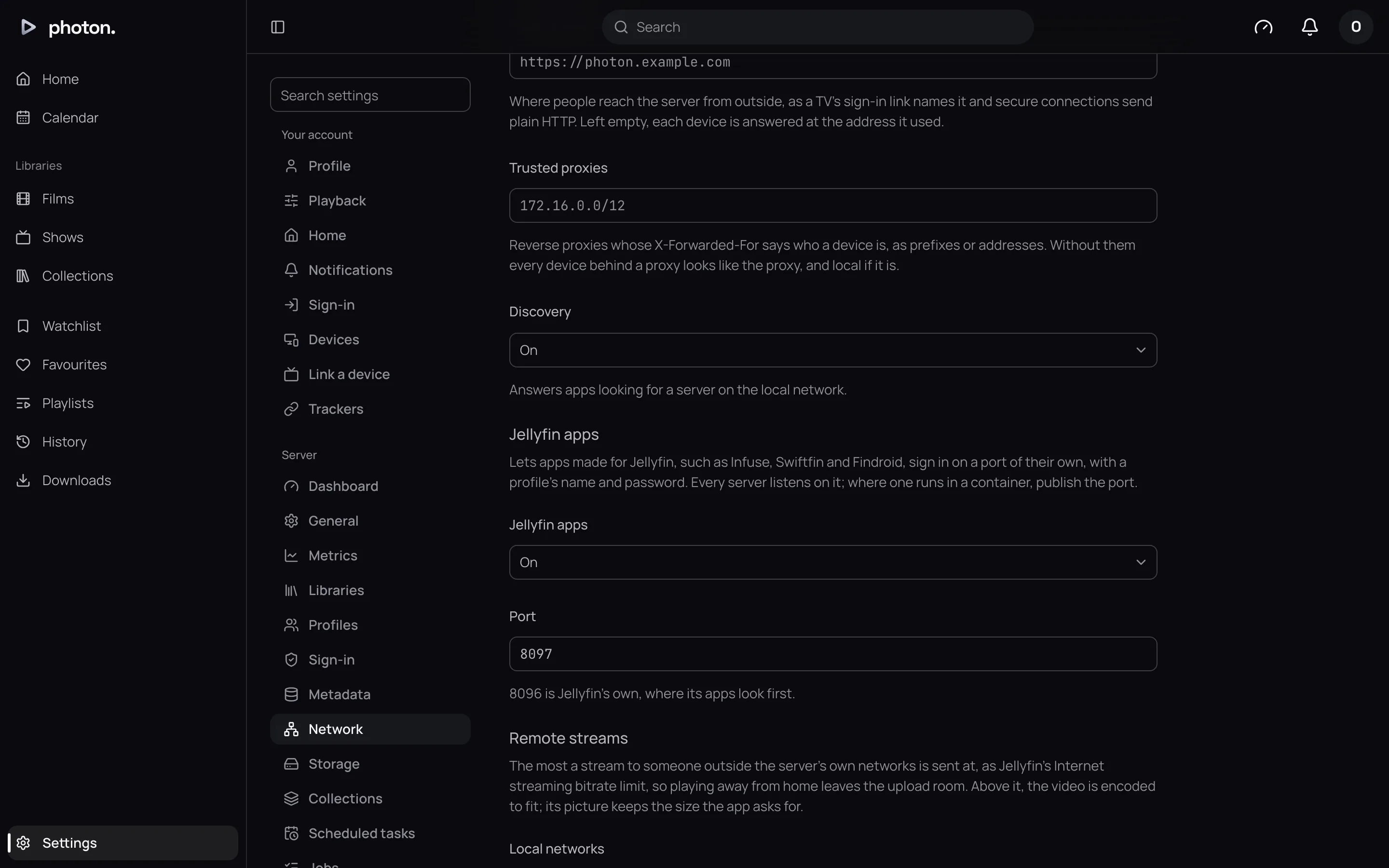
If another program is already using the port, the page says so under Port. The server keeps trying every minute.
With Docker
Docker also has to open the port. In compose.yml, add it beside 8640 under server::
ports: ["8640:8640", "8096:8096"]Then run docker compose up -d again.
Add the server in an app
- In the Jellyfin app, choose to add a server.
- Type the address yourself, such as
http://192.168.1.10:8096. Usehttps://if the server has a certificate (see Reach your server from outside). Jellyfin apps can’t find photon-server on the network by themselves. - Sign in with a profile’s name and password.
The app shows the server under its Name from Settings › Server › General. It asks for a name and password rather than showing a row of faces, because the server doesn’t list its profiles to anyone who asks.
You can also open the port’s address in a web browser to use Jellyfin’s own web app.
Quick Connect
Quick Connect is Jellyfin’s way of signing in with a code. It is always on.
- In the app, choose to sign in with Quick Connect. It shows a six-digit code.
- On a device that is already signed in, open Settings › Link a device in the web app.
- Type the code and choose Link.
The app signs in as whoever approved it.
Tip: A profile made by a sign-in service has no password at first. Quick Connect is how it signs in to a Jellyfin app.
What playing is like
Titles play the same way they do in Photon. When the app can play a file as it is, the server sends it unchanged. When it can’t, the server converts it as it plays (this is called transcoding). The app starts with the sound and subtitles it asked for.
Things you might notice:
- A title that fails to start, then plays. Some TVs say they can play a file and then can’t. Jellyfin’s web app then asks again, and the server converts the file instead. On the dashboard, the play shows Playback failed as the reason it was converted.
- Subtitles. Styled and picture subtitles are shown by the app itself, as Jellyfin shows them. A subtitle the app can’t show at all is drawn into the picture instead (this is called burning in).
- Links saved as
.strmfiles play in Infuse too.
The remote speed limit under Settings › Server › Network applies to Jellyfin apps away from home, as it does to Photon.
What a Jellyfin app can do
A Jellyfin app can browse, search, play, download a title’s file, mark titles watched and favourite, and keep playlists. It shows chapters, scrubbing previews, intro and credits skipping, and theme music.
A music library is a Jellyfin music library, so music apps such as Finamp and Feishin browse its artists, albums and songs and play its tracks. A track plays as it is where the app plays its format, and is converted to AAC where it doesn’t, or where it is over the app’s streaming limit.
A books library is a Jellyfin books library: its authors are folders of their books. An audiobook plays in the app’s audio player, and an ebook opens in the app’s reader where it has one, such as Jellyfin’s web app’s.
Some parts of Jellyfin are left out on purpose:
- No profile is a Jellyfin admin, not even an admin. Jellyfin’s dashboard isn’t there: you run the server from photon-server’s own web app.
- Live TV, SyncPlay, sharing and deleting are turned off, so the apps don’t offer them.
- Intros (trailers before a film) are never played.
Signing a Jellyfin app out
A Jellyfin app appears under Settings › Devices with every other device, by the name it gave. Sign it out there, or from the app itself. See Signed-in devices.
Good to know
- With a certificate set, the Jellyfin port serves
https://too, with the same certificate. Required only redirects photon-server’s own port: the Jellyfin port still answershttp://. - Behind a reverse proxy, give the Jellyfin port its own site. Trusted proxies applies to it as well.
- Wrong passwords in a Jellyfin app count towards the same limits as in the web app, and appear in the activity log.