Once a library is added, photon-server keeps it in step with its folder. A scan is the server reading the folder for what has changed. Three things start one:
- The folder watch, within about a minute of a file changing.
- The schedule, every 12 hours.
- You, or a tool such as Radarr or Sonarr, asking for one.
Watching folders
A library’s Watch for changes setting is As they happen by default. When you add, rename or remove a file, the server waits until the folder has been quiet for a minute, then scans just that part of the library. The wait means a film still being copied in is read once, when it is complete.
To turn the watch off, set Watch for changes to Only when scanned in the library’s settings. The library then waits for the schedule or a scan you start.
When the watch can’t see changes
The watch relies on your computer telling the server when files change. It doesn’t work for:
- Network shares changed from another computer. If another machine adds a file to a shared folder, the server’s computer isn’t told.
- Very large libraries on Linux, where the system’s limit on watched folders runs out. The log then says “out of inotify watches”.
For these, the 12-hour schedule catches up, or you can scan by hand. See Good to know for raising the Linux limit.
The scan schedule
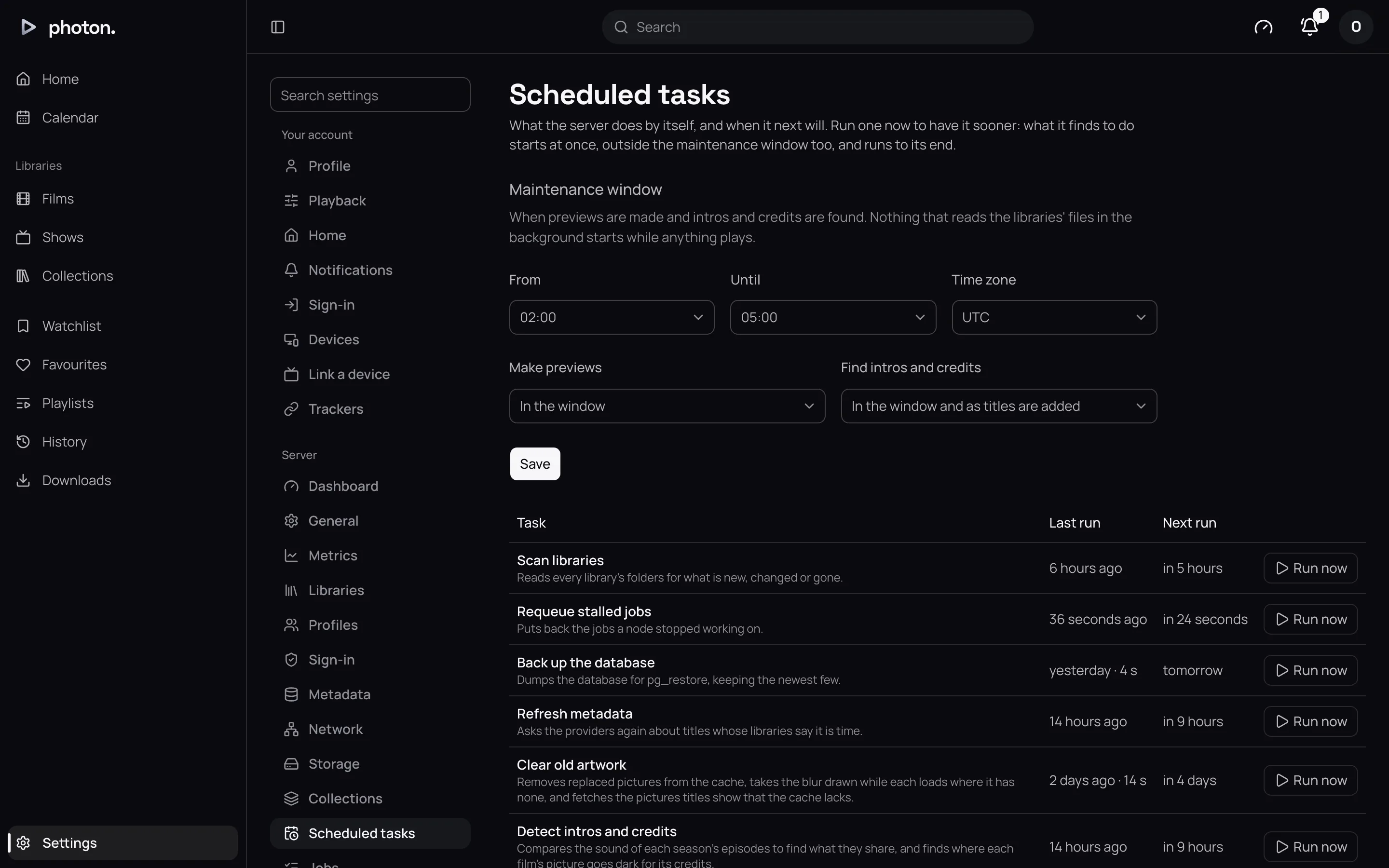
The Scan libraries task scans every library every 12 hours, watched or not. You can see when it last ran, and run it now, at Settings › Server › Scheduled tasks. See scheduled tasks.
Scan a library now
- Open Settings › Server › Libraries.
- Choose Scan now beside the library.
The button reads Scanning… while it works. You can also choose Scan library files from the library’s menu in the sidebar, or Scan all libraries on Settings › Server to scan every one.
Tip: Radarr, Sonarr and similar tools can ask photon-server to scan just the folder they have added a file to, using an API key. The API reference has the details.
What a scan reads
Scans are quick when little has changed. The server skips folders and files that look exactly as they did last time, and only reads files that are new or changed.
If a file can’t be read right now, for example because a network drive hiccuped, the server skips it this time, notes why in its log, and tries again at the next scan.
A file that moves or goes missing
- Renamed or moved within the library: the title stays as it was, with everyone’s progress and history. The server recognises the file by its contents, not its name.
- Removed: the title stays, marked Missing, and can’t be played. Put the file back and the next scan finds it again, history and all.
- The whole library can’t be read, for example because a drive isn’t connected: the scan stops and nothing is changed.
This is deliberate. A disconnected drive shouldn’t cost you your library.
A title whose files are all missing stays until you remove it. Where the library allows media deletion, Delete… on the title removes it.
Clearing out what has gone
Two things clear missing copies, both at Settings › Server › Libraries:
- Forget copies on no disk, on a library’s own page, takes every copy whose files have gone out of the library now, and the titles left with nothing with them. It says how many went.
- Copies on no disk, in the library’s settings, set to Forgotten at the end of a scan, does the same at the end of every scan from then on. Leave it at Kept, marked missing, the default, if your media is on a drive or share that is sometimes away.
Either way, what people have watched of a title that goes is forgotten with it, and files still on disk are never touched.
Keeping descriptions fresh
Scans read your files. Descriptions and pictures come from the online providers, and are kept fresh separately:
- The Refresh metadata task runs every day at 3 in the morning, server time. It looks up again every title last checked longer ago than its library’s Refresh metadata setting, which is 30 days by default.
- A show with an upcoming episode is looked up every week, so its calendar stays current.
To refresh now, use Refresh metadata on a library or a title: see scan and refresh and refresh a title.
An NFO file you edit is read at the next scan of its folder, which the watch starts within a minute.
Good to know
Raising the Linux limit. inotify is the part of Linux that tells the server about changes. To let it watch more folders, run this on the computer photon-server runs on (if you use Docker, run it on the computer itself, not inside Docker):
echo fs.inotify.max_user_watches=524288 | sudo tee /etc/sysctl.d/90-inotify.conf
sudo sysctl --system
Lots of changes at once. If the system drops change notices because too many files changed together, the server scans every watched library in full.
One scan at a time. A library never runs two scans at once. Asking again while one is waiting joins it.
Missing previews are kept for 30 days, in case the file comes back.
Anime lists. The Refresh the anime lists task updates the lists that fit AniList and AniDB entries into seasons, once a day (see anime).