A playlist is a list of films and episodes you put together, to play in your order or shuffled. Your playlists are your own: nobody else in the household sees them, and they follow you to every app you sign in to.
Collections are different. An admin keeps those for everyone. See collections.
Make a playlist
- Open Playlists in the sidebar.
- Type a name under New playlist.
- Choose Create. The new, empty playlist opens.
You can also make one while adding a title: Add to playlist… offers New playlist below your existing ones.
Playlists lists yours by name, with how many titles each holds and how long they last.
Make a smart playlist
A smart playlist holds no titles of its own. It plays whatever a library’s filters find, worked out again every time you open it, so “episodes I haven’t watched” loses an episode the moment you watch it.
- Open a library and choose Episodes or Films at the top. A playlist plays one title after another, so a wall of shows is not one to keep.
- Narrow it with Filter and order it with the sort menu. Unwatched, under Filter, is yours alone, and a smart playlist may use it where a collection cannot.
- Choose Save as a smart playlist, give it a name, and choose Save.
On its page, Change the filters opens that library again as the playlist reads it. Change them there and choose Save to the playlist.
A smart playlist’s titles are not yours to order or remove one by one: change the filters instead. Everything else — playing, shuffling, renaming, deleting — works as any playlist does.
Add titles
- Choose ⋯ on a card or on a title’s page.
- Choose Add to playlist….
- Choose the playlist. The title is added at the end.
What you add decides what plays:
- A film or episode is added as it is.
- A show is added as all its episodes, in order.
- A season is added as its episodes, in order.
- A collection is added as everything in it.
The same title can be added more than once.
Change the order, rename or delete
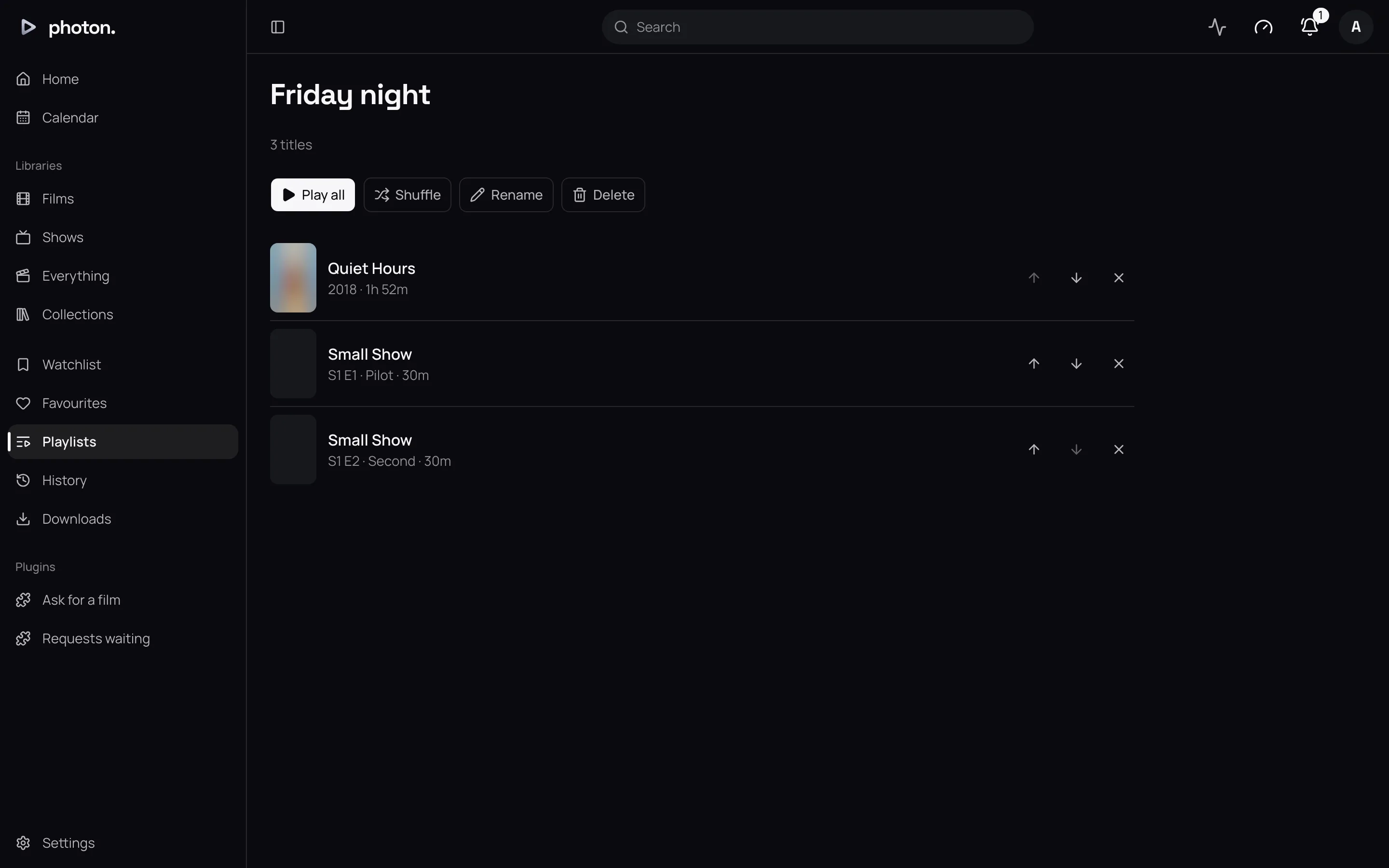
On a playlist’s page:
- The up and down arrows beside an entry move it one place. A smart playlist has none: its order is the sort its filters were saved with.
- The cross beside an entry removes it. A smart playlist has none either.
- Rename changes the name. Choose Save to keep it.
- Delete removes the playlist after asking. The titles stay in your library.
Play a playlist
- Play all plays from the first entry.
- Shuffle plays every entry once, in a random order.
When one title ends, Up next offers the next. Previous and Next in the player, or Shift+P and Shift+N, move through the list.
Note: The playlist only plays in the tab you started it in. If you reload the page or open a title from somewhere else, the player goes back to its usual behaviour.
What you watch from a playlist is marked watched and kept in Continue Watching as usual. A playlist does not keep a place of its own.
Good to know
If an admin takes away your access to a library, its titles disappear from your playlists. They come back if you are given the library again.