photon-server comes with its own web app. Open the server’s address in a browser, such as https://photon.example, and log in. From there you can browse your libraries, search, keep a
watchlist, favourites and playlists, watch in the browser, and choose how things play.
This section is for someone watching. Running the server is covered in the sections after it.
Logging in
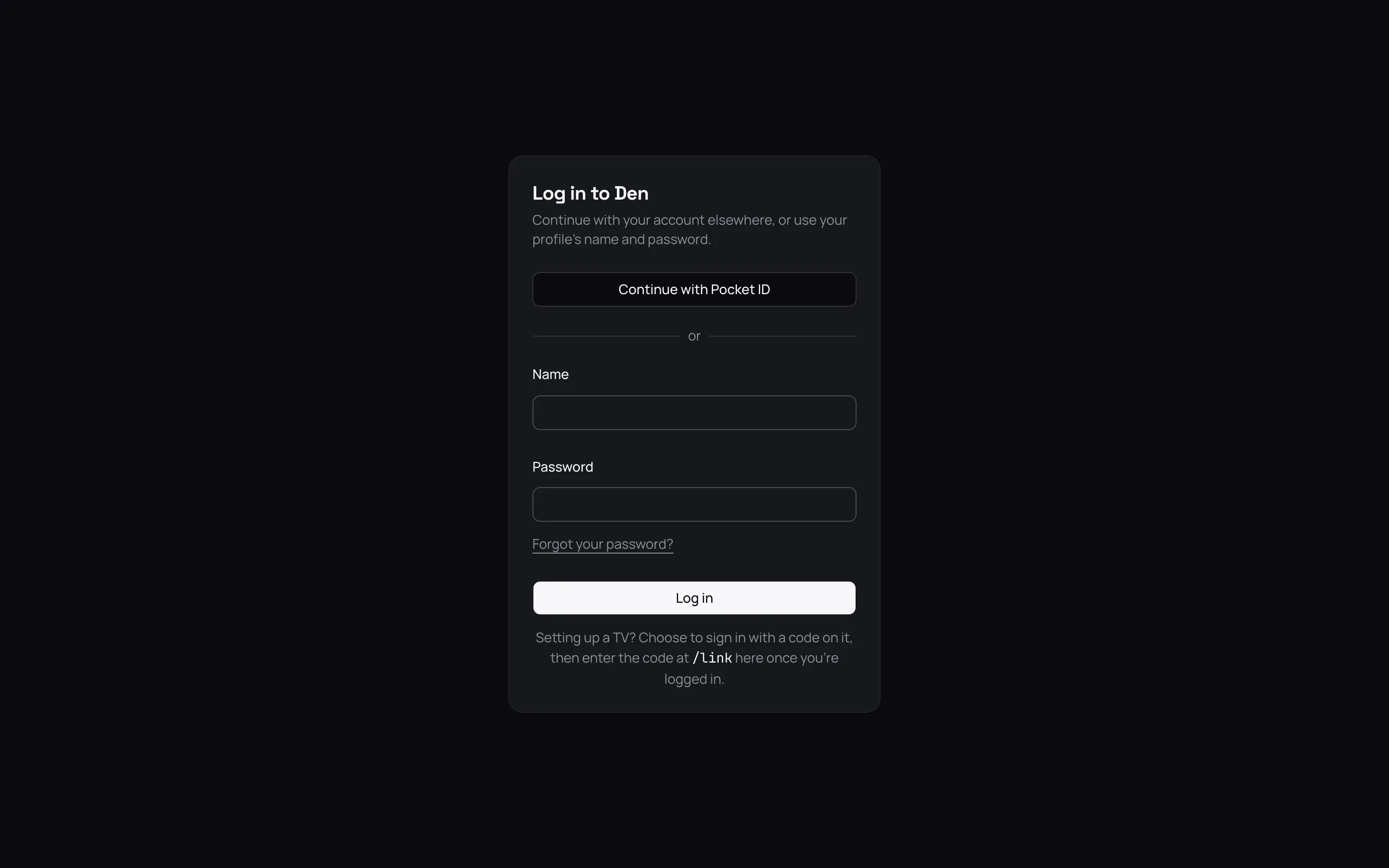
- Type your profile’s Name and Password.
- Choose Log in. You will see Who’s watching? if your household has more than one profile.
- Choose your profile. Another person’s profile asks for its PIN or password first.
If your household uses a shared sign-in, such as a company or family account, the page also offers Continue with that service. See single sign-on.
To change profile later, choose your picture at the top right, then Switch profile.
If you forget your password
- Choose Forgot your password?. You will see Reset your password.
- Type your Name and choose Get a code. You must do this from a device on the same home network as the server.
- The code is not emailed. It is written to the server’s log, so ask whoever runs the server to read it to you.
- Type the Code, your New password and Confirm password, then choose Reset password.
The code only works for a short time. Resetting your password signs you out on every device.
Finding your way around
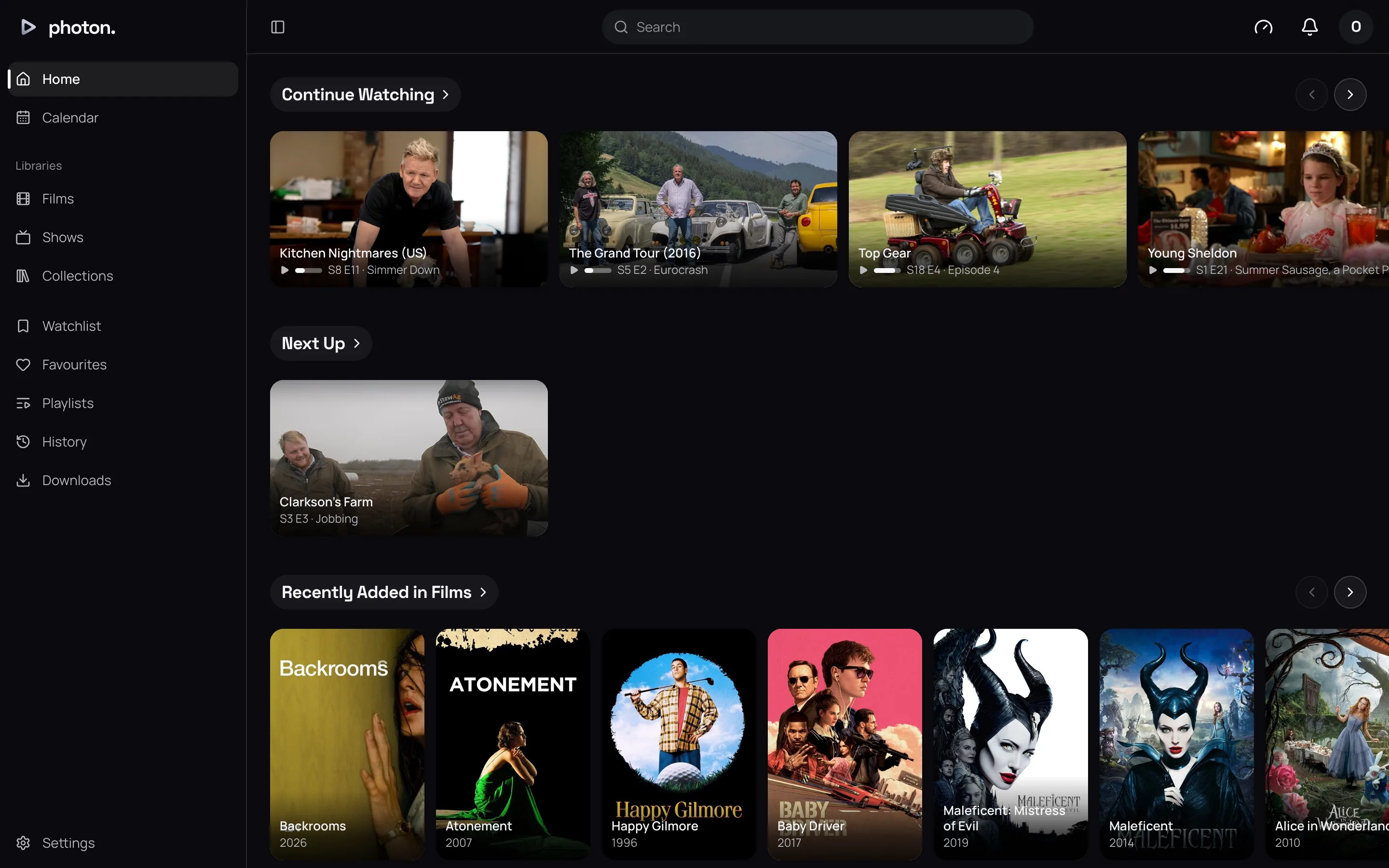
The sidebar on the left holds:
- Home and Calendar.
- Libraries: each library you have been given, then Collections if the server has any.
- Watchlist, Favourites, Playlists, History and Downloads.
- Plugins, if a plugin adds pages of its own. See plugins.
- Settings, at the bottom.
Along the top of every page:
- The search field. See search.
- The bell, which holds your notifications.
- Your picture, which opens Switch profile, Settings, Link a device and Log out.
An admin also sees a Server dashboard button and the server’s activity. Those are covered in the admin sections.
You only ever see the libraries and titles an admin has given your profile. If the same title is in two of your libraries, Home, search and the calendar show it once.
The web app keeps itself up to date. If a title is added, or you mark something watched on another device, the page changes by itself. There is no need to refresh.
Pages
- Home and browsing: Home, a library, filters and sorting, a title’s page and a person’s.
- Search: finding a title or a person.
- Your lists: the watchlist, favourites, history and the calendar.
- Playlists: making, ordering and playing playlists, by hand or by filters.
- Watching: the player, subtitles, skipping, casting and downloads.
- Your settings: your profile, playback, Home’s rows, notifications, devices, linking a TV, sign-in and trackers.
- Ask for a title: asking for what the server doesn’t have, and deciding what people ask for.
Home and browsing
Home's rows, a library's titles and how to narrow them, collections, and the pages of a title and a person.
Search
Find a film, show, episode, collection or person by any word of its name, and narrow the results to one library.
Your lists
Keep a watchlist and favourites, read back what you have played, and see what is coming out on the calendar.
Playlists
Make your own lists of films and episodes, by hand or by filters, and play them through or shuffled.
Watching in the browser
The web app's player: its controls and keys, choosing tracks and subtitles, skipping intros and credits, casting to a Chromecast, and downloading a copy to keep.
Your settings
Your profile, how you play, Home's rows, notifications, the devices signed in as you, linking a TV, signing in with another account, and trackers.
Ask for a title
Ask for a film or show the server doesn't have, see what you asked for, and, as an admin, decide what people ask for and where it is sent.