A webhook is a web address the server sends a message to whenever something happens: someone starts watching, someone signs in, new titles arrive, a task fails.
What people use them for:
- a message in a Discord or Slack channel when new episodes are added;
- a notification on your phone through ntfy or Gotify when a sign-in is refused;
- feeding your own home automation, for example to dim the lights when a film starts.
By the end of this page you have a webhook added and tested.
Add a webhook
- In the service you want to message, make a webhook and copy the address it gives you. The address has a secret token in it, which is what lets the server post there.
- In photon-server, open Settings › Server › Webhooks and choose Add a webhook.
- Paste the address into Address.
- Under Sent as, choose the kind of service: Discord, Slack, ntfy, Gotify, or Photon JSON, signed for your own automation.
- Under Send it when, tick the events you want to hear about.
- Choose Add webhook.
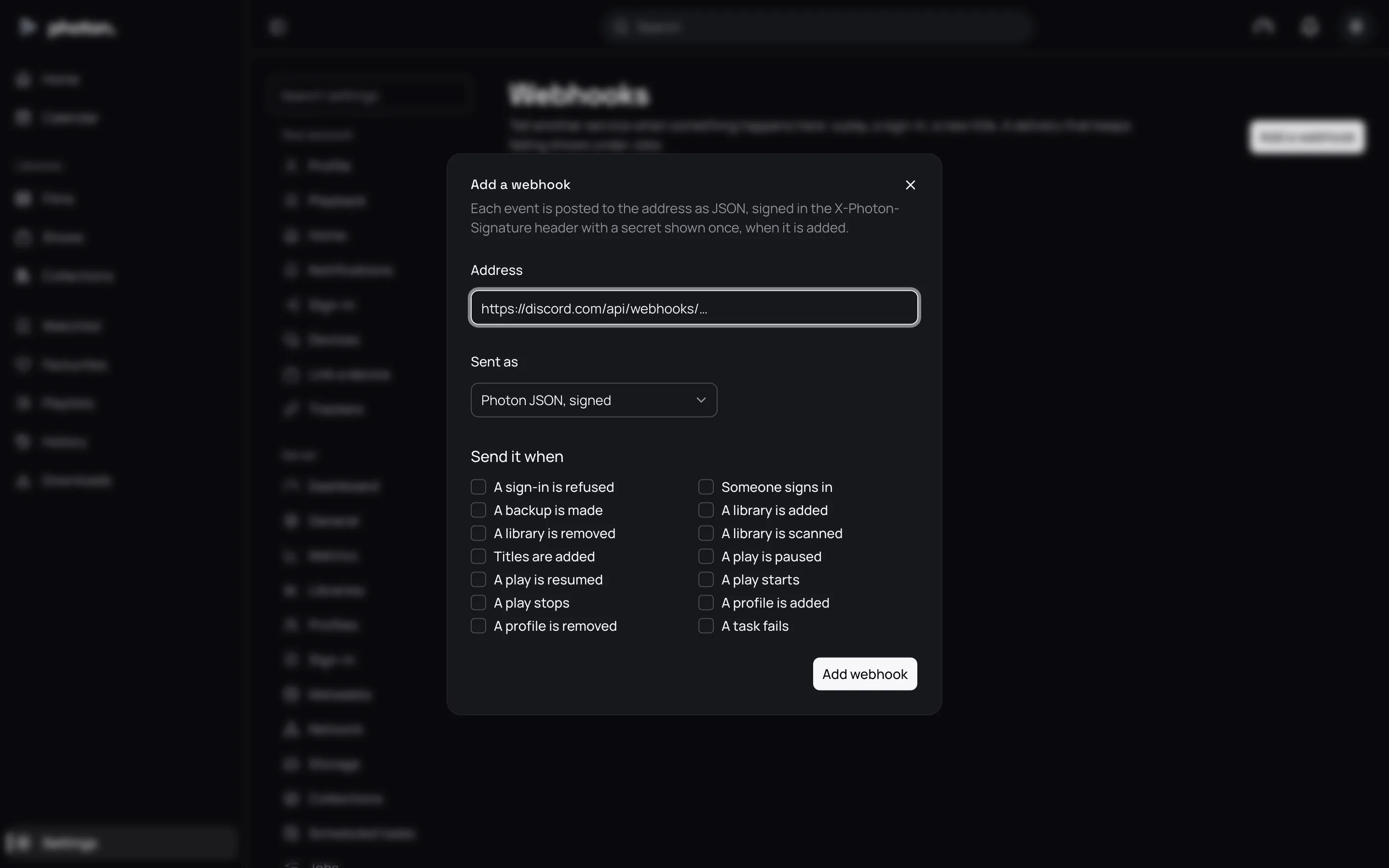
For Photon JSON, signed, the server then shows the webhook’s Secret. Copy it into the service that receives the webhook. It is shown only once.
The events
You can tick any of these under Send it when:
- A play starts, A play is paused, A play is resumed, A play stops
- Someone signs in, A sign-in is refused
- A profile is added, A profile is removed
- A library is added, A library is removed, A library is scanned, Titles are added
- A task fails
- A backup is made
What is sent
Discord, Slack, ntfy and Gotify get a short message, as a sentence, with your server’s name as its sender or heading. For example: “Oliver started Heat”. The sentence is the same as the one in Settings › Server › Activity.
Photon JSON, signed is for your own automation. Each message is a block of data describing the event: what happened, when, on which server, and the profile, title or library it is about. A title comes with its IMDb, TMDB and TheTVDB ids, so other apps can find it. It also carries the same sentence the chat services get.
Test a webhook
Choose Send a test on a webhook’s row. A test message goes to that webhook alone, whatever events it is set up for. Check the other end to see that it arrived.
When a message doesn’t arrive
The server doesn’t hold anything up to send a webhook: messages go out in the background. If the service doesn’t answer within 10 seconds, or turns the message down, the server tries again later, waiting longer each time. After five tries it gives up.
Messages it gave up on are listed under Settings › Server › Jobs, in Given up, with what the service said. You can try them again from there.
Tip: If nothing ever arrives, check the address. The server won’t follow a service that answers by pointing it to another address.
Remove a webhook
Choose Remove on its row, then Remove webhook. Nothing more is sent to it, including messages still waiting to go.
Good to know
- The server’s own background work, such as jobs starting and finishing, isn’t offered as an event.
- A sign-in message never includes a password.
- Errors only show the service’s host name, never the whole address, since the address holds its token.
- Plugins can be told of events too. See Install and manage plugins.
Checking the signature
Photon JSON, signed messages carry a signature, so whoever writes the receiving service can
check a message really came from your server and wasn’t changed on the way. The signature is in the X-Photon-Signature header: sha256= followed by the HMAC-SHA256 of the message body, made with
the webhook’s secret. Work it out from the body exactly as it arrived, and compare. To try it in a
terminal, with the body saved as body.json:
printf 'sha256=%s\n' "$(openssl dgst -sha256 -hmac "$SECRET" -hex < body.json | awk '{print $NF}')"