Most films play as they are. Sometimes the app you are watching on can’t play a file, or the file is bigger than the quality you chose. Then photon-server converts the film as it plays, into something the app can show. This is called transcoding.
Transcoding is not a fault. The film still plays. But it costs the server a lot of work, and with no graphics card it can only do a few at once. This page explains why it happens, what it uses, and how to make it happen less.
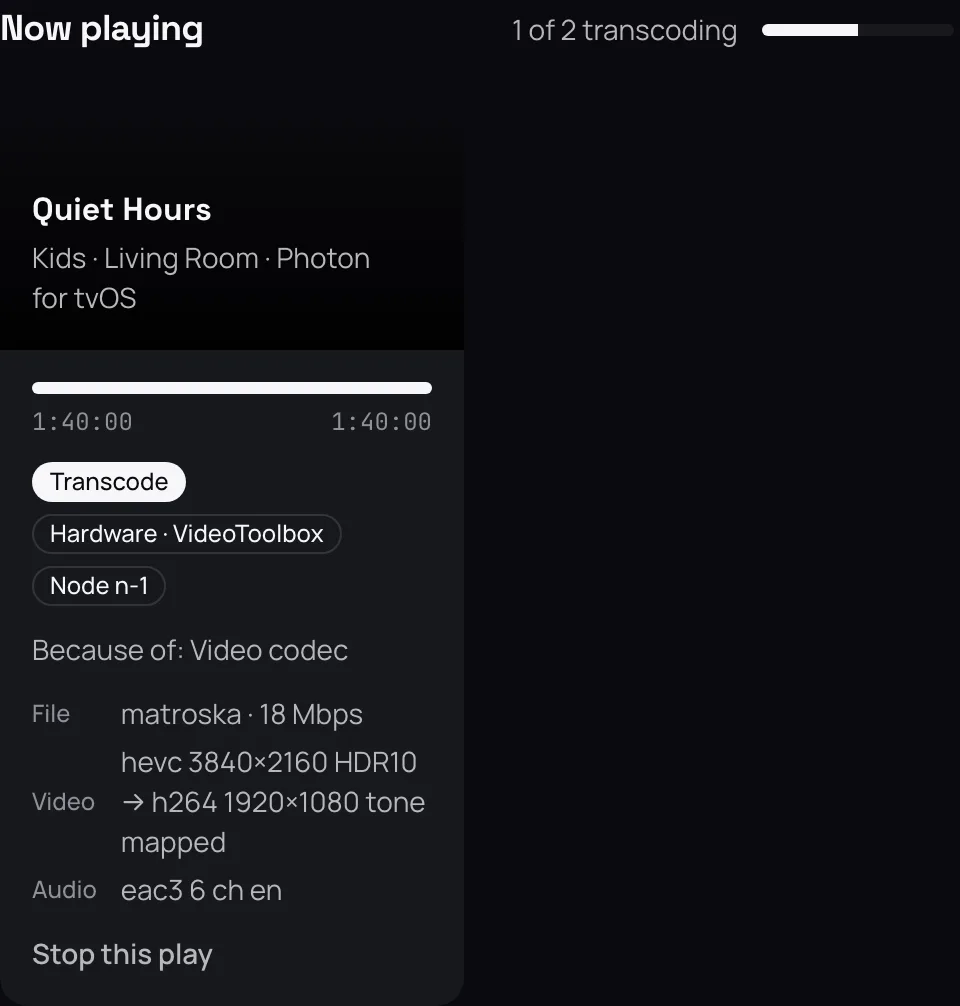
See why a film is being converted
- Open Settings › Server › Dashboard while the film plays.
- Find it under Now playing. It says Direct play, Direct stream or Transcode.
- Under a transcode, Because of: lists the reasons.
| Reason | What it means |
|---|---|
| Container | The app can’t open this kind of file. |
| Video codec | The app can’t play the way the picture is stored. |
| Video profile | The app can’t play this variety of the picture’s format. |
| Video level | The picture is more demanding than the app plays. |
| Resolution | The picture is larger than the app plays. |
| Bit depth | The picture has more shades of colour than the app plays. |
| HDR | The screen doesn’t show the film’s HDR. See HDR and Dolby Vision. |
| Audio codec | The app can’t play the way the sound is stored. |
| Audio channels | The sound has more speakers than the app plays. |
| Bitrate | The file is above the quality chosen. |
| Subtitles | The subtitles are pictures, or styled text, the app can’t draw, so they are drawn into the video. |
| Several files | The film is split across several files, played as one. |
| Playback failed | The app tried the file as it is, and it failed. |
Some reasons need only light work. A different kind of file, sound the app can’t play, or several files, on their own, are handled as Direct stream: the picture is sent unchanged and only the sound is converted. Reasons about the picture, the bitrate or subtitles drawn in make it a full transcode.
Make it happen less
- Use a graphics card. The server converts much faster, and many more at once, on a graphics card than on the processor alone. See what the server converts on.
- Raise the quality. If the reason is Bitrate, the person watching has a quality limit below the file. They can change it in Settings › Playback › Quality, or in the player’s own quality menu. Away from home, the server’s limit for remote streams may also apply; see Cap the quality.
- Use an app that plays more. Photon on Apple devices plays most files as they are. A web browser plays far fewer, so the web app is converted for more often.
- Choose text subtitles. Picture subtitles (from Blu-rays and DVDs) force a transcode on apps that can’t draw them. Where a film has text subtitles in the same language, choose those. The web app draws picture subtitles itself where the browser can.
What the server converts on
When it starts, each server tries the graphics hardware it has, in this order, and takes the first that works:
- Apple’s own, on a Mac (VideoToolbox).
- An NVIDIA graphics card (NVENC).
- On Linux, Intel’s (Quick Sync), then Intel or AMD through VA-API.
- On Windows, Intel’s (Quick Sync), then AMD’s (AMF).
It tests each one by converting a test picture, so a missing driver is found at start, not at the first film. If nothing works, it converts on the processor (Software).
Settings › Server › Dashboard shows the choice in the Server card, as Encoder, such as “VA-API, /dev/dri/renderD128, HEVC and H.264”. If it says “H.264 only”, the hardware can’t make the newer, smaller format (HEVC), so everything is converted to the older one (H.264).
Important: In Docker, the graphics card must be passed into the container, or the server can’t see it. See install with Docker.
Choose it yourself
If the server picked the wrong one, such as when you have two graphics cards:
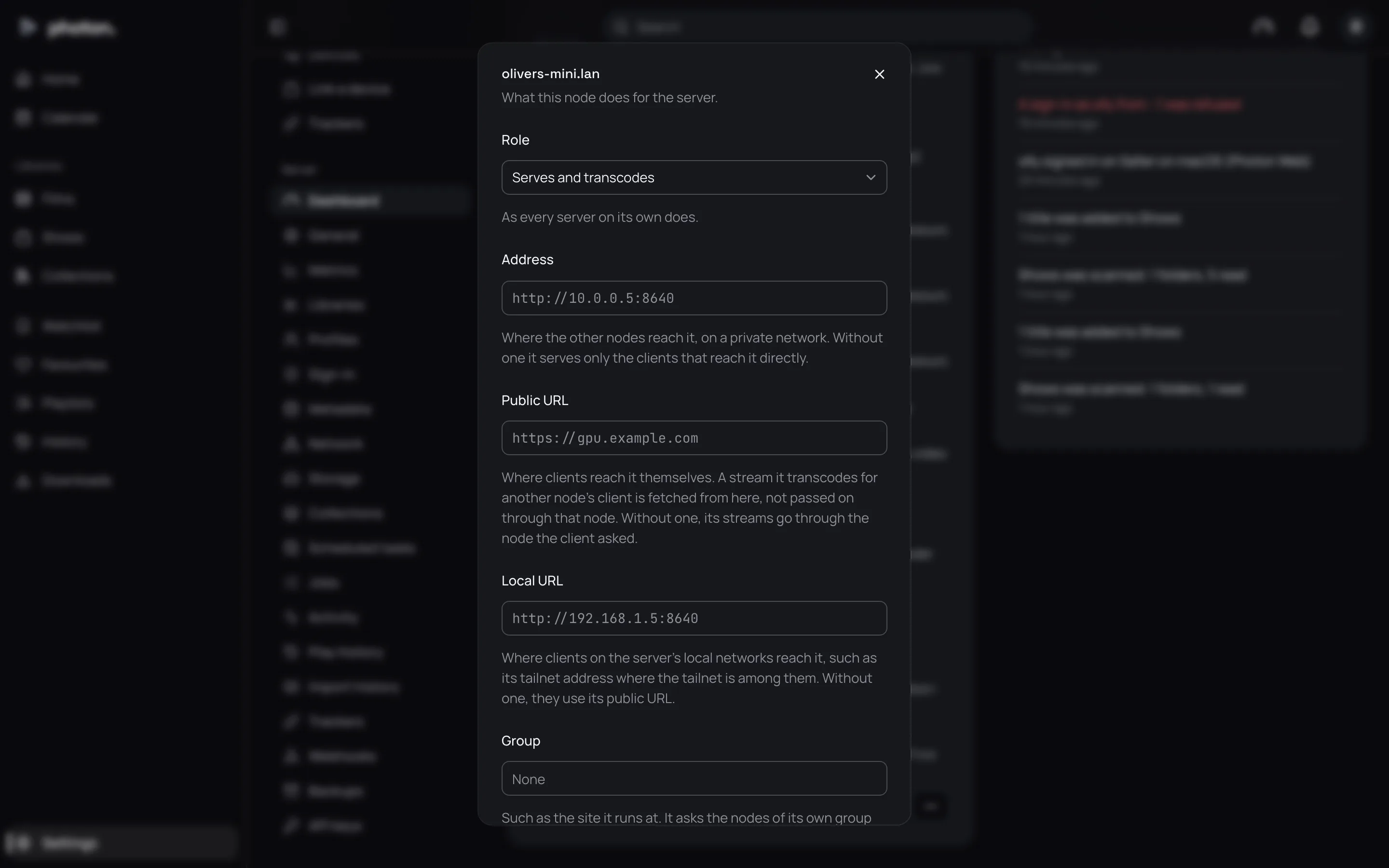
- Open Settings › Server › Dashboard.
- In the Server card, open the server’s actions menu (…) and choose Settings….
- Set Encoder to the one you want: Automatic, Software, VideoToolbox, VA-API, Quick Sync, NVENC or AMF.
- For VA-API or Quick Sync, give the device, such as
/dev/dri/renderD129. For NVENC, give the card’s number, such as1for the second card. Leave it empty for the first. - Choose Save. The server tests it straight away.
The next film converted uses it. A film already being converted carries on as it began. If the one you chose fails its test, the server uses the first that works, and says so in its log.
How many at once
In the same Settings… dialog, Transcodes at once is one of:
| Setting | What it does |
|---|---|
| Worked out from its encoder | The default. On the processor, one transcode for every four processor threads, and at least one. On a graphics card, 8. |
| At most | The number you give. |
| No limit | As many as are asked for. |
When every slot is in use, a film that needs converting is turned away with a message saying the server is busy. Lowering the limit never stops a film already playing.
A download being converted also uses a slot, but gives it up to anyone who wants to watch (see downloads). The dashboard’s Now playing heading shows this, such as “3 of 8 transcoding · 1 for downloads”.
Note: The server also needs 2 GB free in its cache folder to start a transcode, because it writes the converted video there as it plays.
Cap the quality
Two limits decide the most a film may be sent at. The lower one wins.
| Setting | What it does |
|---|---|
| Settings › Playback › Quality | Each person’s own. Original (the file as it is, the default), or a limit from 40 Mbps down to 420 kbps. Above it, the film is converted down. The player’s quality menu changes it for one film. |
| Settings › Server › Network › Remote streams › Limit (Mbps) | For anyone watching from outside your home network, so streams away from home don’t use up your upload. 0 means no limit, the default. |
Which networks count as home is set in Local networks on the same page; see remote access.
Good to know
- Converted video is HEVC where the app plays it and the hardware makes it, otherwise H.264. The picture keeps its size unless the app asks for smaller.
- Sound is converted only when the app can’t play it. Surround sound mixed down to stereo is made a little louder, so speech isn’t lost.
- HDR is kept where the screen shows it, and turned into ordinary picture otherwise; see HDR and Dolby Vision.
- Styled subtitles can only be drawn into the picture if the server’s FFmpeg has libass. The dashboard’s Server card says whether it is available.
- With several servers, a film is converted on whichever has a slot free; see several servers.