photon-server matches most titles from their file names alone. Now and then it picks the wrong film, such as a remake instead of the original, or finds nothing at all. This page shows how to put that right, and how to change a title’s details and pictures. Everything here is for admins.
Where to find it
As an admin, you can fix a title from two places:
- Its card, anywhere in a library, on Home or in search. Its ⋯ button opens a menu with Edit…, Fix match…, Unmatch, Choose artwork…, Refresh metadata… and Manage…, depending on the title.
- Its page. The More button (three dots) has an Admin part with Edit metadata, Identify, Edit artwork and Edit markers. Each opens that part of the title’s Manage page.
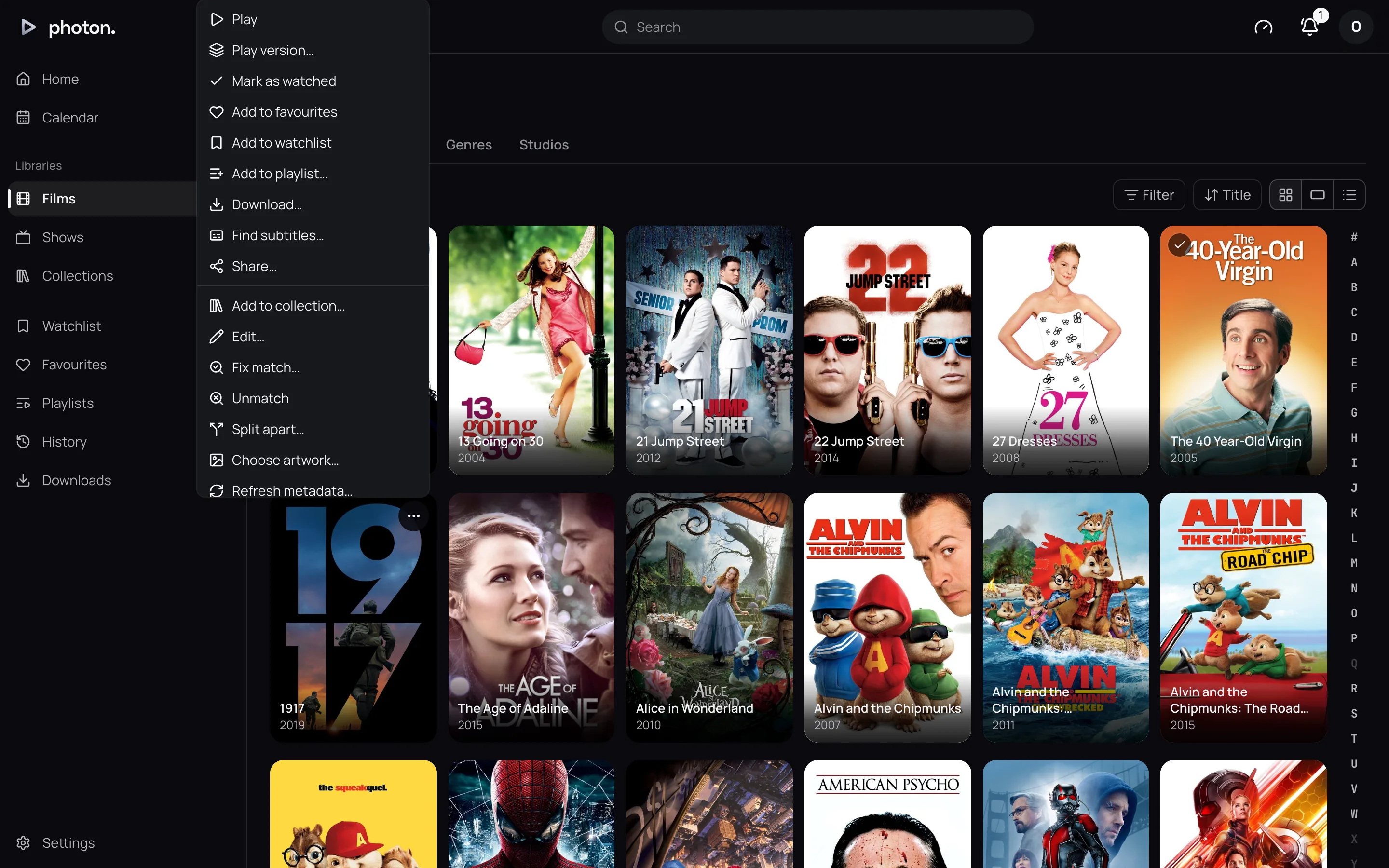
Edit…, Fix match… and Choose artwork… open the same dialog, with Details, Match and Artwork tabs. Manage… opens the title’s own settings page, with everything on this page in one place.
Fix a wrongly matched film
Say your copy of 1917 (2019) shows up with the poster and description of a different film with the same name.
- Find the film’s card in its library, choose its ⋯ button, then Fix match…. The dialog opens on the Match tab.
- Choose the Provider to search. TMDB is right for most films.
- Check the Name and Year. Correct them if your file name had them wrong.
- Choose Search. A list of results appears, each with its poster, name, year and description, so you can tell films with the same name apart.
- Choose Select beside the right one.
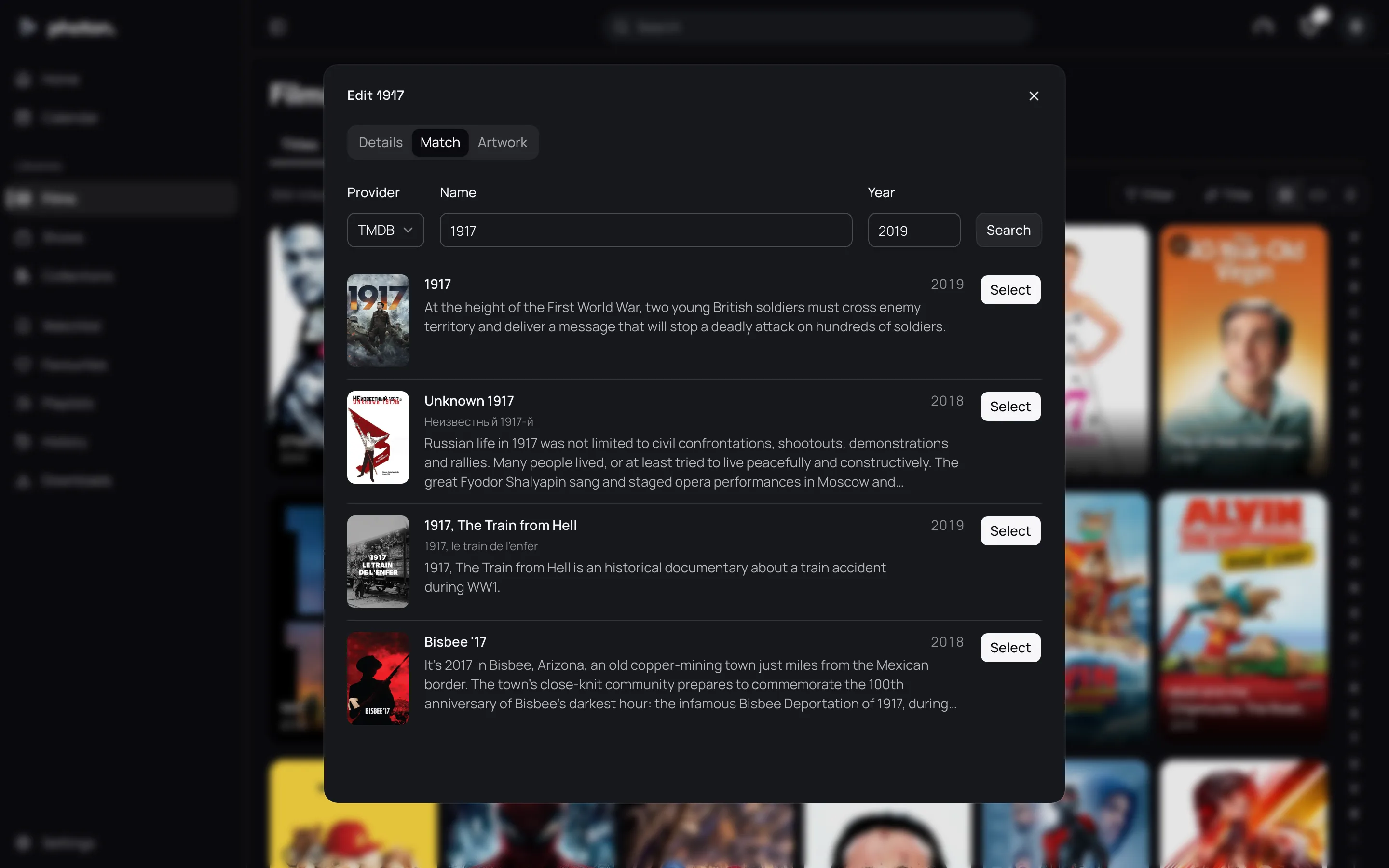
You will see “Matched. Its details follow in a moment.” The title’s description, cast and pictures update shortly after.
The match you choose sticks. It wins over any ID in the folder name or an NFO file, and later refreshes keep it. For a show, fix the show itself; its seasons and episodes follow.
Tip: To get a title right from the start, put its ID in the folder name: see naming the match yourself.
From the Manage page
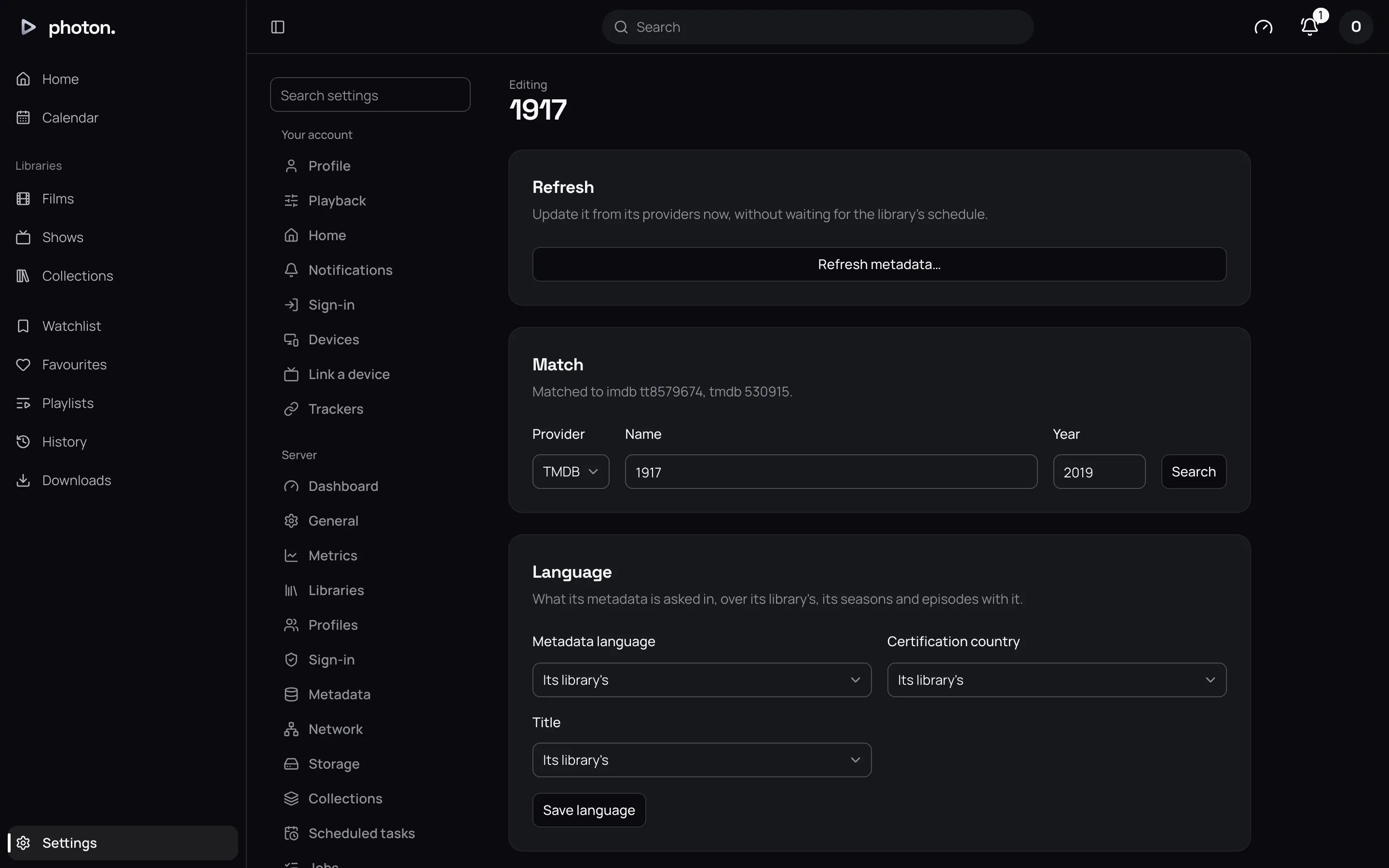
Manage… shows the same search in its Match card. The card also tells you what the title is matched to now, such as “Matched to tmdb 949”, or “Not matched to any provider.”
Unmatch
Unmatch takes a title off every provider, and it keeps only what its file name and any NFO say. Use it for home videos or recordings that no provider knows, rather than leave them showing a stranger’s film.
Edit its details
The Details tab lets you change a title’s Title, Sort title, Original title, Tagline, Overview, Certificate, Released, Year, Genres and Studios. Separate genres and studios with commas. Seasons, episodes and extras can be edited the same way.
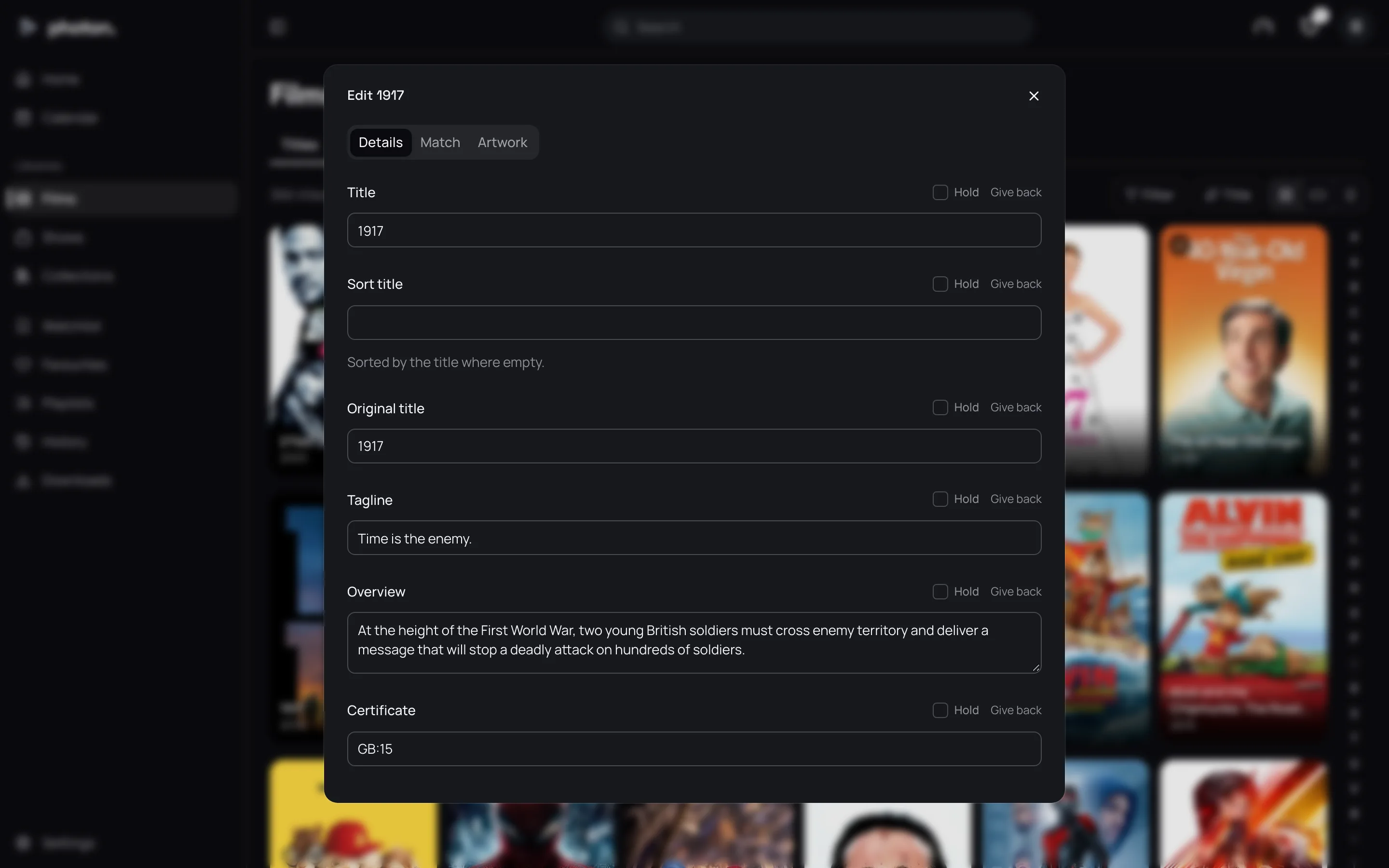
Each field has a padlock beside its name, as in Plex.
- What you type locks the field when you save, so it wins over every provider and stays through every refresh. A locked field shows Locked.
- Lock a field you haven’t changed, by its open padlock, to keep its current value: no provider will change it.
- Unlock a field, by its Locked label, to hand it back to the providers: the next scan fills it with what they say. Unlock all, shown while any field is locked, does it for every field.
To blank out a field, unlock it rather than emptying it. An empty Sort title sorts by the title.
An episode has three more fields: Airs before season, Airs before episode and Airs after season. Use them to place a special in the season it aired in, so it plays in order there.
Choose artwork
The Artwork tab has a tab for each kind of picture: Poster, Backdrop, Still, Logo and Banner. Each shows every picture the providers have, with where it came from and its size. Choose one to use it.
To use a picture of your own, choose Upload a poster (or a backdrop, and so on) and pick a JPEG, PNG, GIF or WebP of at most 32 MiB and 50 megapixels. The server keeps a copy, so the picture needs no file in the library. It is listed first, as upload, and is used as a chosen picture is. Uploading another replaces it.
A picture you chose or uploaded is used ahead of every source, and stays through every refresh and an unmatch. To undo it, choose Reset to the sources’ poster (or backdrop, and so on), shown under the pictures while one is yours. The server clears an uploaded picture from its artwork once it is reset or replaced.
You can also put a picture beside the title’s file, named as pictures beside a title describes. The server finds it at the next scan.
A title’s own language
A single film or show can be described in a different language from the rest of its library. Use the Language card on its Manage… page. Set Metadata language, Certification country and Title, then choose Save language. Each starts at Its library’s.
For example, one Japanese film in an English library can show its Japanese title and description.
Episode order
Episodes can be numbered three ways:
- Aired: in the order they were broadcast. This is the default.
- DVD: as they appear on the DVDs.
- Absolute: one running number from the first episode, as anime often is.
If a show’s episodes look muddled, its files probably follow a different order. Open the show’s Manage… page, find the Episode order card, choose the right one under Numbered as, and choose Save order. The show’s seasons and episodes are then looked up again in that order.
The list may also offer TMDB’s episode groups: other orders TMDB’s editors have made for the show, such as story arcs. Choose one if your files follow it.
Split a film apart
Sometimes the server treats two different films as two versions of one, because their files share a folder and a name. Split apart… fixes this. The first version stays; each other one becomes a film of its own and is matched afresh. It stays separate through later scans.
Merge films
The opposite happens too: a director’s cut in a folder of its own shows up as a second film. Choose Merge… on the film to keep, or open its Manage… page, and find the other film under Versions. Merge in makes its versions this film’s. The other film leaves the library, and what anyone had watched, favourited or put on a watchlist or playlist of it moves to this one.
Only films of the same library can be merged. They stay together through later scans, and the film kept keeps its own name and details. Split apart… parts them again.
Refresh a title
Refresh metadata… looks a title up again now, rather than waiting for the library’s schedule.
- Refresh missing metadata updates the title and fills in any season or episode with no details yet.
- Refresh all metadata fetches everything again.
Your edits, held fields and chosen pictures are kept either way.
Good to know
- Analyse is different from refreshing. It reads the title’s files again and remakes what comes from them, such as the previews you see while seeking and the intro and credits markers.
- Fix match offers only providers that can search and are ready: TMDB for films and shows, TheTVDB for shows, and plugins that search.
- Delete… removes a title’s files from the disk, but only where its library allows media deletion. It can’t be undone. A file you delete yourself instead leaves the title showing as missing: see keep libraries up to date.