A tracker is a website that keeps a record of everything you watch, from every app you use. photon-server works with four: Trakt, Simkl, MDBList and AniList.
Setting one up takes two parts:
- An admin connects the server to the tracker, once.
- Each person links their own account.
From then on, the server tells each linked account what that person plays and marks as watched.
The server only sends to trackers. It doesn’t read your history back from them. To bring in history from another media server, see Import watch history.
Connect the server to a tracker (admins)
Each tracker needs you to register an “app” on its website, which gives you a client id: a code that tells the tracker which app is asking. You do this once for the whole household.
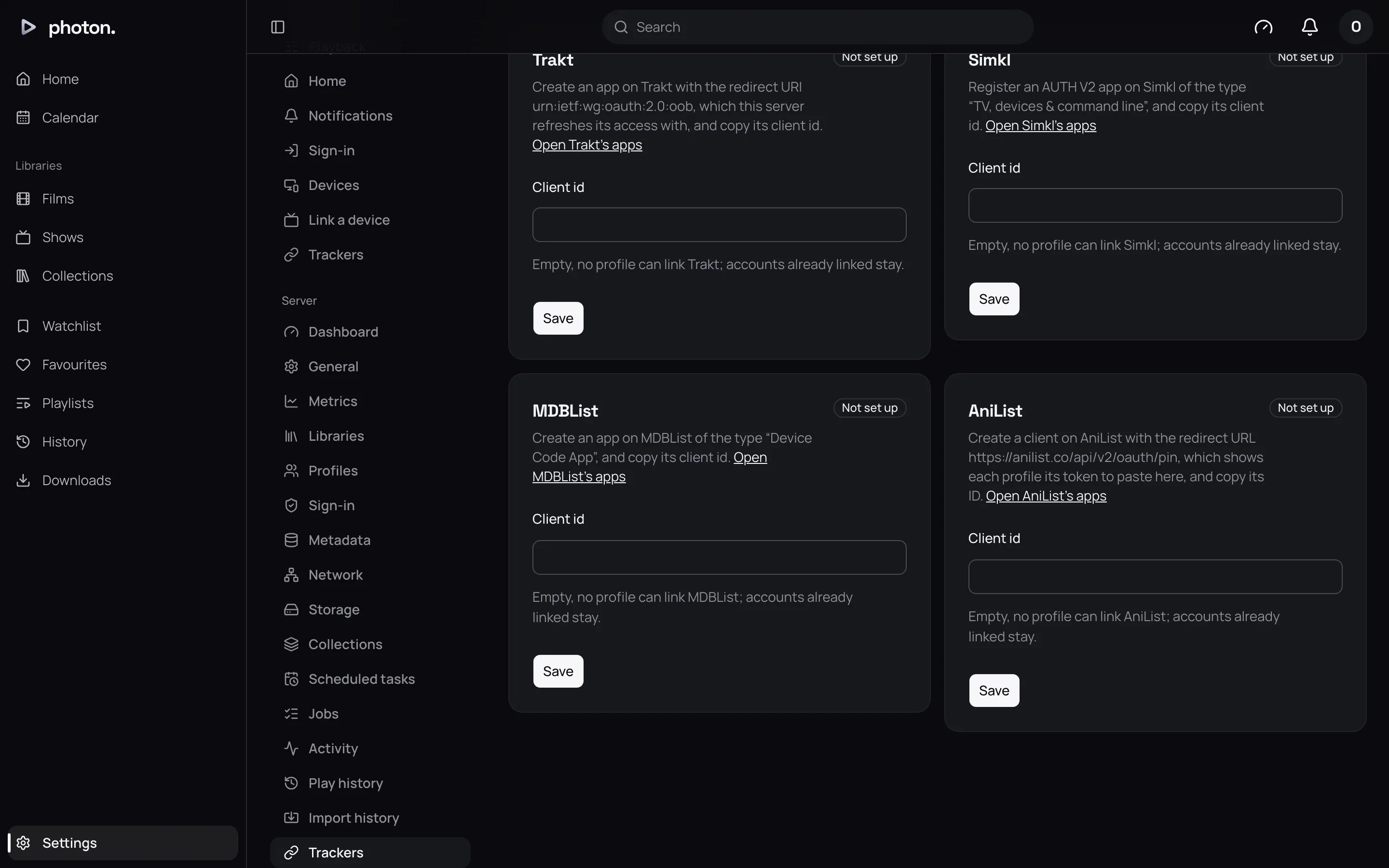
- Open Settings › Server › Trackers.
- Follow the link on the tracker’s card, and register an app there as the table below says.
- Copy the app’s client id.
- Paste it into Client id on the card, and choose Save. The card then says Set up.
| Tracker | What to register |
|---|---|
| Trakt | A new app at Trakt’s apps page. For the redirect URI, type urn:ietf:wg:oauth:2.0:oob. |
| Simkl | An AUTH V2 app at Simkl’s developer settings, of the type “TV, devices & command line”. |
| MDBList | An app at MDBList’s developer page, of the type “Device Code App”. |
| AniList | A client at AniList’s developer settings. For the redirect URL, type https://anilist.co/api/v2/oauth/pin. Copy its ID. |
You don’t need a client secret for any of them.
Note: MDBList as a tracker is separate from MDBList under Settings › Server › Metadata. That one uses an API key for ratings and lists. This one uses an app’s client id to link people’s accounts.
Link your account
Each person links their own account under Settings › Trackers. If no admin has set the tracker up yet, the page says so.
Trakt, Simkl and MDBList
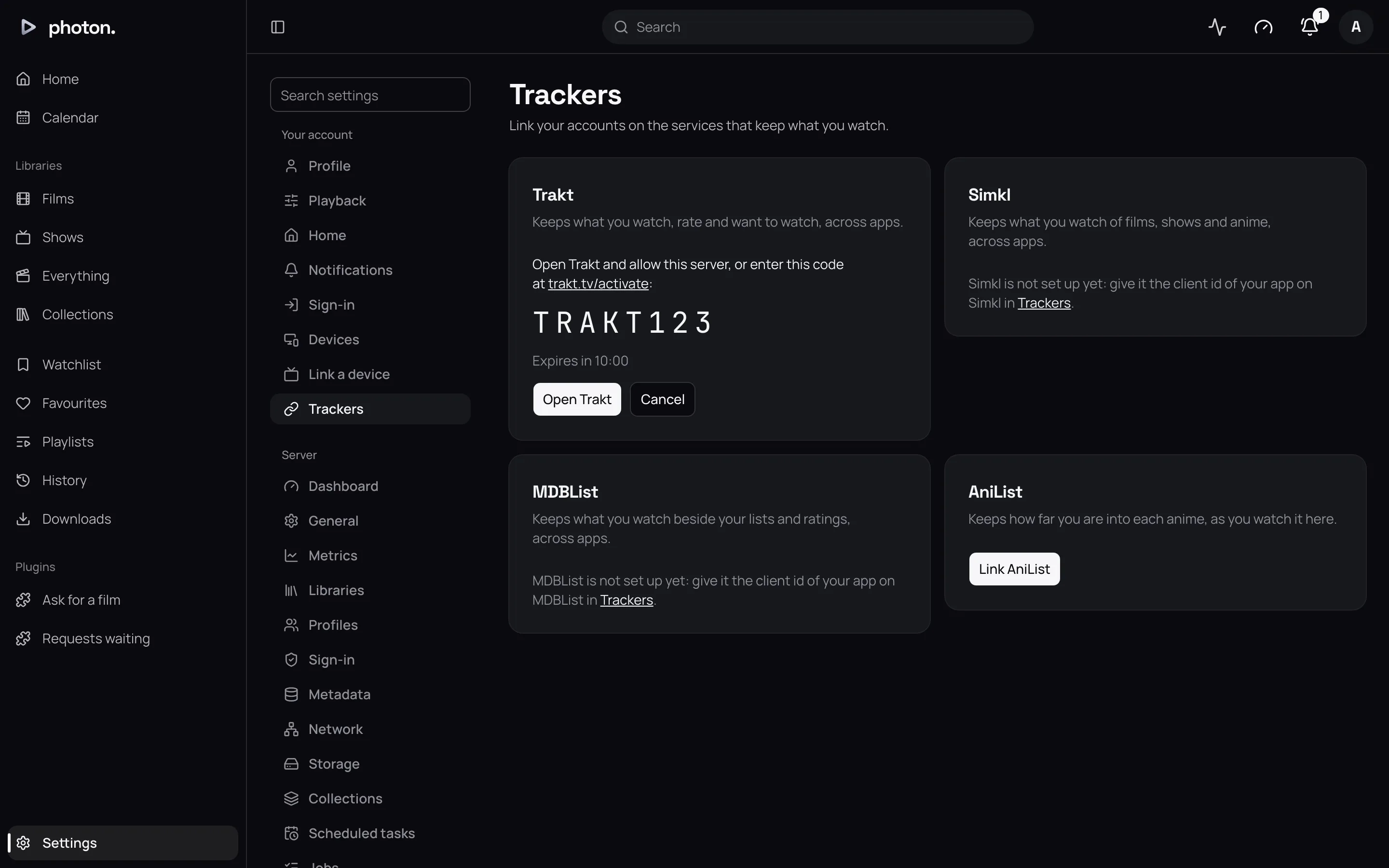
- Choose Link Trakt, Link Simkl or Link MDBList.
- The card shows a code. Choose Open Trakt (or the tracker’s name) to open the tracker’s page with the code filled in. Or go there yourself and type the code.
- Sign in to the tracker and allow photon-server.
- Back in photon-server, the card changes to Linked as and your name on the tracker.
Cancel stops linking. If the code runs out, the card offers to try again.
AniList
AniList works a little differently: it gives you a code to paste back.
- Choose Link AniList, then Open AniList.
- Sign in to AniList and allow photon-server.
- AniList shows a long token. Copy it.
- Paste it into the card and choose Link.
You have 15 minutes to paste it. AniList’s link lasts a year. After that, it is unlinked and you link it again.
Unlink
Choose Unlink and confirm. The server forgets your account. What the tracker has already recorded stays there.
For AniList, also remove photon-server from your AniList account’s settings.
What the server sends
- Plays. When you start, pause, resume or stop a title, each linked tracker is told how far through you are. Trakt, Simkl and MDBList count a title as watched from 80% of the way through. If photon-server counts it watched sooner, for example when a film’s credits start early, the tracker is told it was watched.
- Watched marks. Marking a title watched or unwatched by hand is sent too, about two minutes later.
- AniList only keeps how far through each show you are. It is moved forward to the furthest episode you’ve watched, but never back.
Titles are matched by their TMDB, TheTVDB and IMDb ids, the codes those sites give each title. A title the server knows by none of them isn’t sent.
Good to know
- Only what you watch after linking is sent. Earlier history stays where it is.
- To stop everyone using a tracker, an admin empties its Client id and saves. Linked accounts stay linked but are sent nothing until a client id is set again.
- If a tracker stops accepting the server, for example because you removed the app on the tracker’s site, the account is unlinked and the Trackers page offers to link it again.
- A profile can link one account on each tracker.