A subscription can carry thousands of channels in whatever order your provider publishes them, so the guide always shows the provider’s own groupings alongside the schedule. How that is laid out depends on how much room the screen has.
Apple TV and Mac
Categories run down the left, with the schedule beside them: channels in rows, programmes across the columns.
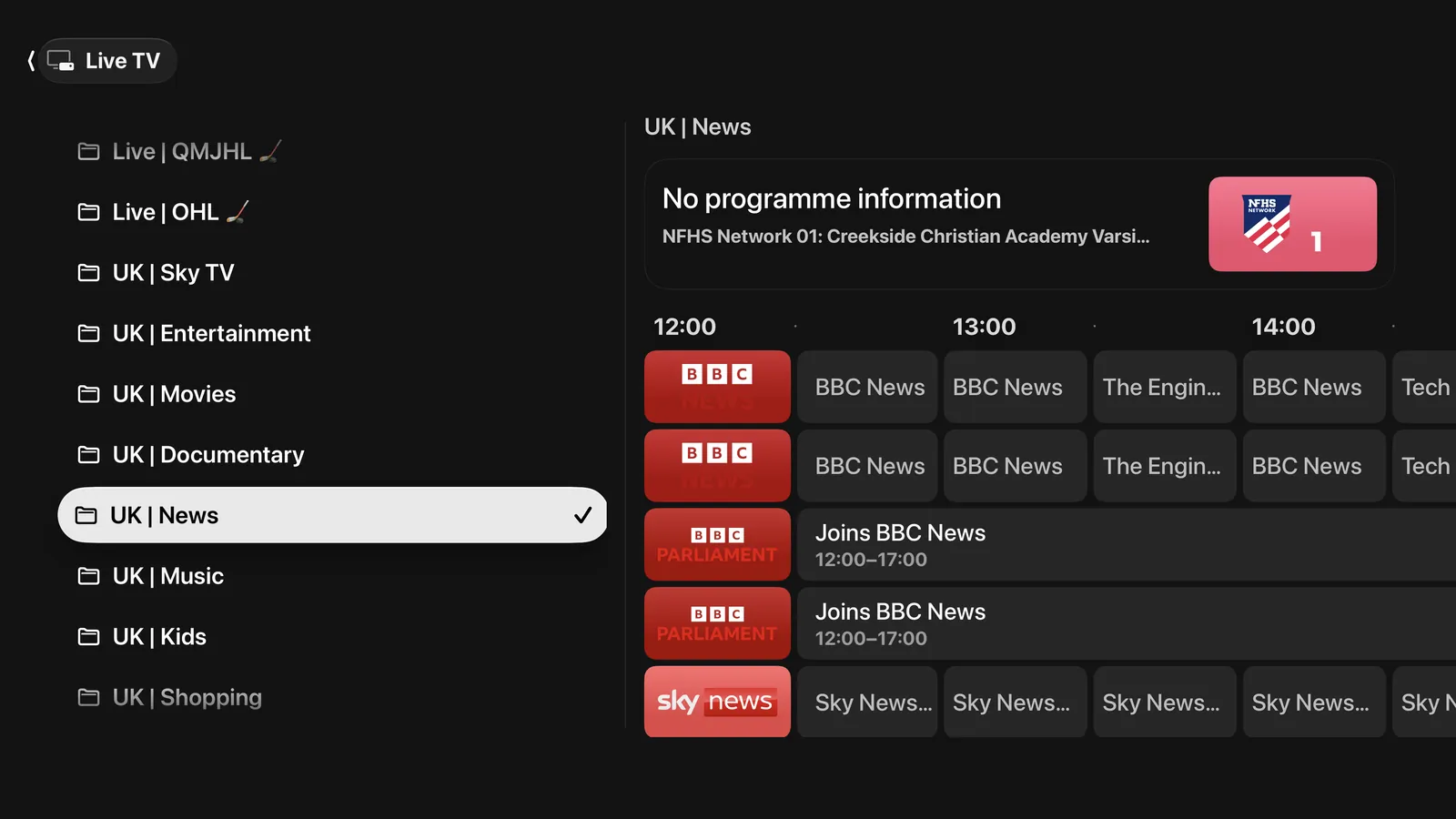
On Apple TV the category column folds away when focus moves into the grid, so all four directions on the remote stay inside the schedule once you are in it:
- Back brings the category column out again.
- Back a second time leaves the tab.
On a Mac the column stays where it is, because a pointer moving across the window should not make it rearrange itself.
iPhone
There is only room for one column, so the tab opens on a starting point rather than on the grid:
- Your favourite channels, as a row.
- The groupings as a list, each showing what is on the first channel in it.
Selecting a grouping opens the guide already filtered to it.
Playing a channel
Selecting a programme that is on now starts the channel. Selecting one later in the schedule shows what it is rather than recording it — photon plays live television and does not record.
The buffer
Settings ▸ Playback ▸ Live TV sets how much of a channel is held before playback starts: 4, 8, 12, 16 or 20 seconds.
| A shorter buffer | The picture starts sooner and you stay closer to live. A channel that stutters is more likely to stop. |
| A longer buffer | You wait longer to start and sit further behind live, and a channel that drops out for a moment keeps playing. |
Films and episodes are not affected by this setting; it applies to live channels only.
When the guide looks wrong
The channel list and the guide are copies of what your provider publishes, kept for a while. If a channel has moved or a programme is wrong, clear the caches in Settings ▸ Live TV and they are fetched again next time you open the guide.