Photon plays the audio and subtitle tracks the file already has. Nothing is dubbed, translated or downloaded from a subtitle service, so a file with one audio track plays that track whatever you have set.
Setting the languages you want
These three settings decide which track a title opens on. They apply to every title, on every source.
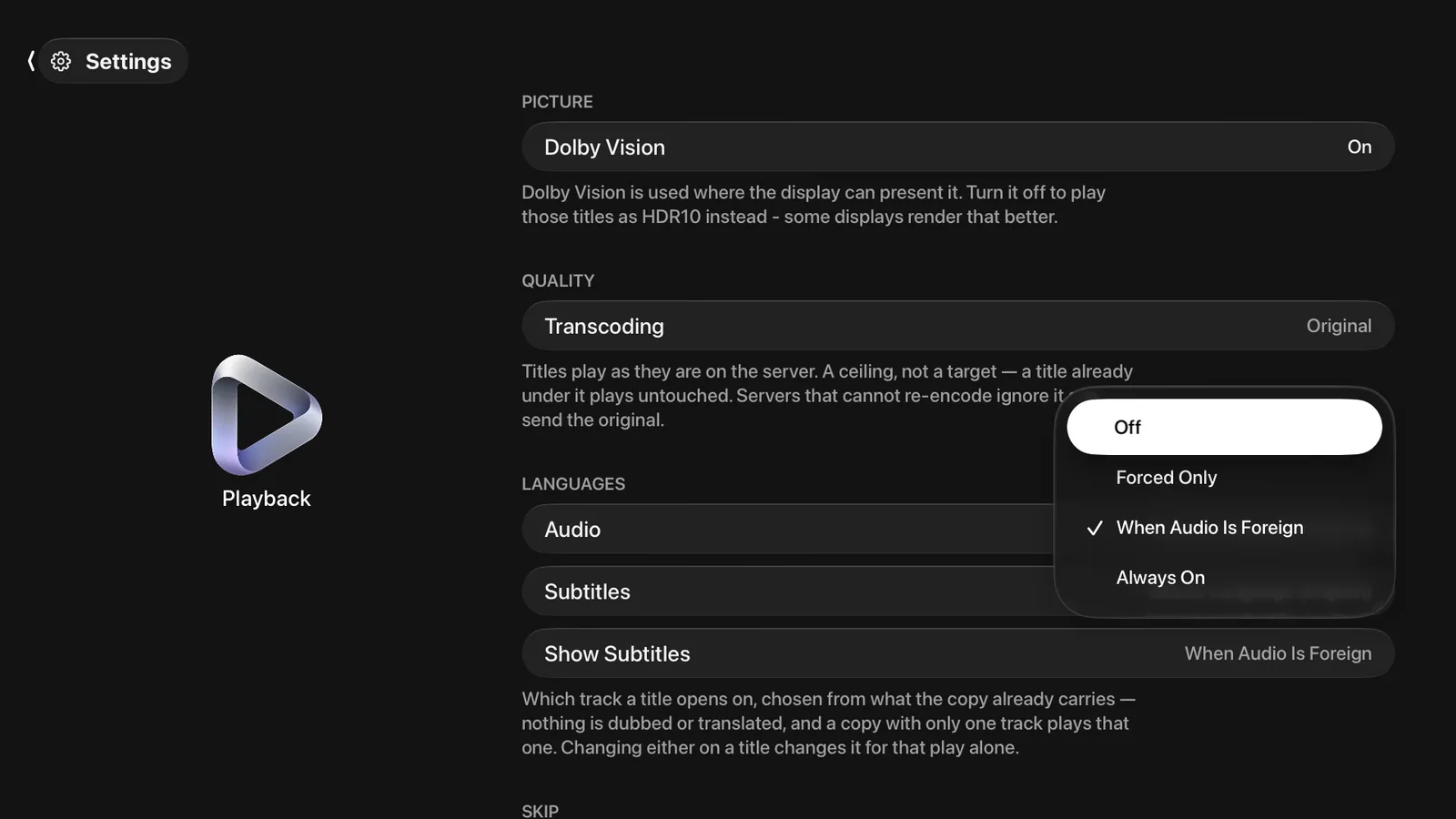
- Open Settings ▸ Playback.
- Under Languages, set Audio to the language you want to hear.
- Set Subtitles to the language you want to read.
- Set Show Subtitles to decide when a subtitle track comes on at all.
Both languages default to your device’s own language, so there is usually nothing to change.
Show Subtitles has four settings:
| Off | No subtitle track is chosen for you. You can still turn one on for a title. |
| Forced Only | Only a forced track: the signs, and the one scene in another language that the film expects you to read. |
| When Audio Is Foreign | A full track when the audio is not in your subtitle language, and nothing when it is. This is the default. |
| Always On | A full track wherever the file has one. |
A forced track is never chosen for you unless you pick Forced Only. The exception is a film in another language whose copy carries no full track: photon uses the forced track rather than showing nothing.
Choosing a track before you play
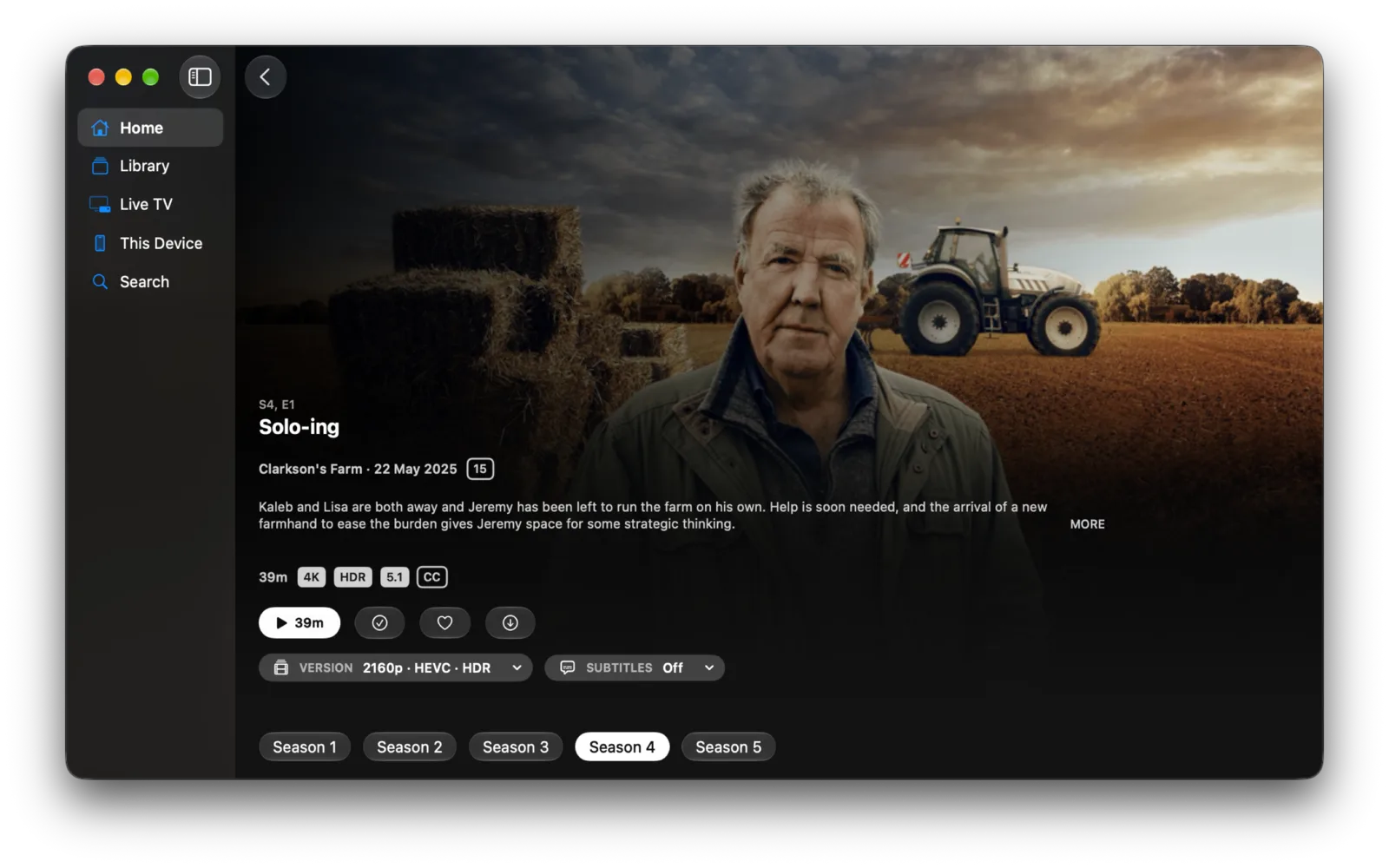
The title page carries up to three capsules under the Play button. Each opens a menu.
- Version appears when the title has more than one file. It names the resolution, codec and dynamic range of the one you are about to play.
- Audio appears when the file has more than one audio track. It names the language, codec and channel count.
- Subtitles appears whenever the file has any subtitle track, and it starts on whatever your Show Subtitles setting worked out. Off is the first item in the menu.
![The Subtitles menu open on an iPhone title page, listing Off — ticked — then English [CC] SUBRIP and Spanish [CC] DVDSUB.](/shots/iphone-subtitles-menu.webp)
Changing a capsule changes what happens when you press Play. It does not change your standing preference.
Changing a track during playback
| iPhone, iPad | Tap the screen to bring up the controls, then tap the speech-bubble button and pick an audio or subtitle track. |
| Apple TV | Swipe down on the remote for the information panel, then open the Subtitles or Audio tab. |
| Mac | Use the subtitle button in the player controls, or the Subtitles and Audio menus in the menu bar. |
What you pick in the player lasts for the rest of that title, and it carries into the next episode when one auto-advances. Photon matches the track by language rather than by position, so the next episode’s own tracks are what it chooses from. It does not become your standing preference, which stays as you set it in Settings.
How languages are matched
The same language is spelled differently in different places: a file says ger, a server says de, a download says deu, a live stream says de-DE. Photon folds all four together, so a preference for German finds the track whichever spelling it carries. A track with no language at all is not treated as a language of its own.
Subtitle formats
| Text | SubRip (.srt), WebVTT and ASS/SSA, including its styling. |
| Image | PGS (Blu-ray) and VobSub (DVD). |
Both kinds are drawn over the picture rather than burned into it, so they stay sharp on a 4K file, and you can turn them off part way through a scene. This is also what keeps Dolby Vision intact on a title with subtitles on.
Subtitles on a download
A download brings its subtitle tracks with it, so an offline title has the same tracks as the one on the server. They are fetched alongside the video rather than before it, so a title with a large number of tracks starts transferring straight away.
The Audio and Subtitles menus on a Mac
The two menus list different things, which is why they are separate:
- Subtitles is the set of tracks in the stream that is playing, the same set the player’s own controls offer. It is there so you can reach them from the keyboard.
- Audio is the set of tracks in the file, which is usually longer. Choosing one reopens the title at the point you had reached, because the file has to be opened again to bring that track through.