A download is a copy of the file on the device, with its audio tracks and subtitles. It appears in This Device and plays with no network connection at all.
Downloading a title
- Open the title’s page.
- Press the download button next to Play.
- Pick a version, if the title has more than one, and a quality.
- The transfer starts, and the button becomes a progress ring.
Pressing the ring while a transfer is running offers to pause or cancel it.
What the quality preset does
Original takes the file as it stands. Every step below it is re-encoded by your server as it sends:
| Original | The file as it is on the server. |
| 20, 10, 5, 2 and 1 Mbps | Re-encoded to about that bitrate. |
Three things follow from that:
- The picture keeps its size. What a lower preset costs is the HDR grade and the surround track, not the resolution.
- A copy already below the preset is downloaded as it is, rather than being re-encoded upwards into a bigger, worse file.
- A re-encoded transfer cannot be resumed. The server encodes as it sends, so a paused transfer starts again. Silo is the exception: it prepares the file first, so its transfers pause and resume like any other.
Settings ▸ Downloads ▸ Quality sets the default. The sheet on a title can still choose something else for that one download.
The preset is offered only where your server allows both downloading and transcoding. A drive has no encoder, so a drive offers Original alone.
Waiting on Wi-Fi
Settings ▸ Downloads ▸ Wi-Fi Only makes transfers wait for an unmetered network. A personal hotspot counts as metered even though it is Wi-Fi.
Watching a transfer
On iPhone, a Live Activity on the Lock Screen shows what is arriving and how far along it is, and the transfer continues while the app is closed. A download that is being re-encoded reports the bytes that have arrived rather than a percentage, because the server does not know the finished size yet.
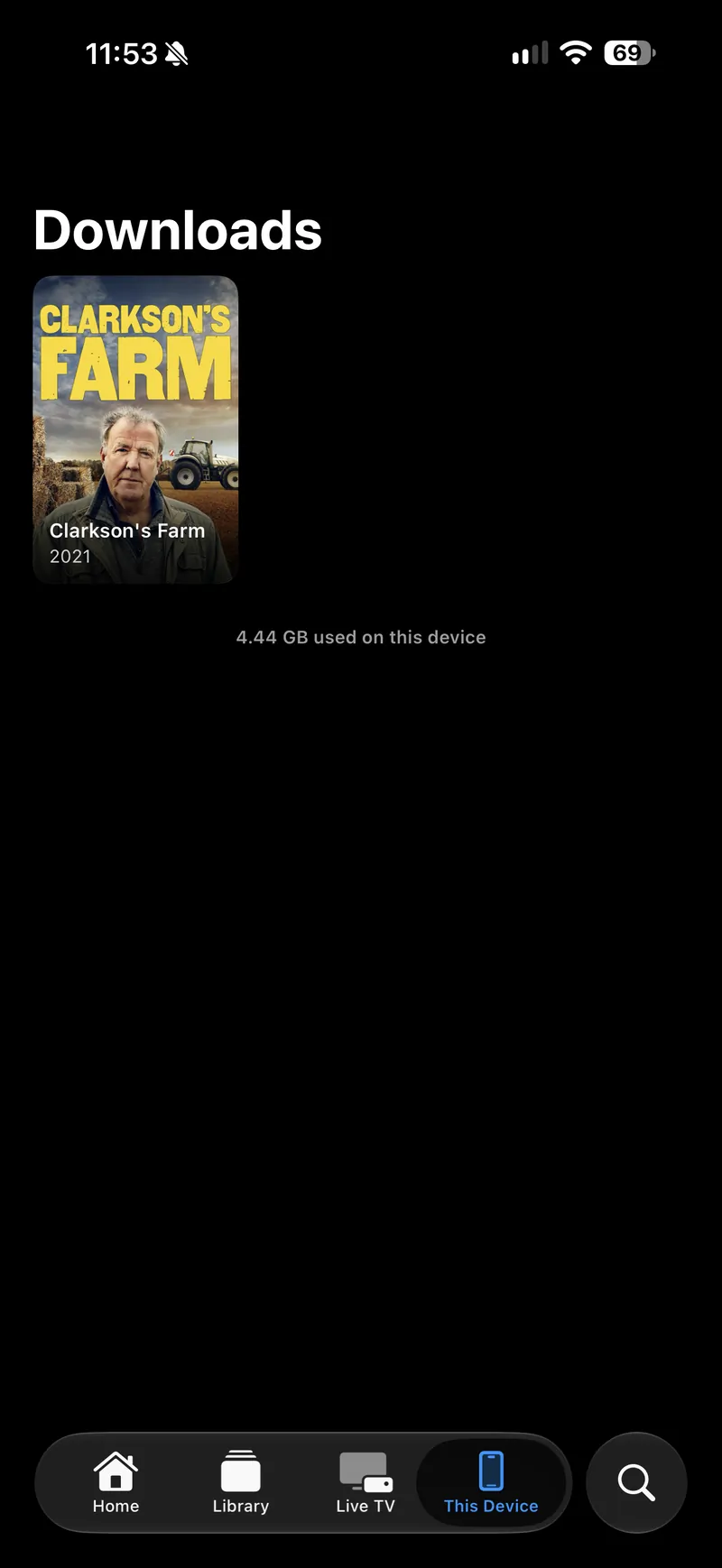
Storage
| Used | How much space downloads are taking, in Settings ▸ Downloads ▸ Storage. |
| Remove All Downloads | Deletes every download on this device. It asks first. |
| Backups | Downloads are excluded from device backups. Your server still has them. |
To remove one title rather than all of them, open it in This Device and use the download button.
Which servers allow it
Settings ▸ Downloads lists every connected server and whether it allows downloading. That is set on the server, for your account, and photon can only report it.
There are no downloads on Apple TV, which has no storage you can manage.